 AirPower
Edit Shopify Product Descriptions with Airtable Rich Text
Edit Shopify product descriptions as formatted text in Airtable. Turn on rich text for the column, and the sync converts it to and from Shopify HTML.
In Shopify, a product description is stored as HTML. The editor in the Shopify admin writes that HTML for you, with headings, bold text, lists, and links.
In a plain Airtable long text column, the description arrives as raw HTML. Editing many descriptions means working around tags, and one missing closing tag can break a product page.
AirPower converts between Shopify’s HTML and Airtable’s rich text formatting. Turn on rich text for the description column, and descriptions show as formatted text. Edit them like a document, and the sync sends them back to Shopify as HTML.
Turn on rich text in Airtable
- In Airtable, open your Products table
- Right-click the header of the description column
- Click Edit field
- Keep the field type Long text
- Switch on Enable rich text formatting
- Click Save
- Click Confirm change
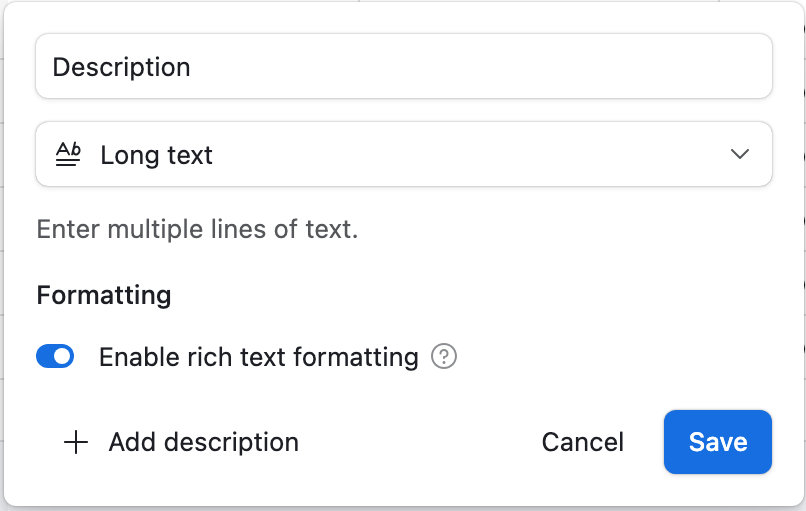
Until the sync writes them again, existing descriptions still show their HTML tags.
Save your syncs again
A sync notes each column’s type when you save it. Until then, it keeps treating the column as plain text.
- On the dashboard, click Edit on your Shopify to Airtable sync
- On the Products tab, click the Description row
- Click Refresh at the bottom of the dialog
- Under Or use another column, click the description column marked Current
- Click Save in the save bar
Repeat these steps on your Airtable to Shopify sync, which says Comes from instead of Syncs to.
If the description isn’t in a sync yet, turn on rich text first, then add the field. See Sync Page Overview: Map Shopify Fields to Airtable Columns.
Format the existing descriptions
Each description is written again as formatted text the next time its product changes in Shopify. To update them all now, download Products before your next Airtable to Shopify run.
- On the Shopify to Airtable sync’s page, click Settings
- Find Download data
- Click Download next to Products
What converts
Formatting that carries over
Bold, italics, lists, and links. Airtable shows them as formatted text, and Shopify receives them as HTML.
Formatting that doesn’t
Tables, embedded videos, and inline styles. Rich text can’t hold them, so they drop out of the Airtable copy, and out of Shopify once the description is sent back. Keep descriptions that use them in a plain long text column, as HTML.
Other HTML fields convert the same way, such as collection descriptions and the body of pages and blog posts. Rich text metafields convert too.
What you’ll see after saving
After the download, the description column shows formatted text instead of HTML tags. After the next Airtable to Shopify run, the product pages in Shopify show the same formatting.
Related pages
Still stuck?
Email the team and tell us which store and which Airtable base you're working with.