 AirPower
Set Up Shopify B2B Companies and Locations in Airtable: Fields and Steps
How to set up Shopify B2B companies and company locations in Airtable: review contacts, addresses, and spend for each account, and update names and notes.
In Shopify B2B, wholesale buyers belong to companies. Each company has one or more locations, each with its own addresses, catalogs, and payment terms.
Reviewing accounts one company at a time in the Shopify admin is slow. Checking contacts, spend, or notes across all your wholesale customers means opening every company.
AirPower brings companies and their locations into two linked Airtable tables. Review every account in one grid, and update names, notes, and IDs in bulk.
Your store needs Shopify’s B2B features.
For a summary of every field and what goes back to Shopify, see Bulk edit Shopify B2B companies with Airtable.
Bring companies into Airtable
- On the dashboard, click Edit on your Shopify to Airtable sync
- Click Add data, then Companies
- Click Create a Companies table, or pick one of your tables from Use a table
- Repeat steps 2 and 3 for Company locations, with its own table
- Click Save in the save bar
- In Save changes, keep Companies and Company locations ticked and click Save changes
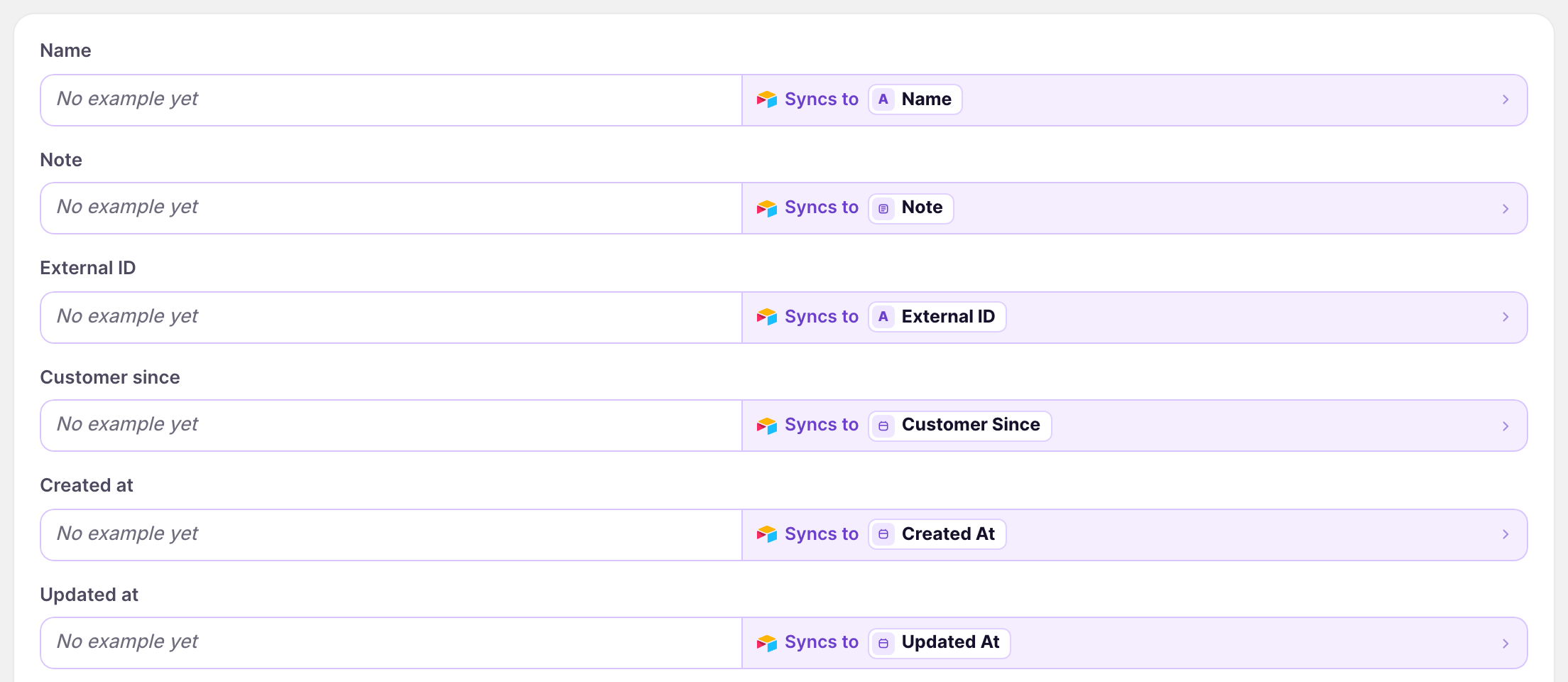
New tables come with the company and location fields. Each location links to its company’s row in a Company column, and each company to its locations in a Company Locations column.
After that, new companies and changes made in Shopify arrive on their own. To load them again, click Settings, find Download data, and click Download next to Companies or Company Locations.
What comes into Airtable
Companies
Name, external ID, note, customer since, total spent and its currency, the number of orders, locations, and contacts, the main contact’s name and email, and the created and updated dates.

Company Locations
Name, external ID, note, locale, phone, currency, the company’s Shopify ID, billing and shipping addresses, tax exemption, the number of orders, total spent, and the created and updated dates.

To bring in more, such as a location’s payment terms or tax registration ID, click Whole company location on the Company locations tab, then click Sync to Airtable under each field you want.
Update companies from Airtable
- On the dashboard, click Edit on your Airtable to Shopify sync
- Click Add data, then Companies
- Pick your Companies table from Use a table
- Click Whole company
- Under each field you want to send, such as Note, click Send from Airtable and pick its column
- Click Save in the save bar
Edit the rows in Airtable, then click Sync now. Add Company locations the same way to send location changes.
What you can send
For companies, the name, note, and external ID. For locations, the name, note, external ID, locale, and phone. Addresses, tax settings, and payment terms come into Airtable only.
Rows without a Shopify ID
A row without a Shopify ID becomes a new company or location, and AirPower writes the new ID back. A new location needs a link to its company’s row, and that row needs a Shopify ID.
What you’ll see after the run
The company in the Shopify admin shows your edits, such as the new note.
Related pages
Still stuck?
Email the team and tell us which store and which Airtable base you're working with.