 AirPower
Set Up Shopify Customers in Airtable: Download, Update, and Create
How to set up Shopify customers in Airtable: download customer records, update existing profiles, and create new Shopify customers from Airtable rows.
In Shopify, each customer record holds contact details, a default address, marketing consent, tags, a note, and a summary of their orders.
Working with that list in the Shopify admin means opening each customer to change a tag, add a note, or fix a phone number. Reviewing customers side by side is slow too.
AirPower brings your Shopify customers into Airtable. Download them into a table, edit profiles in bulk, and send the changes back to Shopify. New rows can become new Shopify customers.
For a summary of every field and what goes back to Shopify, see Bulk edit Shopify customers with Airtable.
What customers contain
The Customers tab is laid out like a customer page in the Shopify admin, with one of your recently updated customers as the example.
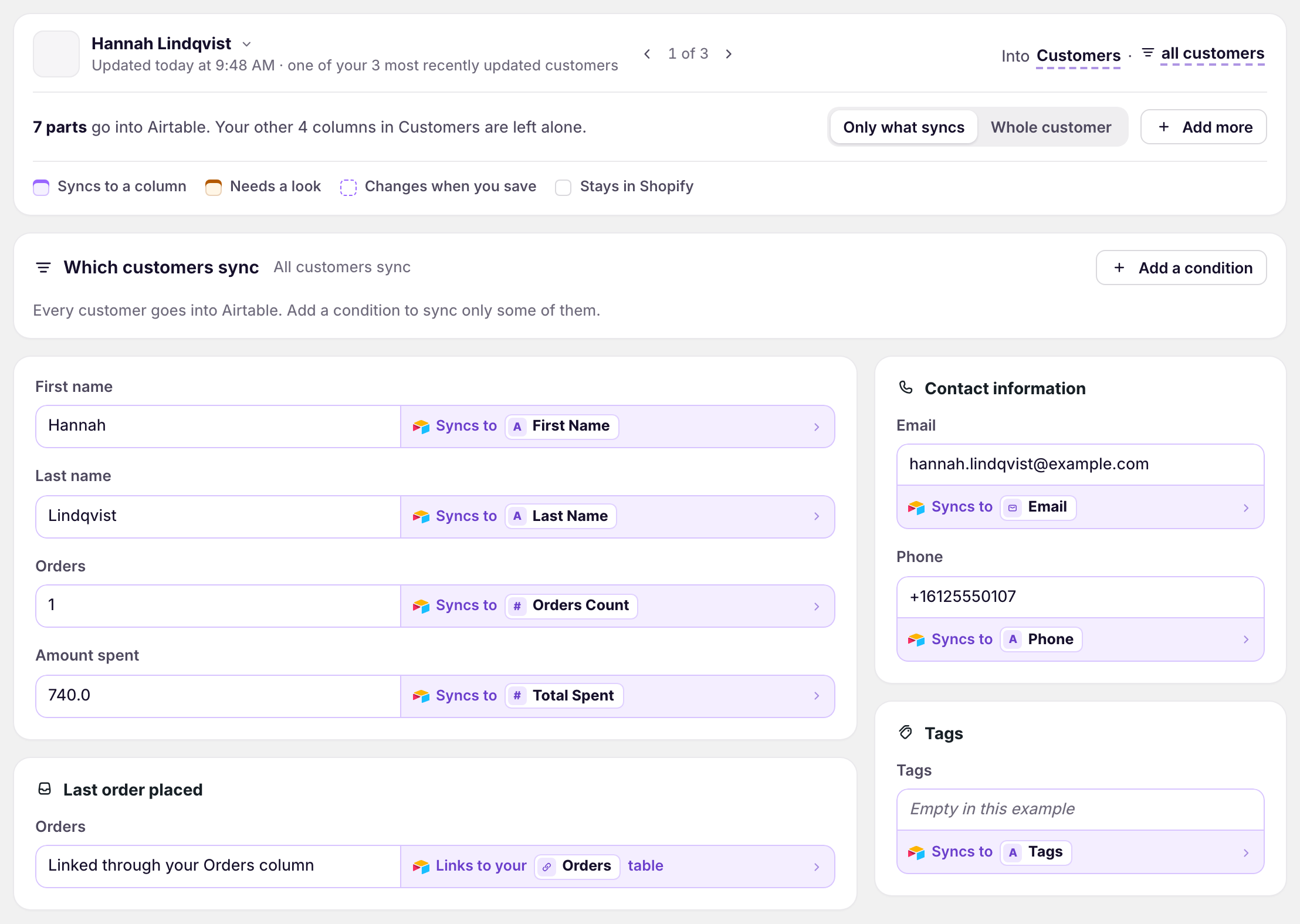
Name and orders
First name, last name, the date they became a customer, number of orders, and amount spent.
Last order placed
Their latest order, and a link to your Orders table.
Contact information and Default address
Email, phone, and their main address.
Marketing and Tax details
Email and SMS marketing consent, and any tax exemptions.
Notes, Tags, and Metafields
The customer note, their tags, and your custom customer fields.
Behind the scenes
The Shopify ID and the last update.
Bring customers into Airtable
- On the dashboard, click Edit on your Shopify to Airtable sync
- Click Add data, then Customers
- Click Create a Customers table, or pick one of your tables from Use a table
- Click Save in the save bar
- In Save changes, keep Customers ticked and click Save changes
New tables come with the recommended fields. To add more, click Whole customer, then click Sync to Airtable under each field you want.
If Orders is in the same sync, the Orders column links each customer to their order rows. To download customers again, click Settings, find Download data, and click Download next to Customers.
Update or create customers from Airtable
- On the dashboard, click Edit on your Airtable to Shopify sync
- Click Add data, then Customers
- Pick your Customers table from Use a table
- Click Send from Airtable on the fields you want to send
- Click Save in the save bar
- Edit the rows in Airtable
- Click Sync now
Airtable can send email, first name, last name, phone, tags, and note. The other fields come from Shopify and can’t be changed from Airtable.
A row with a Shopify ID updates that customer. A row without one becomes a new customer, and the sync writes the new Shopify ID back to the row. Send Email or Phone too, so each new customer can be reached. Shopify turns down a new customer whose email or phone another customer already uses, and the row shows on the sync’s Errors tab.
What you’ll see after syncing
After the download, every customer has a row in the Customers table, with its Shopify ID. After an Airtable to Shopify run, your edits show on each customer in the Shopify admin, and new customers appear in the customer list.
Related pages
Still stuck?
Email the team and tell us which store and which Airtable base you're working with.