 AirPower
Shopify to Airtable Sync Frequency: Real-Time or Scheduled
Choose how often Shopify changes reach Airtable: in real time, every 1, 5, or 10 minutes, every 1 to 24 hours, or once a day at a time you pick.
Shopify tells apps when products, orders, customers, and stock change. A Shopify to Airtable sync uses those notices to keep your Airtable base current.
Copying each change the moment it happens suits most stores. Busy stores, or bases with automations that run on every update, can prefer to collect changes and copy them together.
The sync’s schedule sets that pace: real time, every few minutes or hours, or once a day.
Open the schedule
- On the dashboard, click Edit on the Shopify to Airtable sync
- Click Settings
- Find When it syncs
Choose the frequency
Real-time
Changes in Shopify usually reach Airtable within a minute or two. This is the default.
Every few minutes or hours
Changes are collected and copied together. Pick an interval after Every: 1, 5, or 10 minutes, or 1 to 24 hours.
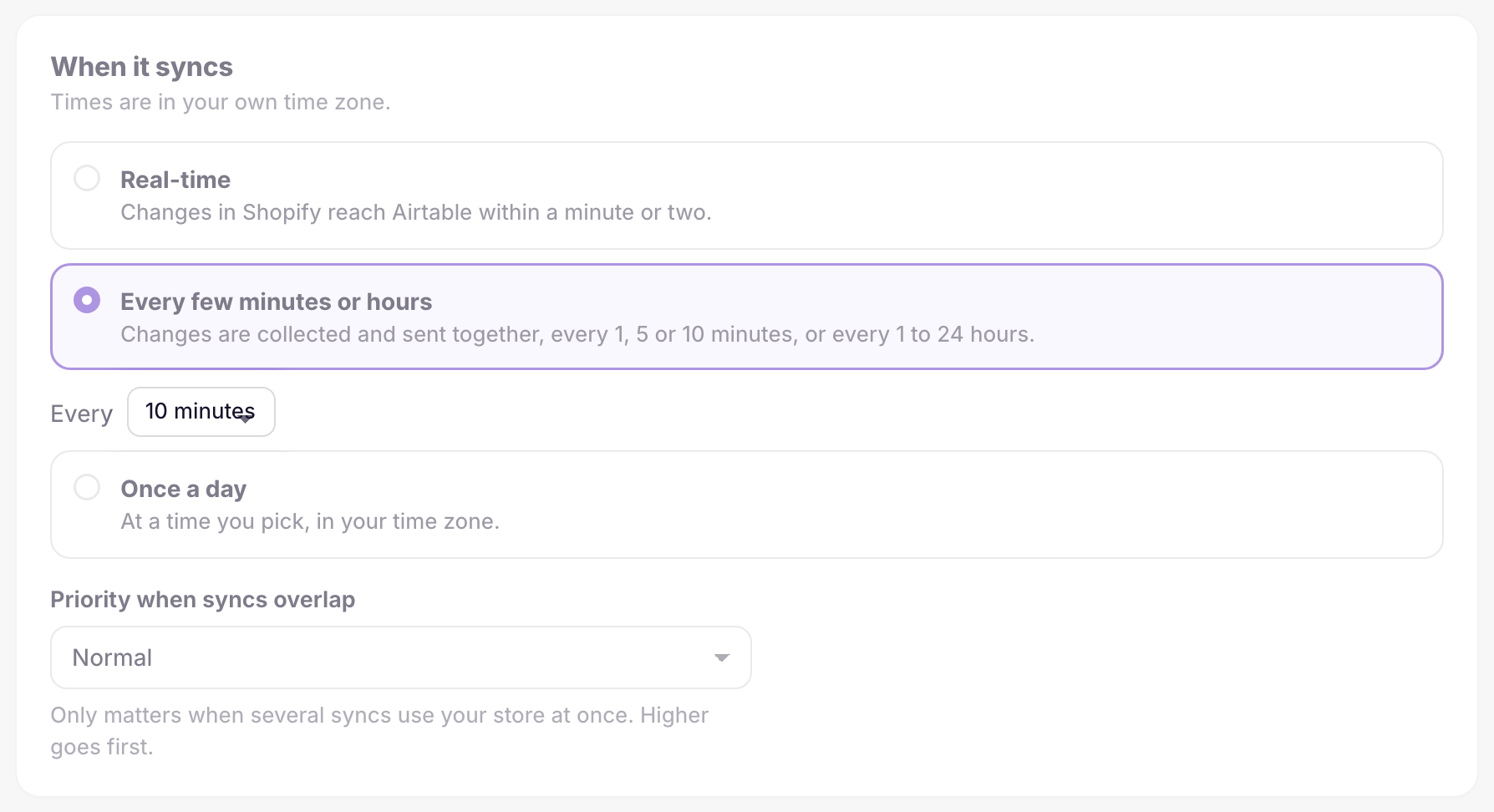
Once a day
Changes are collected all day and copied at a time you pick after At, in your time zone.
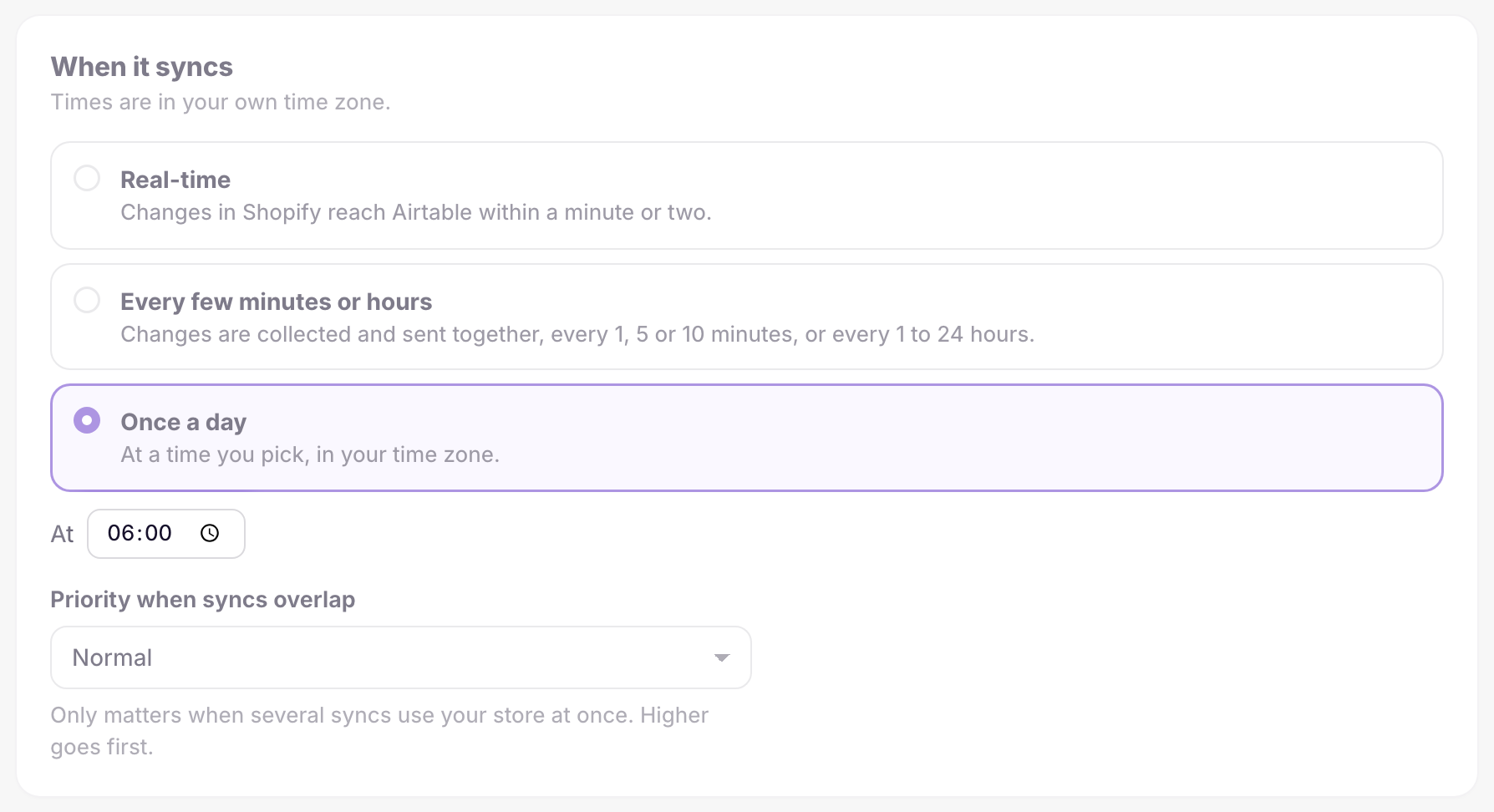
Changes made in Shopify while the sync waits are kept, so nothing is lost between runs.
After picking a schedule, click Save in Shopify’s save bar.
Set the priority
Priority when syncs overlap decides which sync goes first when several syncs use your store at once. Pick High for a sync that should run ahead of the others, or keep Normal.
What you’ll see after saving
The dashboard sync card shows the schedule next to the base name, such as Real-time or Every 10 minutes.
A real-time sync shows Up to date with the time of the last change. A scheduled sync shows Scheduled while changes are collected, with the time of the next run. Click Run now on the card to copy them early.
Related pages
Still stuck?
Email the team and tell us which store and which Airtable base you're working with.