 AirPower
Shopify Airtable Sync Errors: Find, Fix, and Retry
Find and fix Shopify Airtable sync errors. See which record failed and why, fix the cause in Airtable or Shopify, and retry. Covers paused and stopped syncs.
A sync works with two systems that have their own rules. Shopify rejects updates that leave out a required value or point to a record that no longer exists. Airtable rejects values that don’t fit a column’s type.
When a record fails, the rest of the sync keeps going. AirPower records an error for that record, with the reason, so you can fix it and try again.
Find errors
A sync with errors shows Needs attention on its dashboard sync card. The at a glance strip at the top of the dashboard also says how many syncs need your attention.
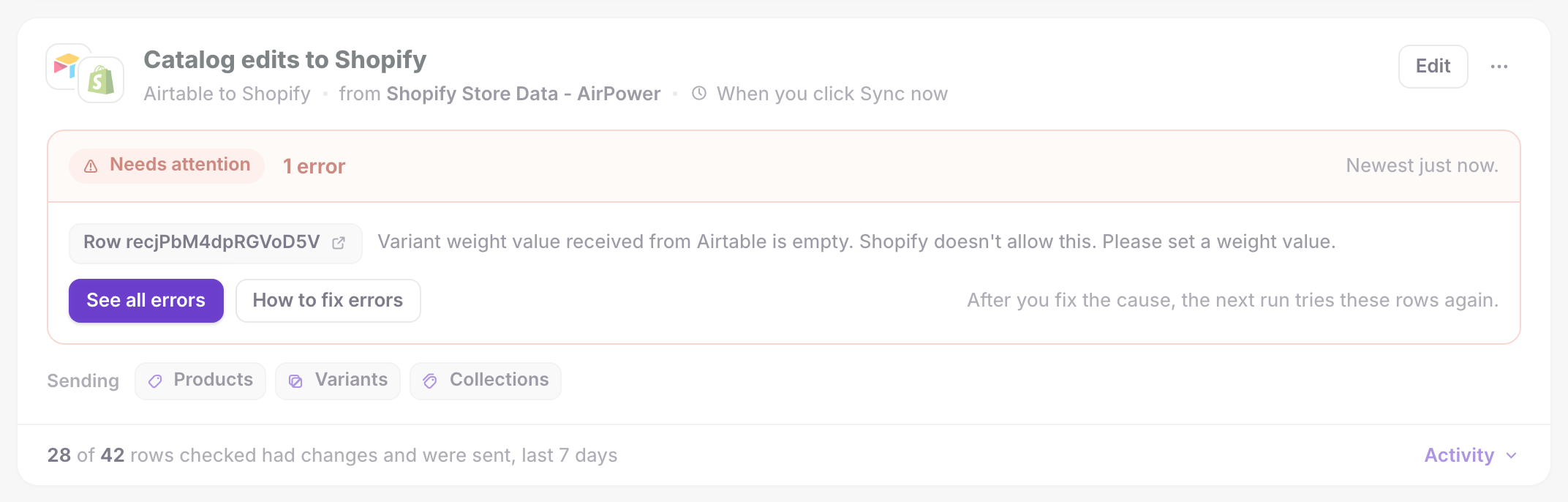
The card lists the newest errors. Each one names the record and the reason. The record links to its Airtable row, or to its page in the Shopify admin.
Click See all errors to open the sync’s Errors tab.
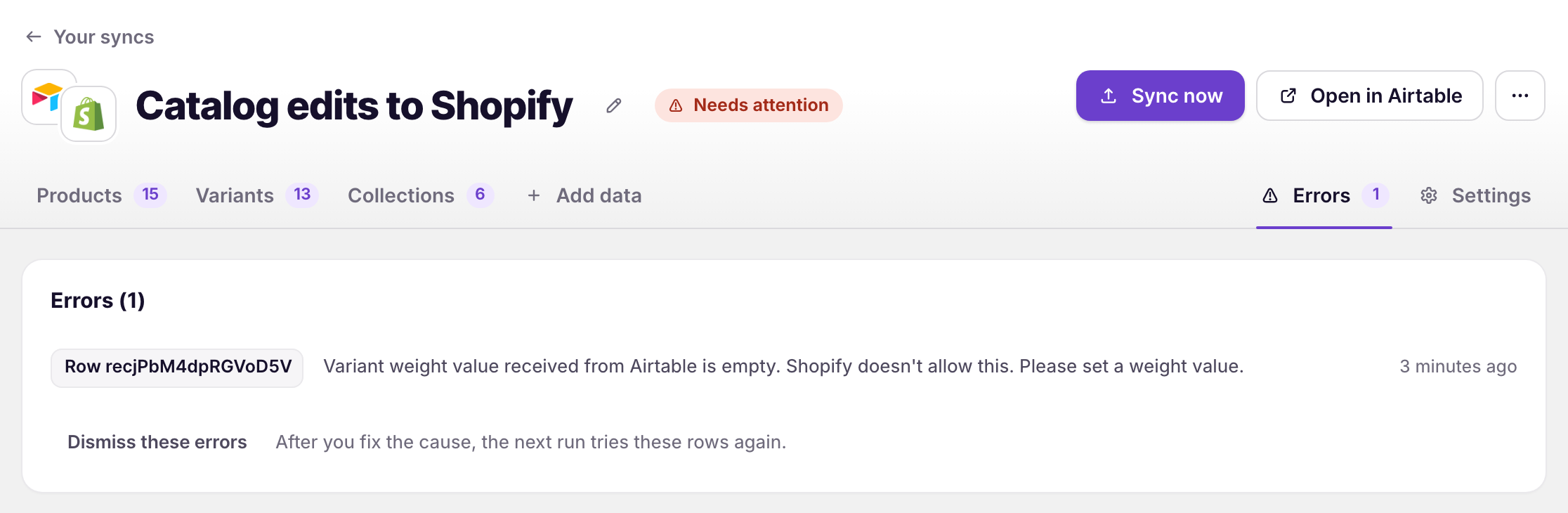
The tab lists every error with its record, its reason, and when it happened. Click Show more errors to load older ones.
Common causes
A required value is empty (Airtable to Shopify)
Shopify needs a value that the row leaves blank, such as a product title or a variant weight. Fill in the cell.
An empty cell clears a field (Airtable to Shopify)
An empty cell in a column the sync sends can clear that field in Shopify. When Shopify doesn’t allow the field to be empty, the row fails. Fill in the cell, or stop sending that column on the sync page.
The Shopify ID doesn’t match a record (Airtable to Shopify)
The row’s Shopify ID points to a record that was deleted in Shopify, or the ID was edited by hand. Clear the ID to create the record again, or paste the correct ID.
A value doesn’t fit the column (Shopify to Airtable)
An Airtable column has a different type than the Shopify value, such as text going into a number column. Change the column’s type in Airtable, or pick another column on the sync page.
The Shopify ID column is missing or changed (either direction)
A table is missing the Shopify ID column, or the column was renamed or changed type. See Set up the Shopify ID column.
AirPower can’t change the base (either direction)
The Airtable connection doesn’t allow the change. Check the token’s scopes and base access, or connect again. See Connect Airtable.
Shopify rejected the update (Airtable to Shopify)
The error message includes Shopify’s reason, such as a value Shopify doesn’t accept. Fix the value in Airtable and run the sync again.
Fix and retry
- Read the error’s reason
- Click the record link to open the row or the Shopify record
- Fix the cause
- Run the sync again
Airtable to Shopify
Click Sync now on the sync’s page. The next run tries the failed rows again.
Shopify to Airtable
AirPower retries the records the next time they change in Shopify. To retry now, download the data type again from Settings > Download data.
When a record succeeds, its error goes away on its own. To hide errors you’ve already fixed, click Dismiss these errors on the Errors tab, or open the card’s ⋯ menu and click Dismiss these errors.
When a sync stops
Most errors affect one record at a time. A few stop the whole sync, and the card shows a different status.
Stopped by a problem
AirPower paused the sync because of a problem it can’t get past, and the card shows the error message. Fix the cause, then open the sync’s page, click ⋯, and click Resume.
Can’t reach Airtable
AirPower lost access to your Airtable account. Click Reconnect Airtable on the card.
Paused by Airtable
Your Airtable workspace used all of this month’s API requests. Click Resume once Airtable allows more, or upgrade your Airtable plan.
Cancel waiting changes
To drop changes that are waiting to sync, open the sync’s Settings, find Manage, and click Cancel changes under Cancel waiting changes. This also clears the error list. See Advanced sync settings.
Related pages
Still stuck?
Email the team and tell us which store and which Airtable base you're working with.