 AirPower
Sync Shopify Product Inventory with Airtable
Track Shopify stock by location in Airtable: available, on hand, committed, incoming, and more per variant, and update available quantities from Airtable.
In Shopify, inventory is tracked per variant and per location. Each variant has its own quantities at every warehouse, store, or fulfillment location, split into types such as Available, Committed, and On hand. Even a product with no options has one variant that holds these numbers.
Updating stock in the Shopify admin means opening each variant, switching between locations, and changing one quantity at a time. For stores with several locations, regular stock counts, or end-of-month adjustments, that takes hours.
AirPower brings inventory into Airtable. Each location and quantity type becomes a column on your Variants table, so stock across the whole catalog fits in one grid. Update available quantities there and send them back to Shopify in one sync run.
Inventory types
Each column holds one type of quantity at one location.
- Available: units you can sell
- Committed: units on open orders
- Damaged: units you can’t sell
- Incoming: units on their way, such as on a transfer
- On hand: all physical units at the location
- Quality Control: units under inspection
- Reserved: units held aside, such as in carts or at the point of sale
- Safety Stock: buffer units kept aside
Shopify to Airtable syncs can copy any of them. Airtable to Shopify syncs update Available only.
Track stock by location in Airtable
Stock columns live on the Variants tab of a Shopify to Airtable sync.
- On the dashboard, click Edit on the Shopify to Airtable sync
- Click Variants, then Whole variant
- Find the Stock by location card and click + Add row
- Under Location, pick the location, such as Main warehouse
- Under Airtable column, pick a column, or type a new name and click Create column
- Under Inventory type, pick the quantity, such as Available
- Repeat steps 3 to 6 for each location and type you want
- Click Save in the save bar
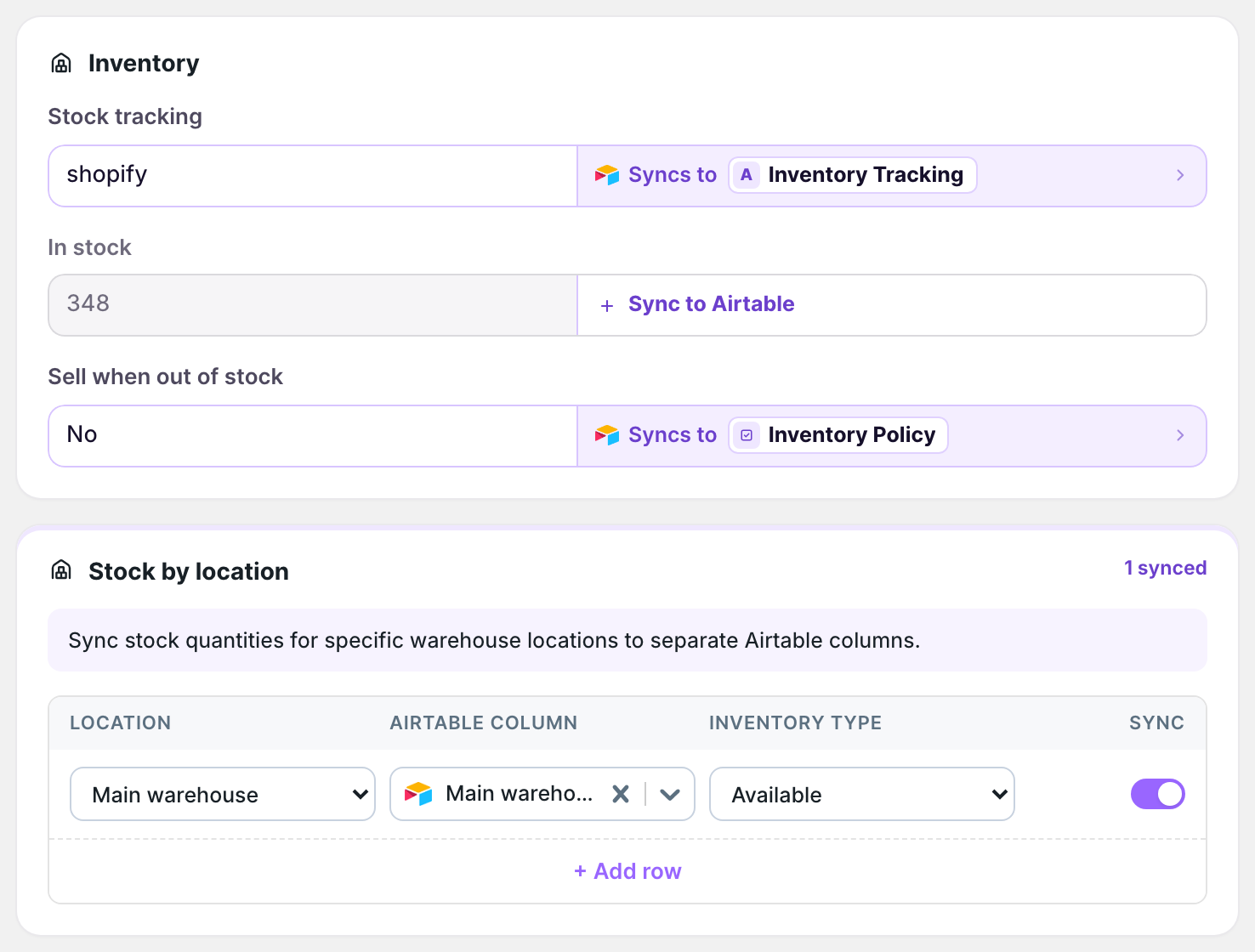
The Inventory card above it covers the variant as a whole: whether Shopify tracks its stock, the total in stock, and whether it keeps selling when out of stock.
To fill the new columns for every variant, download products again. Click Settings, find Download data, and click Download next to Products. Stock downloads with products.
Update stock from Airtable
Add the same rows to the Variants tab of your Airtable to Shopify sync, with Available as the type. See Update Shopify from Airtable to set up that sync.
- Edit the available quantities in Airtable
- Click Sync now on the sync’s page or its dashboard sync card
Each run sets the available quantity at each location from its column. An empty cell sets that location’s quantity to 0, so fill every row you send, or send only some rows with an Airtable view.
Shopify keeps quantities only for variants whose stock it tracks. For a variant that doesn’t, a quantity above 0 isn’t sent and shows as an error. Turn on tracking in the Shopify admin, or send the Stock tracking field from Airtable.
What you’ll see after saving
Each row you added becomes a column on the Variants table, filled for each variant after the download. After an Airtable to Shopify run, the new available quantities appear on each variant in the Shopify admin.
Related pages
Still stuck?
Email the team and tell us which store and which Airtable base you're working with.