 AirPower
Set Up Shopify Market Prices in Airtable: Columns and Steps
How to set up Shopify market prices in Airtable: bring each market's fixed and calculated prices into Variants columns, change fixed prices, and send them back.
In Shopify, each market can have its own catalog of prices. In a market, a variant either has a fixed price you set, or Shopify calculates its price from your base price.
Setting fixed prices one variant at a time in the Shopify admin is slow once your catalog grows. Comparing prices across markets means opening each catalog in turn.
AirPower brings each market’s prices into columns on your Variants table. Review them in one grid, change fixed prices in bulk, and send them back to Shopify.
For a summary of every field and what goes back to Shopify, see Bulk edit Shopify market prices with Airtable.
Before you start
- Market prices need AirPower Plus. On other plans, the Market prices card shows Upgrade to AirPower Plus.
- Your syncs need Variants on a table of their own. Market price columns go on the Variants table.
- Each market needs a catalog in Shopify, under Markets > Catalogs. Its prices are named after the catalog, such as France - Fixed Price.
- Catalogs of B2B markets are in the B2B catalog prices card instead. See Set Up Shopify B2B Prices in Airtable.
Prices you can sync
Fixed Price and Fixed Compare-At Price
Prices you set for the market. They sync both ways.
Relative Price and Relative Compare-At Price
Prices Shopify calculates for the market. They come into Airtable only.
In a market, a variant has either a fixed price or a relative price, so one of its two price columns is empty.
Bring market prices into Airtable
- On the dashboard, click Edit on your Shopify to Airtable sync
- Click Variants, then Whole variant
- In Market prices, click + Add market price
- Pick a price, such as France - Fixed Price
- Pick a column, or type a new column’s name and click Create column
- Repeat steps 3 to 5 for each price you want
- Click Save in the save bar
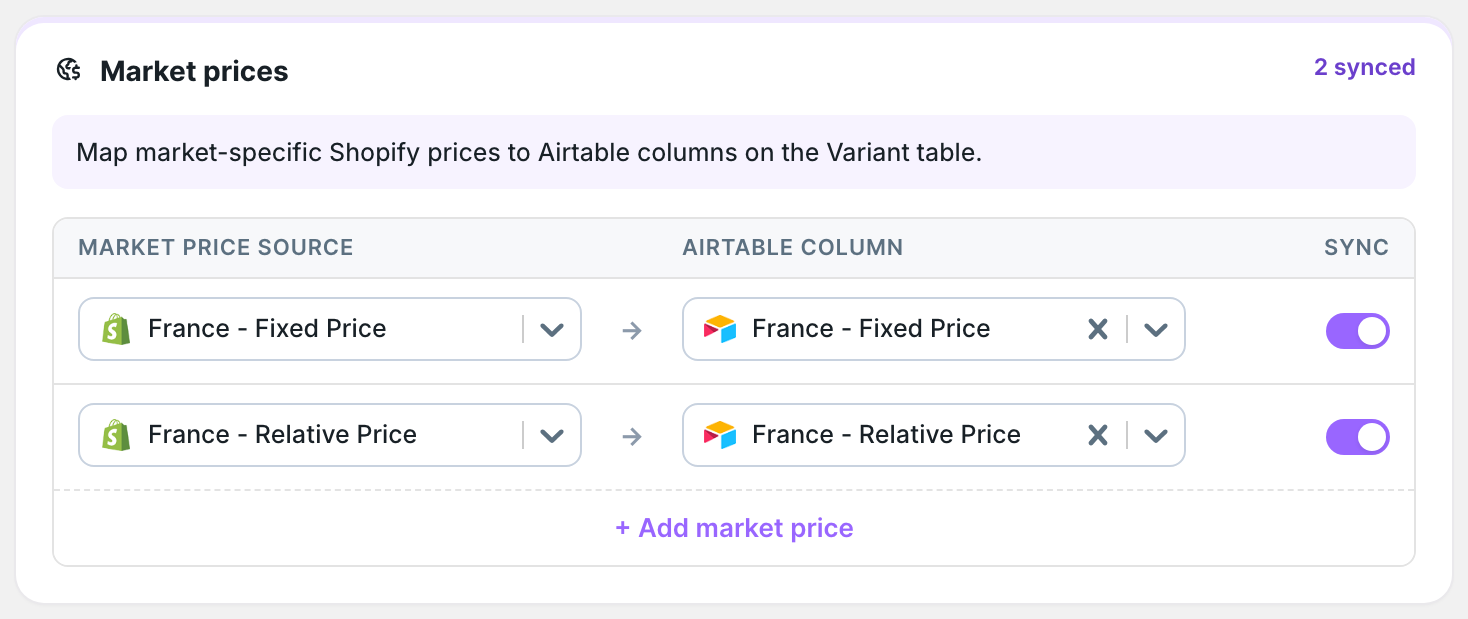
When you save, AirPower downloads the prices into the new columns.
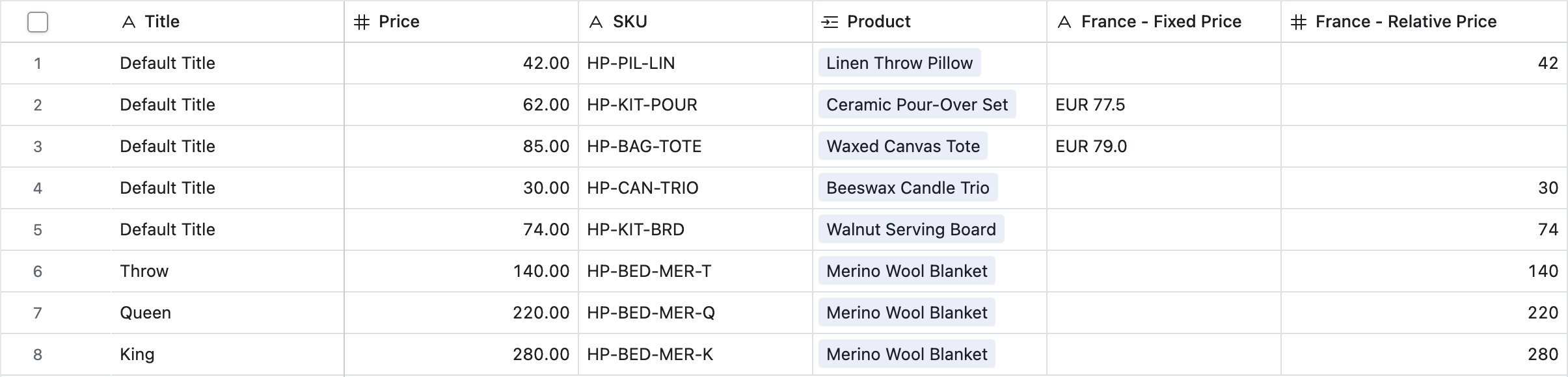
Fixed prices arrive with their currency code, such as EUR 79.0.
Shopify doesn’t tell apps when market prices change, so they don’t update on their own. To download them again, click Settings, find Download data, and click Download next to Market and B2B prices. You can also click Download now on the dashboard sync card and pick Market and B2B prices. Saving the sync downloads them too, and a Shopify to Airtable sync that runs on a schedule refreshes them on each run.
Send fixed prices to Shopify
- On the dashboard, click Edit on your Airtable to Shopify sync
- Click Variants, then Whole variant
- In Market prices, click + Add market price
- Pick the column, such as France - Fixed Price
- Pick the price it sets, such as France - Fixed Price
- Click Save in the save bar
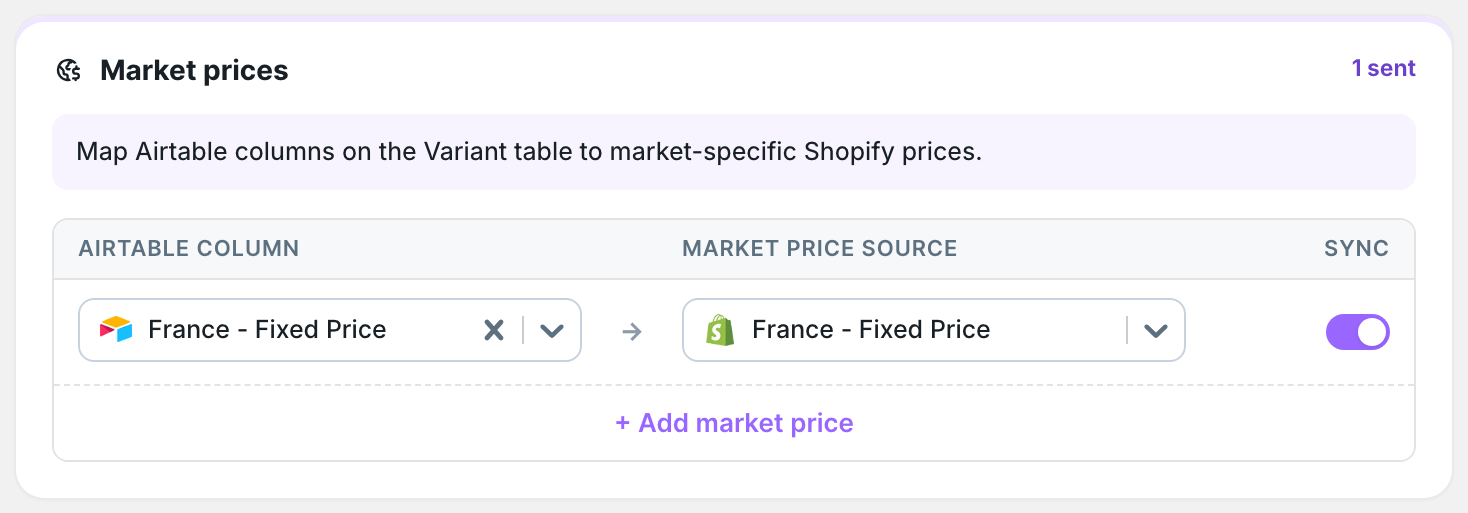
Edit the column in Airtable, then click Sync now. A plain number, such as 79.00, is read in the market’s currency. A value with its currency code, such as EUR 79.00, works too.
An empty cell removes the fixed price
When a fixed price cell is empty, the next run removes that variant’s fixed price, and Shopify calculates its price again. Fill the column before you sync, or send a view with only the rows you changed. See Use Airtable views to limit sync rows.
A fixed compare-at price only applies to a variant that also has a fixed price.
What you’ll see after the run
The market’s catalog in the Shopify admin shows your fixed prices. After the next download, the Airtable column shows them with their currency code.
Related pages
Still stuck?
Email the team and tell us which store and which Airtable base you're working with.