 AirPower
Shopify Airtable Integration: How AirPower Syncs Your Store
How the AirPower Shopify Airtable integration works: copy products, orders, and customers into Airtable, bulk edit them, and send changes back to Shopify.
Shopify keeps your catalog, orders, and customers in its admin. Each product, order, and customer has its own page, and most changes happen one record at a time.
That works for a few edits. It gets slow when you need to review hundreds of products, change prices across a collection, or report on last month’s orders.
AirPower is a Shopify Airtable integration. It copies your store’s data into an Airtable base, where you can sort, filter, and edit it like a spreadsheet. When you’re ready, it sends your edits back to Shopify. Your first sync takes about five minutes to set up.
How a sync works
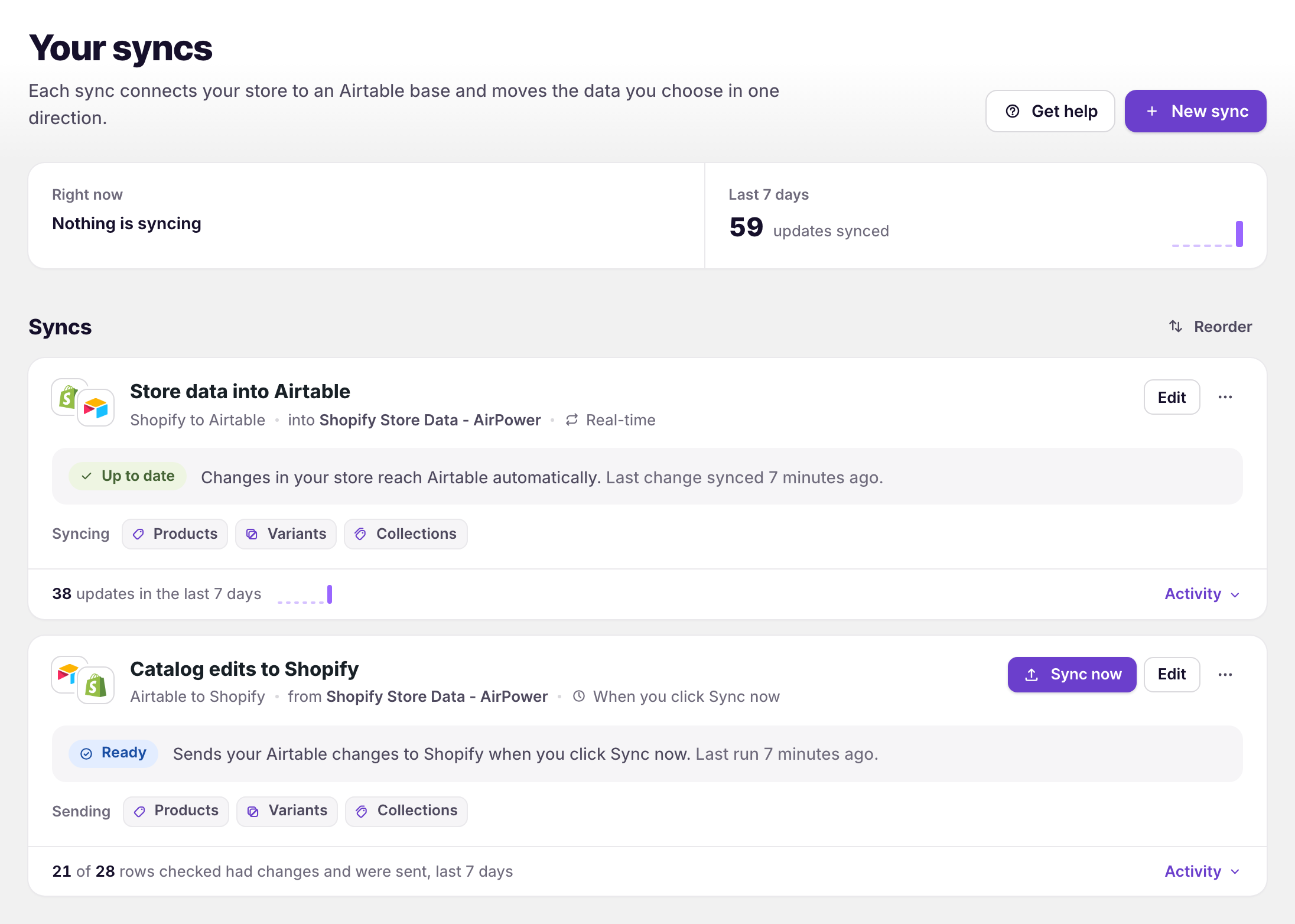
A sync connects your store to one Airtable base and moves the data you choose in one direction. You can create as many syncs as you need, to the same base or to different bases.
Shopify to Airtable
Copies your store’s data into Airtable and keeps it up to date as things change in Shopify. Use it for reporting, planning, reviews, and backups. Nothing in your store changes.
Airtable to Shopify
Sends the edits you make in Airtable to your store, when you click Sync now or on a schedule. Use it for bulk editing products, prices, and stock.
Most merchants create one of each. Their store comes into Airtable, and their edits go back to Shopify.
How changes move
Each direction runs on its own schedule.
Shopify to Airtable
Runs in Real-time by default, so changes in Shopify usually reach Airtable within a minute or two. You can also collect changes and copy them every few minutes or hours, or once a day. Some data types, such as blog posts and pages, are marked On demand. They update when you download them from Settings > Download data on the sync’s page.
Airtable to Shopify
Nothing is sent until you click Sync now, unless you set a schedule of every few hours or once a day. Each run checks every row, skips rows that haven’t changed, and never deletes products, orders, or other records in Shopify.
How rows match Shopify records
Every table in a sync has a Shopify Id column. It holds the ID of the Shopify record that each row belongs to.
When you send a row to Shopify, AirPower uses this ID to find the record to update. A row without an ID becomes a new record in Shopify, and AirPower writes the new ID back to the row.
What you can sync
Pick the data types when you set up a sync. You can add more later.
Products and catalog
Products, variants, collections, images, files, locations, and inventory transfers and shipments. Stock levels are set up on the Variants tab.
Orders and customers
Orders, line items, draft orders, transactions, refunds, returns, fulfillments, customers, customer segments, B2B companies, and discounts.
Content
Blogs, blog posts, and pages.
Payments
Shopify Payments payouts and balance transactions.
Metaobjects
One data type for each metaobject definition in your store, such as a size guide.
Metafields and translations aren’t data types of their own. Each data type’s tab has cards for them.
Shopify to Airtable can copy every data type on this list. Airtable to Shopify sends changes for the data types Shopify lets apps edit, such as products, variants, collections, inventory, customers, and draft orders. Existing orders can be updated for a few fields, such as tags and notes. Refunds, fulfillments, and payouts come into Airtable for reporting only.
Get started
Follow these guides in order to set up your first syncs.
Related pages
Still stuck?
Email the team and tell us which store and which Airtable base you're working with.