 AirPower
Bulk Edit Shopify Product, Order, and Customer Tags in Airtable
Bulk edit Shopify product, order, and customer tags in Airtable. Sync tags to a text or multiple select column, then send tag changes back to Shopify.
In Shopify, tags label products, orders, and customers with free-form words. They drive search, filters, customer segments, and automated collection rules. Each record keeps its tags as a list.
Tagging in the Shopify admin is per record. Renaming a tag across hundreds of products, or labeling a group of orders, means opening each record and editing its list by hand.
AirPower syncs tags to a column on your Products, Orders, or Customers table. Edit tags in bulk in Airtable, and the next sync run sends them to Shopify.
Where tags appear
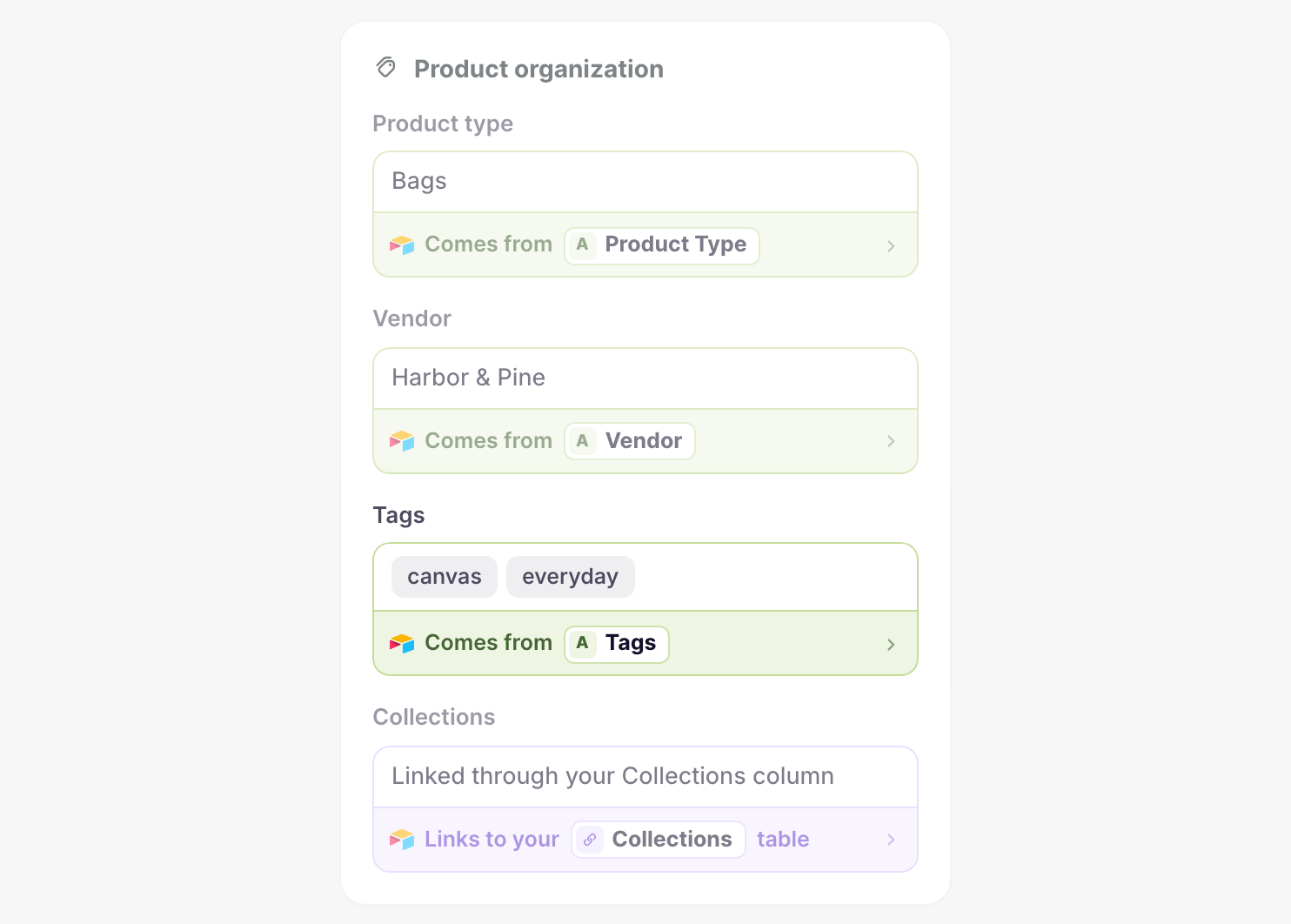
On the Products tab, Tags sits in the Product organization card, with product type, vendor, and the link to your Collections table. The Orders and Customers tabs each have a Tags card.
Bring tags into Airtable
Shopify to Airtable syncs fill a Tags column for every record. The data type needs to be on the sync. If it isn’t, add it with Add data first.
- On the dashboard, click Edit on your Shopify to Airtable sync
- Click Products, Orders, or Customers
- Click the whole view, such as Whole product
- Click Sync to Airtable under Tags
- Click Save in the save bar
- In Save changes, keep the data type ticked and click Save changes
Tags go into your Tags column, or a new one added when you save. To use a different column, click the row before you save. Skip steps 3 to 6 when Tags already says Syncs to.
Send tag changes to Shopify
The data type needs to be on the sync. If it isn’t, add it with Add data first.
- On the dashboard, click Edit on your Airtable to Shopify sync
- Click Products, Orders, or Customers
- Click the whole view, such as Whole product
- Click Send from Airtable under Tags
- Pick your Tags column
- Click Save in the save bar
- Edit the tags in Airtable
- Click Sync now
Tag column types
Single line text
Tags are a comma-separated list, such as canvas, everyday. Shopify gets the list as written.
Multiple select
Each option is one tag. The sync joins the options with commas before it sends them.
The cell holds the record’s whole tag list. To add a tag, add it to the list and keep the tags already there.
What you’ll see after syncing
After the download, the Tags column holds each record’s tags. After an Airtable to Shopify run, the records show the new tags in the Shopify admin.
Related pages
Still stuck?
Email the team and tell us which store and which Airtable base you're working with.