 AirPower
Auto Hide Out-of-Stock Shopify Products with Airtable
Hide sold-out Shopify products from the Online Store with an Airtable stock formula, and publish them again when they're back in stock.
In Shopify, Online Store publishing controls whether a product appears on the storefront. A product published to the Online Store channel is visible to shoppers. A product removed from that channel is hidden.
Shopify does not unpublish products when they run out of stock. Stores end up watching stock by hand, or adding a separate app to keep sold-out items off the storefront.
AirPower can drive the Online Store channel from an Airtable formula that reads stock. When stock is above zero, the product stays published. When it reaches zero, the product is hidden, and it comes back when stock returns.
Bring stock into Airtable
The formula needs each product’s current stock on the Products table.
- On the dashboard, click Edit on your Shopify to Airtable sync
- Click Products
- Click Whole product
- In Inventory, click Sync to Airtable under Total in stock
- Click Save in the save bar
- In Save changes, keep Products ticked and click Save changes
Stock goes into a Total Inventory number column, which is added when you save if it doesn’t exist. The column then stays current as stock changes in Shopify. See Sync inventory.
Create the formula column
Add a formula column to your Products table, such as Show in Online Store. Have it return 1 when the product has stock and 0 when it doesn’t.
IF({Total Inventory} > 0, 1, 0)
Replace Total Inventory with the name of your stock column.
Send the formula to the Online Store channel
- On the dashboard, click Edit on your Airtable to Shopify sync
- Click Products
- Click Whole product
- In Publishing, click Online Store, or Send from Airtable under it
- Pick the formula column
- Click Save in the save bar
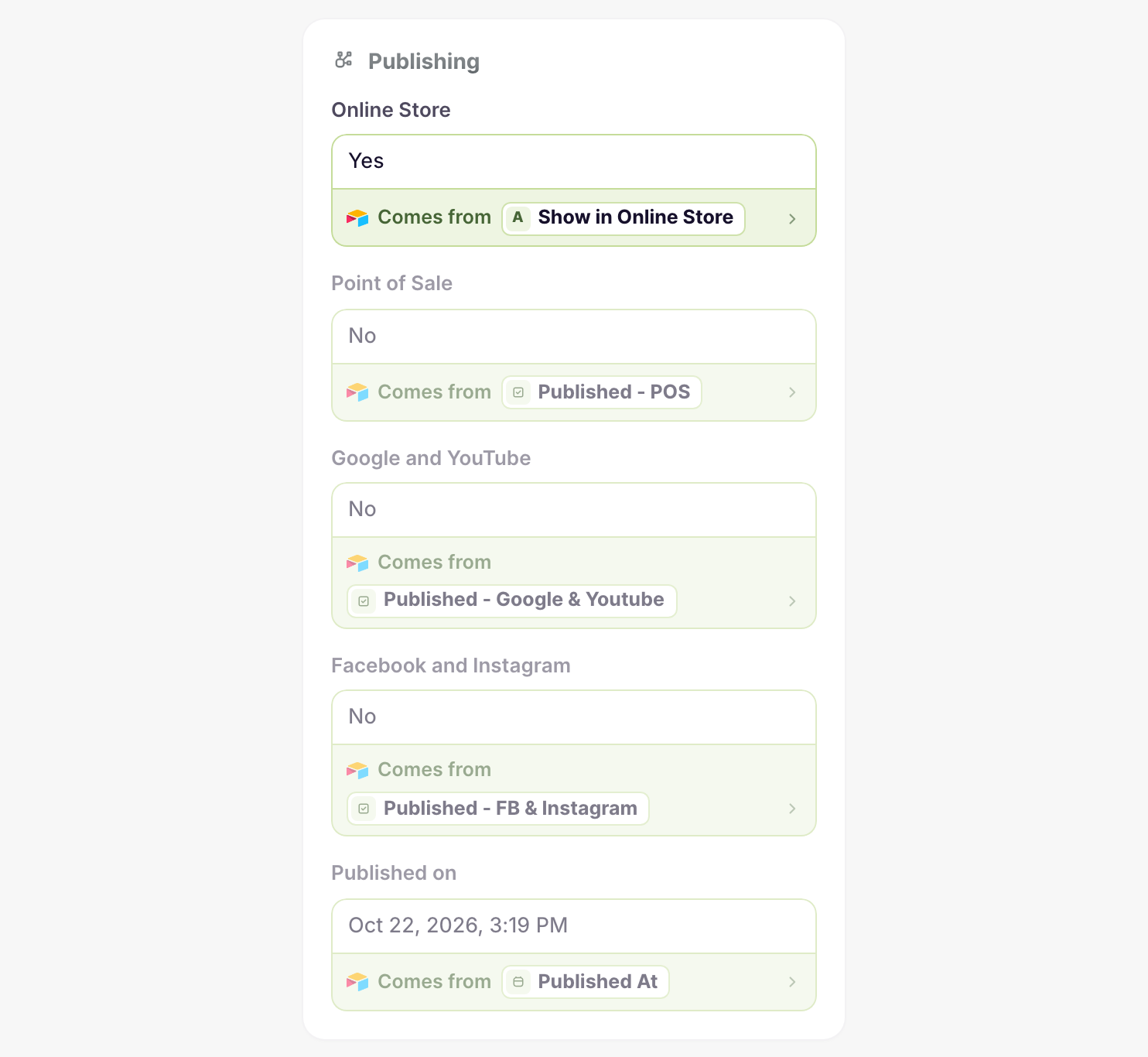
Published on also sets the Online Store channel. If it sends from Airtable too, click it and click Stop sending to Shopify, so only the formula decides.
Run it on a schedule
The products change only when the Airtable to Shopify sync runs. To keep up with stock, click Settings and pick Every few hours or Once a day under When it syncs. See Schedule Airtable to Shopify syncs.
What you’ll see after syncing
On each run, products with no stock are removed from the Online Store and disappear from the storefront. Products with stock are published. As stock changes in Shopify, the formula updates in Airtable, and the next run brings the storefront in line.
Related pages
Still stuck?
Email the team and tell us which store and which Airtable base you're working with.