 AirPower
Bulk Edit Shopify Metafield Translations with Airtable
Bulk edit translated Shopify metafield values with Airtable. Add a column for each language or market, edit values in bulk, and push changes back to Shopify.
In Shopify, metafield values can be translated for each store language, and optionally for a specific market. French shoppers can see one care-instructions value and shoppers in another market another, with the original value shown when there’s no translation.
Translating metafields in the Shopify admin happens one field, one language, and one record at a time. For large catalogs across several languages, that becomes a bottleneck.
AirPower brings metafield translations into Airtable. Each language and market gets its own column on the data type’s table. Edit translations in bulk, then send them back to Shopify.
Metafield translations and translations
Translations covers Shopify’s own fields, such as the title, description, handle, and SEO fields. See Set Up Shopify Translations in Airtable.
Metafield translations covers your metafields, the custom fields you’ve defined for products, variants, collections, and other data types.
Each data type’s tab has a card for each, and each card has its own rows.
Before you start
- The store has at least one language besides its main one, or at least one market
- The store has metafield definitions for the data type, with a type that can be translated, such as text
Definitions load when the sync’s page opens, so after adding one in Shopify, reload the sync’s page.
A section with no rows points you to + Add a metafield translation. If Shopify has no metafield definitions for the data type yet, it says to add one in Shopify first.
Translation sections
The card has one section per language and scope. A section marked Global holds the translation for that language in every market. A section marked with a market, such as For France market, holds a translation that only applies there and overrides the global one.
Add a metafield translation
- On the dashboard, click Edit on your Shopify to Airtable sync
- Click the data type’s tab, such as Products
- Click Whole product
- In Metafield translations, find the section for the language and scope you want
- Click + Add a metafield translation
- Choose the metafield, and the Airtable column to store the translation in
- Click Save in the save bar
- In Save changes, keep the data type ticked and click Save changes
The metafield doesn’t need to be on the Metafields card for its translation to sync.
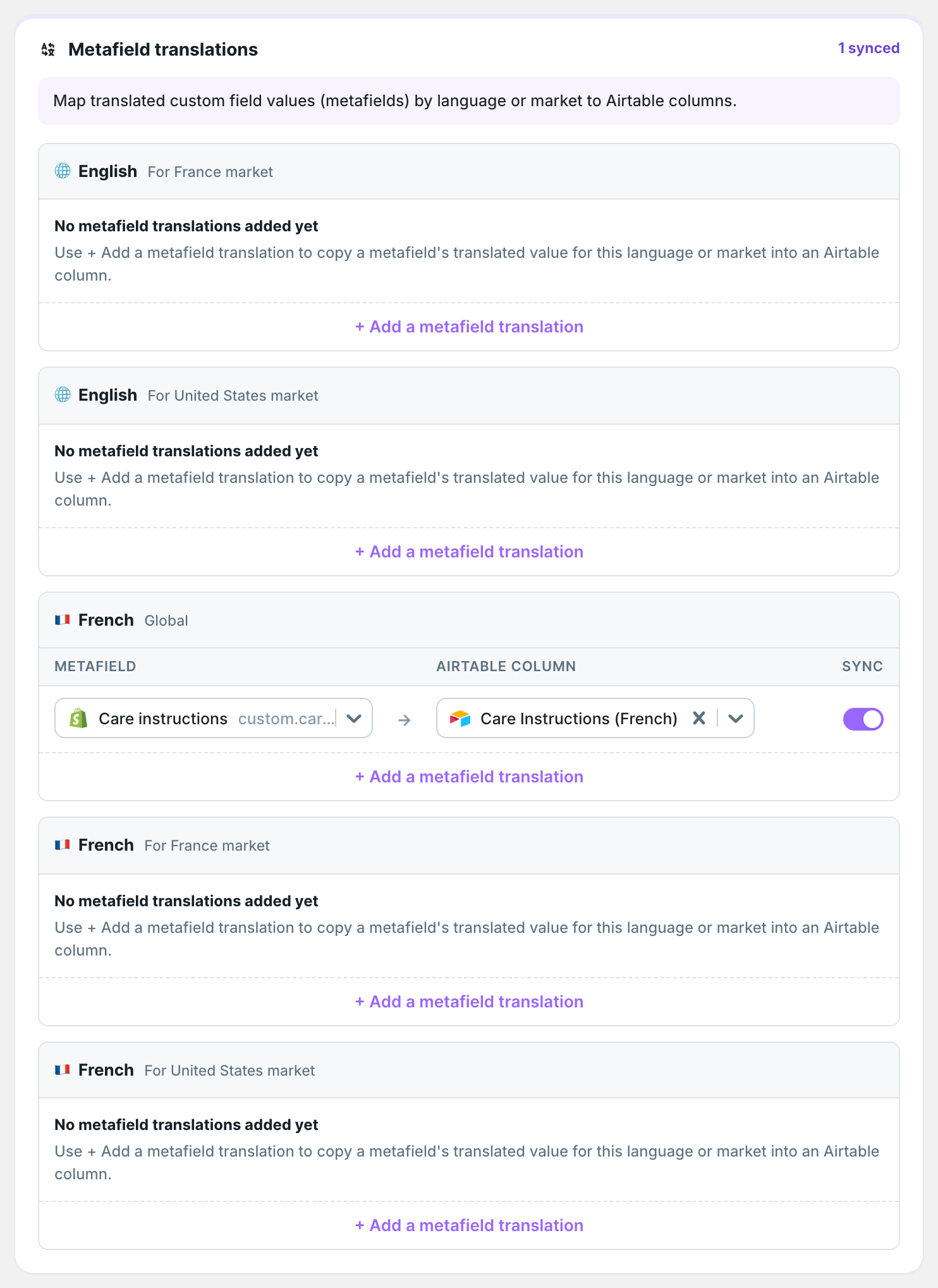
Each row connects one metafield in one language and scope to one column. To translate the same metafield into several languages or markets, add a row in each section.
Download metafield translations
Shopify doesn’t tell apps when translations change, so metafield translations update only when you download them. Saving the sync downloads them. To download them again later, click Settings, find Download data, and click Download next to Translations. The dashboard sync card has the same download in its Download now menu.
That download brings in both translations and metafield translations.
Send metafield translations to Shopify
The data type needs to be on the sync. If it isn’t, add it with Add data first.
- On the dashboard, click Edit on your Airtable to Shopify sync
- Click the same data type’s tab, such as Products
- Click Whole product
- In Metafield translations, find the section for the language and scope
- Click + Add a metafield translation, then choose the Airtable column and the metafield it sends to
- Click Save in the save bar
- Click Sync now
A blank cell removes that translation from Shopify, so add only the languages and scopes you keep in Airtable.
What you’ll see after saving
After a download, each translation column holds the metafield’s translated value for its language and scope. After an Airtable to Shopify run, the translated values show in the Shopify admin’s Translate & Adapt app and on the storefront for that language or market.
Related pages
Still stuck?
Email the team and tell us which store and which Airtable base you're working with.