 AirPower
Set Up Shopify Orders and Line Items in Airtable: Fields and Steps
How to set up Shopify orders and line items in Airtable: track totals, payment and fulfillment status, and SKU-level line data, and edit order notes and tags.
In Shopify, an order holds the customer, the totals, the payment and fulfillment status, the addresses, and the notes. Its line items hold the detail of each product bought: the variant, quantity, price, and discounts.
The Shopify admin shows this one order at a time. CSV exports work for a one-off report, but they go out of date as new orders come in.
AirPower brings orders and line items into Airtable as two linked tables, and keeps them current as orders come in and change. Build fulfillment queues, reconciliation views, and sales reports on live data.
For a summary of every field and what goes back to Shopify, see Bulk edit Shopify orders with Airtable.
What orders contain
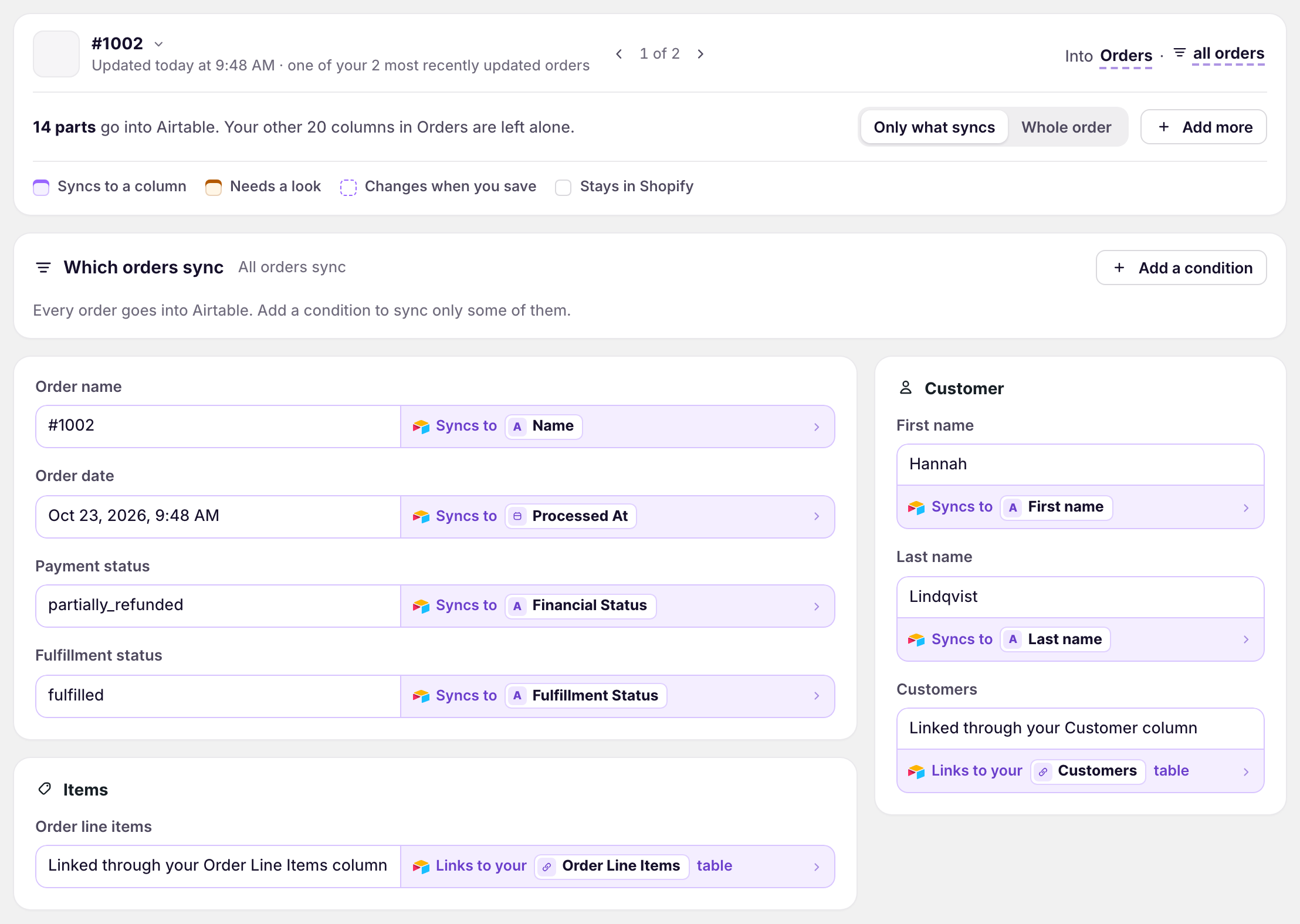
The Orders tab is laid out like an order page in the Shopify admin, with one of your recently updated orders as the example.
Order and payment
Order name, order date, payment and fulfillment status, and the subtotal, discounts, shipping, tax, and total.
Payment terms
Terms such as Net 30, with the amount due, due date, and paid date. See Track payment terms.
Fulfillment
Delivery method and status, and each fulfillment’s carrier and tracking number.
Customer and addresses
The customer’s name, email, and phone, and the shipping and billing addresses.
Notes and tags
The order note, its note attributes, and its tags. See Order note attributes.
Sales channel and Conversion summary
Where the order was placed, and the visits that led to it: source, referring site, landing page, days to purchase, and UTM tags. See Sync marketing attribution.
Order line items
One row per product on an order, with its title, variant, SKU, quantity, price, and discounts, linked to its order. Options a customer entered, such as engraving text, can go into columns of their own. See Custom order options.
Bring orders into Airtable
- On the dashboard, click Edit on your Shopify to Airtable sync
- Click Add data, then Orders
- Click Create an Orders table, or pick one of your tables from Use a table
- Repeat steps 2 and 3 for Order line items, with its own table
- Click Save in the save bar
- In Save changes, keep Orders ticked and click Save changes
New tables come with the recommended fields. To add more, click Whole order, then click Sync to Airtable under each field you want.
Ticking Orders in step 6 loads the last six months of orders, with their line items. After that, new orders appear in Airtable as they’re placed, and order rows update when the order changes in Shopify.
If Customers is in the same sync, each order links to its customer’s row.
Load older orders
- On the sync’s page, click Settings
- Find Download data
- Next to Orders, set the date next to Since
- Click Download
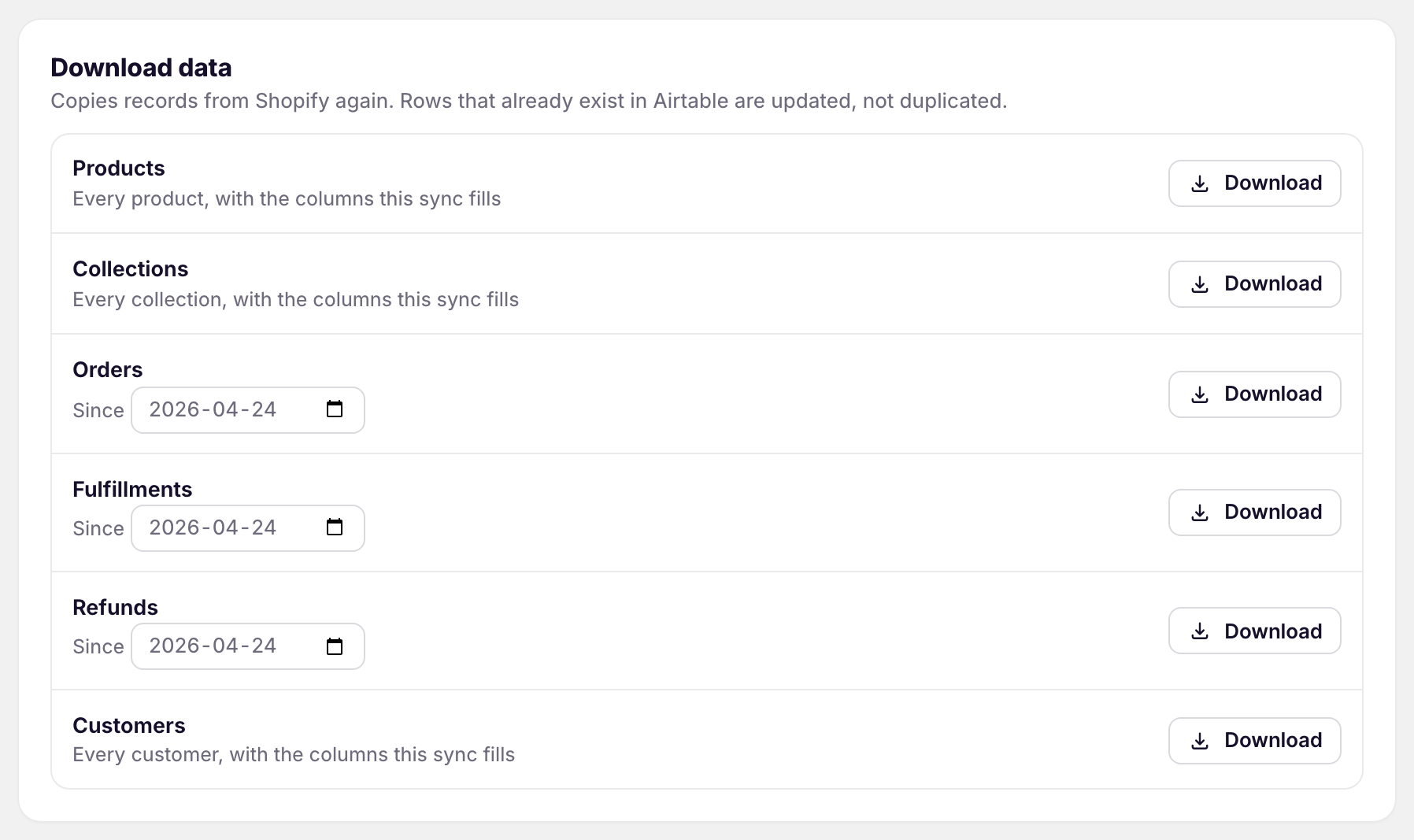
Order line items and order transactions load with their orders. There’s no separate download row for them.
Update orders from Airtable
Shopify lets apps change only a few fields after an order is placed. Airtable to Shopify syncs can send the order’s Note and Tags.
- On the dashboard, click Edit on your Airtable to Shopify sync
- Click Add data, then Orders
- Pick your Orders table from Use a table
- Click Send from Airtable under Note and Tags
- Click Save in the save bar
- Edit the rows in Airtable
- Click Sync now
Rows need a Shopify ID. An empty cell clears the note or tags in Shopify. Airtable can’t create orders. To create orders from Airtable, use draft orders. See Wholesale draft orders.
What you’ll see after the download
The Orders table has a row for each order, and the Order Line Items table a row for each line, linked to its order. After an Airtable to Shopify run, the order’s note and tags in the Shopify admin show your edits.
Related pages
Still stuck?
Email the team and tell us which store and which Airtable base you're working with.