 AirPower
Pause, Resume, Turn Off, Delete, and Reorder Syncs
Pause a Shopify Airtable sync without losing changes, resume it, turn it off, delete or restore it, and reorder the syncs on your AirPower dashboard.
A sync usually runs on its own. Sometimes it needs to stop for a while: during a bulk cleanup in Airtable, a catalog import in Shopify, or a change to the base’s structure.
Stopping a sync the wrong way can lose changes made in the meantime, or leave a sync running that you meant to stop.
AirPower offers three ways to stop a sync. Pause holds changes until you resume. Turn off stops the sync and its changes. Delete removes it, with a way to restore it.
Pause a sync
Pausing stops the sync for now and keeps its place.
- On the dashboard sync card, click ⋯
- Click Pause
On the sync’s page, the same Pause is in the ⋯ menu next to Open in Airtable.
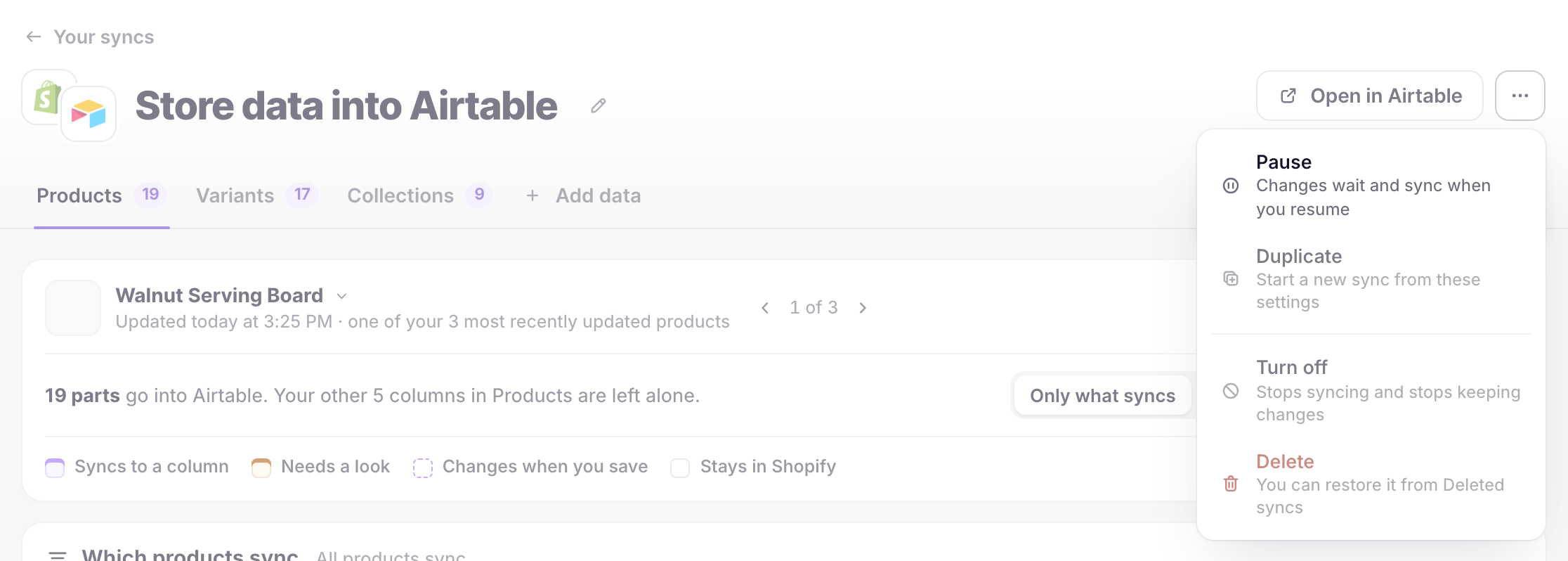
Shopify to Airtable
Changes from Shopify are kept while the sync is paused. They reach Airtable when you resume.
Airtable to Shopify
Scheduled runs and Sync now wait until you resume.
Resume a sync
Click Resume on the dashboard sync card. On the sync’s page, open ⋯ and click Resume.
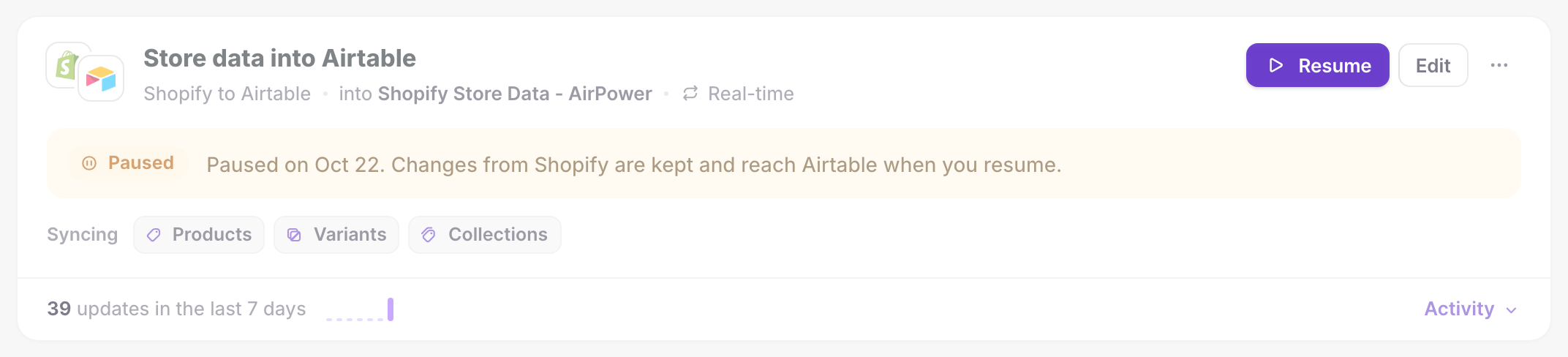
The sync picks up where it left off. A Shopify to Airtable sync copies the changes it kept while paused.
Syncs that pause on their own
AirPower pauses a sync when it can’t continue safely. The card says why.
Stopped by a problem
The sync hit a problem it can’t get past, and the card shows the error message. Fix the cause, then open the sync’s page, click ⋯, and click Resume. See Sync errors.
Paused by Airtable
Your Airtable workspace used all of this month’s API requests. Click Resume once Airtable allows more, or upgrade your Airtable plan.
Can’t reach Airtable
AirPower lost access to your Airtable account. Click Reconnect Airtable. See Connect Airtable.
Turn off a sync
Turning off stops the sync and stops keeping changes.
- On the dashboard sync card, click ⋯
- Click Turn off
- Click Turn off again to confirm
Turned-off syncs move to a section at the bottom of the list, such as 1 sync turned off. Click it to see them.
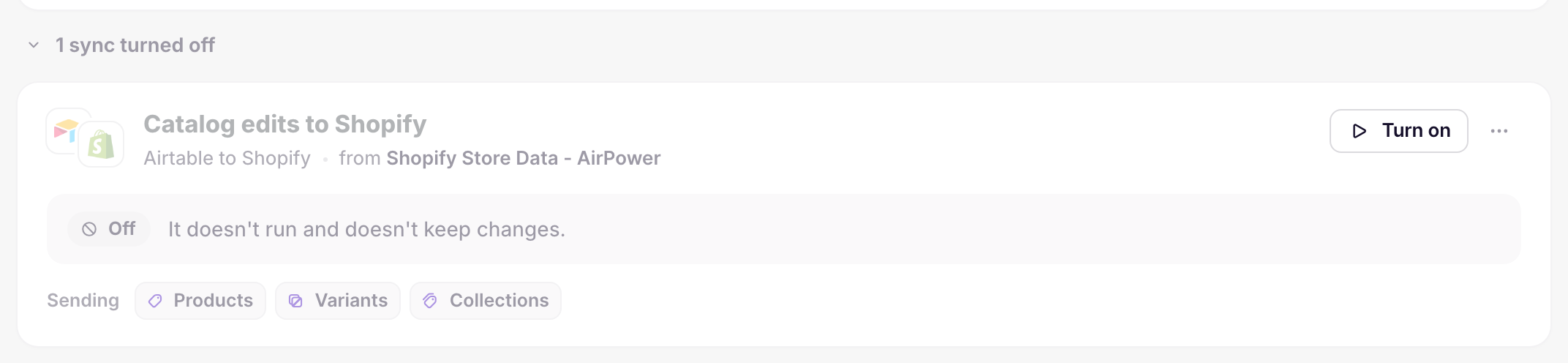
To start a turned-off sync again, click Turn on on its card. Changes made in Shopify while it was off aren’t included. Download the data from Settings > Download data to catch up.
Delete and restore a sync
Deleting stops the sync and removes it from the list. Your Airtable base keeps its data.
- On the dashboard sync card, click ⋯
- Click Delete
- Click Delete again to confirm
To restore a deleted sync, click the deleted syncs link at the bottom of the dashboard, such as 1 deleted sync, then click Restore. The sync’s settings come back, and it starts again the next time something changes.
Reorder syncs on the dashboard
Reorder appears above the sync list when you have two or more syncs.
- Click Reorder
- Move each sync up or down with the arrow buttons
- Click Save order
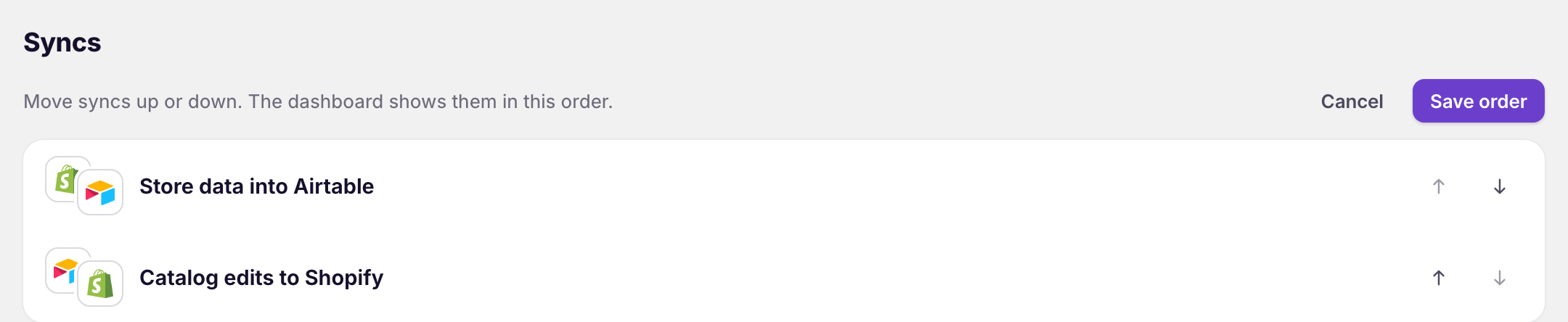
Click Cancel to leave the order as it was.
Related pages
Still stuck?
Email the team and tell us which store and which Airtable base you're working with.