 AirPower
Set Up Shopify Products and Variants in Airtable: Layouts and Fields
How to set up Shopify products and variants in Airtable on one table or two linked tables, which fields sync, and how to send edits back to Shopify.
In Shopify, a product holds catalog-level data: title, description, vendor, tags, status, and sales channels. Its variants hold per-SKU data: option values, price, compare-at price, SKU, barcode, weight, and stock. Every product has at least one variant.
Editing the catalog in the Shopify admin means opening one product at a time, then each of its variants to change a price or an option. Vendor changes, tag clean-ups, and seasonal price updates turn into hundreds of separate edits.
AirPower brings products and variants into Airtable, as two linked tables or one combined table. Review the catalog in a grid, edit it in bulk, and send the changes back to Shopify in one sync run.
For a summary of every product and variant field, see Bulk edit Shopify products with Airtable and the variants page.
What products contain
The Products tab is laid out like a product page in the Shopify admin. Each field shows the Airtable column it uses, with a value from one of your recently updated products.
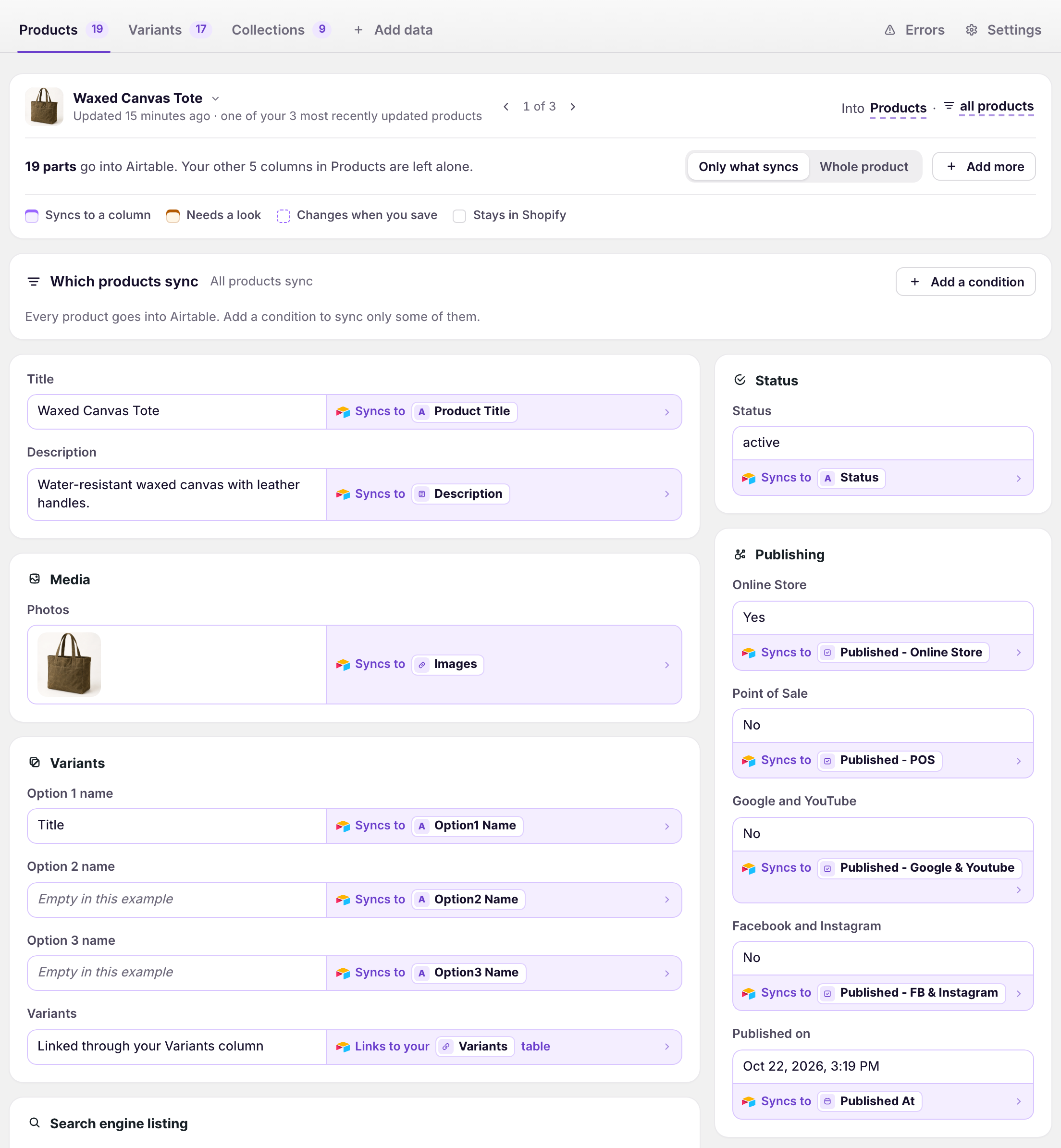
Title and description
The product title and its description as HTML.
Media
The product’s photos. See Manage product images.
Variants
The option names, such as Size or Color, and the link to the product’s rows in your Variants table.
Search engine listing
Page title, meta description, URL handle, and the product page link.
Status and Publishing
Active, draft, or archived, and the sales channels and markets the product is published to, such as Online Store and Point of Sale.
Product organization
Product type, vendor, tags, and the link to your Collections table.
The Products tab also shows the first variant’s price, stock, and shipping. Change those on the Variants tab.
What variants contain
The Variants tab holds each SKU’s data.
Options
The variant title and its option values.
Pricing
Price, compare-at price, cost, and whether the variant charges tax. See Run Shopify bulk price changes.
Unit price
How much the variant contains and the measure its price is shown per, such as per 100 g. Add it with Add more. See Bulk edit unit prices.
Inventory
Whether Shopify tracks stock, the quantity in stock, whether it keeps selling when out of stock, and Stock by location. See Sync inventory.
SKU, shipping, and customs
SKU, barcode, weight and weight unit, whether the variant needs shipping, country of origin, and HS code.
Product
The variant’s position and the link to its product row.
One table or two
Separate Products and Variants tables
Each variant gets its own row in the Variants table, linked to its product row. Use this when products have sizes, colors, or other options. The Expanded template uses this layout.
Products and variants on one table
Each row holds a product and its first variant. This suits stores whose products have one variant each, because other variants have no row. The Compact template uses this layout.
To use one table, open the Variants tab, click the table name next to Into or From, and pick your Products table.
Bring products into Airtable
The New sync setup’s Product catalog starting point adds Products, Variants, and Collections, with their tables. See Set up your first sync.
To add them to a sync you already have:
- On the dashboard, click Edit on the Shopify to Airtable sync
- Click Add data, then Products
- Click Create a Products table, or pick one of your tables from Use a table
- Repeat steps 2 and 3 for Variants
- Click Save in the save bar
- In Save changes, keep Products ticked and click Save changes
Products download with their variants, images, and stock.
Send changes to Shopify
The data type needs to be on the sync. If it isn’t, add it with Add data first.
- On the dashboard, click Edit on your Airtable to Shopify sync
- Click Products or Variants, then Whole product or Whole variant
- Click Send from Airtable on the fields you want to update
- Click Save in the save bar
- Edit the rows in Airtable
- Click Sync now
If you don’t have an Airtable to Shopify sync yet, see Update Shopify from Airtable.
How rows match products
Each row’s Shopify Id column holds its product or variant ID. A row with an ID updates that record. A row without one becomes a new product or variant, and the sync writes the new ID back. See Set up the Shopify ID column.
Market and B2B prices
Market prices and B2B catalog prices are cards on the Variants tab, and need AirPower Plus. See Bulk edit international market prices and Bulk edit B2B catalog prices.
What you’ll see after the first download
The Products table has one row per product and the Variants table one row per variant, each with its Shopify ID and linked to each other. After an Airtable to Shopify run, the changes appear in the Shopify admin.
Related pages
Still stuck?
Email the team and tell us which store and which Airtable base you're working with.