 AirPower
Find Your Airtable Workspace ID
Find your Airtable workspace ID in the workspace's web address, then paste it into the sync setup so AirPower can create a new Shopify base for you.
In Airtable, every base lives in a workspace. Each workspace has an ID that starts with wsp.
AirPower needs that ID only when it creates a new base for you. The sync setup asks for it after you click Create a new base instead.
Find the workspace ID in Airtable
The ID is part of the workspace’s web address.
- Open your Airtable workspaces
- Click the workspace where the new base should go
- Copy the part of the address that starts with
wsp
The address looks like this:
https://airtable.com/workspaces/wspqrdtEQXErvBMXXU
In this example, the workspace ID is wspqrdtEQXErvBMXXU. If the address has a ? after the ID, leave that part out.
Create the base
- On the dashboard, click New sync and pick a direction
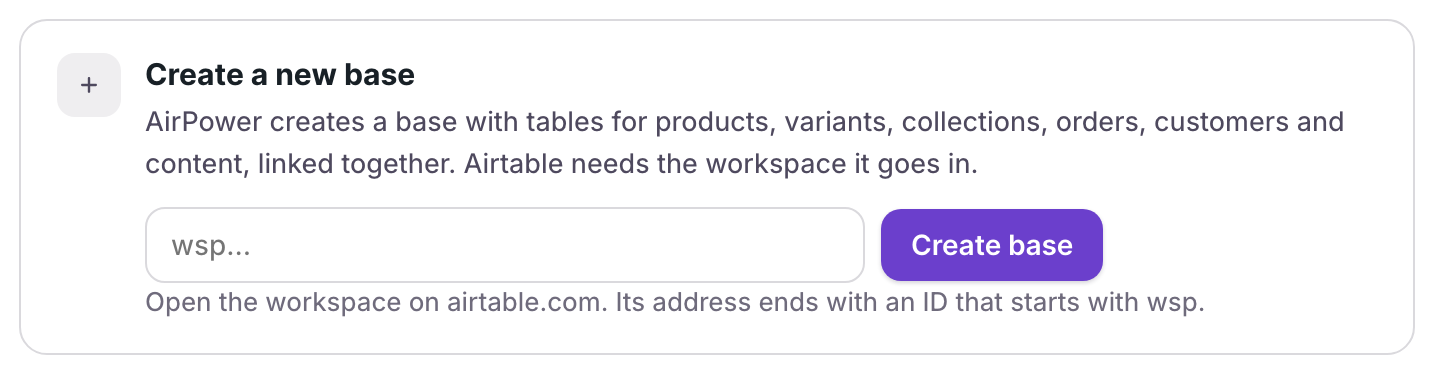
- On the Airtable base step, click Create a new base instead
- Paste the workspace ID into the field
- Click Create base
AirPower can create a base only where your Airtable connection reaches the whole workspace. For a personal access token, that means All current and future bases in this workspace under Access. For Airtable’s sign-in, include the workspace when you grant access. See Connect Airtable.
What you’ll see after creating the base
AirPower creates a base named Shopify Store Data - AirPower, with tables for products, variants, collections, orders, customers, and content, linked together. The setup lists the new base and picks it.
The base matches an AirPower template, so the step shows This base looks like an AirPower template. Click Set it up to use its tables and columns, then continue with your first sync.
Troubleshooting
Enter the workspace ID. It starts with wsp.
The field has something other than a workspace ID. Base IDs start with app instead. Copy the wsp part of the workspace address.
AirPower couldn’t create the base
Check the workspace ID. Then check that your connection reaches the whole workspace, and that a token has the schema.bases:write scope.
Related pages
Still stuck?
Email the team and tell us which store and which Airtable base you're working with.