 AirPower
Set Up Shopify Metafields in Airtable: Columns and Steps
How to set up Shopify metafields as Airtable columns for products, variants, collections, orders, customers, pages, and blog posts, and send edits back.
In Shopify, metafields hold custom data on standard records like products, variants, collections, orders, customers, blog posts, pages, and image files. They store values that don’t fit Shopify’s built-in fields, such as care instructions, internal references, or product specifications.
Editing metafield values in the Shopify admin means opening each record’s metafields section and changing values one at a time. For larger catalogs, that gets slow.
AirPower brings metafields into Airtable. Each metafield goes into its own column on the data type’s table. Edit a cell to change a value, and the sync sends it to Shopify. The steps below use product metafields as an example.
For a summary of every field and what goes back to Shopify, see Bulk edit Shopify metafields with Airtable.
Where metafields appear
Each data type’s tab has a Metafields card. It lists the metafield definitions your store has for that data type, by name, with the value from the example record.
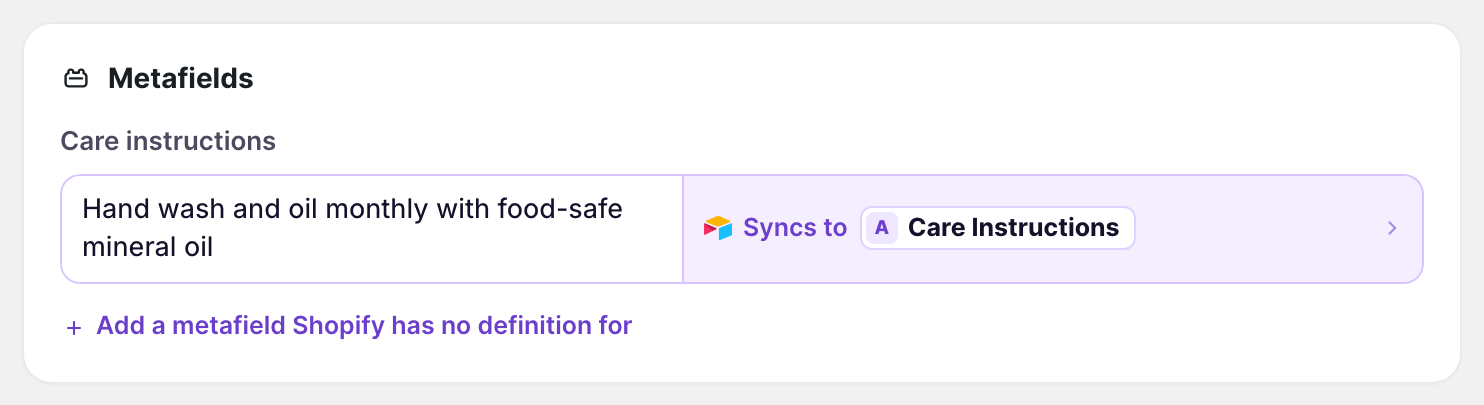
Definitions load when the sync’s page opens, so after adding one in Shopify, reload the sync’s page to see it.
Metafields with no definition in Shopify don’t appear on their own. Click Add a metafield Shopify has no definition for, then enter its namespace, key, and value type exactly as Shopify stores them.
Bring metafields into Airtable
- On the dashboard, click Edit on your Shopify to Airtable sync
- Click Products
- Click Whole product
- In Metafields, click Sync to Airtable under each metafield you want
- Click Save in the save bar
- In Save changes, keep Products ticked and click Save changes
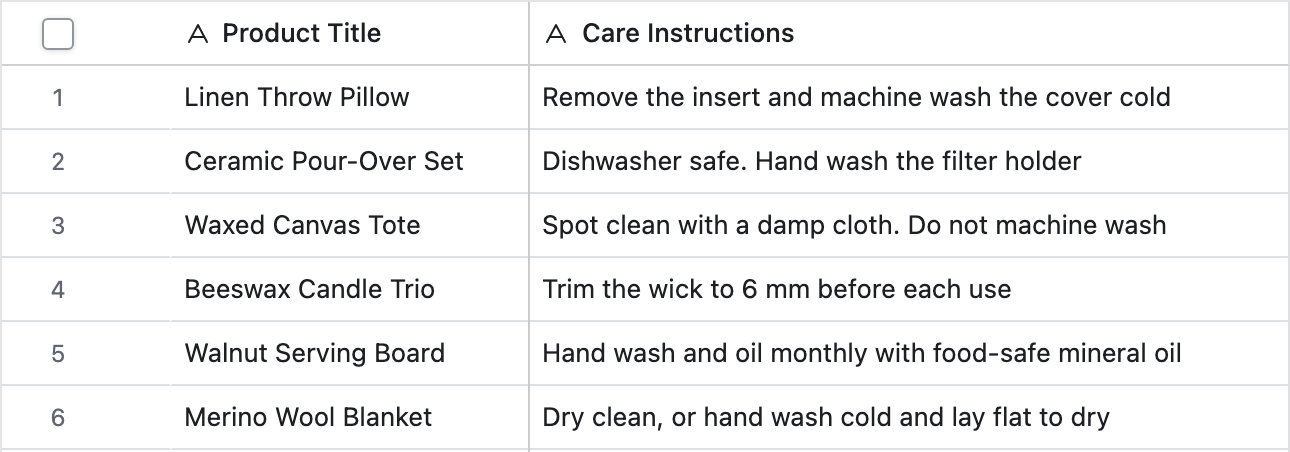
Each metafield goes into a column with its name, which is added when you save if it doesn’t exist. Ticking Products in step 6 fills the new columns for your existing products.
Send metafield edits to Shopify
- On the dashboard, click Edit on your Airtable to Shopify sync
- Click Products
- Click Whole product
- In Metafields, click Send from Airtable under each metafield you edit in Airtable
- Pick the column the values come from
- Click Save in the save bar
- Edit the values in Airtable
- Click Sync now
Send only the metafields you maintain in Airtable. An empty cell clears that metafield on the product in Shopify.
Link a metafield to another table
A metafield’s values can link to rows of another Airtable table, such as a Materials table. Point the metafield at a linked-record column:
- Click the metafield’s row to open its column dialog
- Pick the linked-record column
- Under Links to the row of, pick the table, and the column whose values match the metafield’s
On a Shopify to Airtable sync, each value links to the row whose column matches it. On an Airtable to Shopify sync, the sync reads the matching column of the linked rows and sends those values.
What you’ll see after saving
After the download, each metafield you added has its own column, filled with the value from each product. After an Airtable to Shopify run, the product’s Metafields section in the Shopify admin shows your edits.
Related pages
Still stuck?
Email the team and tell us which store and which Airtable base you're working with.