 AirPower
How to Create an Airtable Personal Access Token
Create an Airtable personal access token with the right scopes and base access, then paste it into AirPower to connect Airtable to your Shopify store.
Airtable no longer offers API keys. Personal access tokens replace them. A token is a private key that lets an app read and change the bases you choose.
Each token lists its scopes, which say what the app can do, and the bases or workspaces it can reach. You set both when you create the token, and you can change them later.
This guide creates a token for AirPower and adds it to your syncs. Connecting with Airtable’s sign-in is the other way to connect. Connect Airtable covers both.
Step 1: Open your personal access tokens
- Sign in to airtable.com
- Open Personal access tokens in Airtable’s Builder Hub
- Click Create token
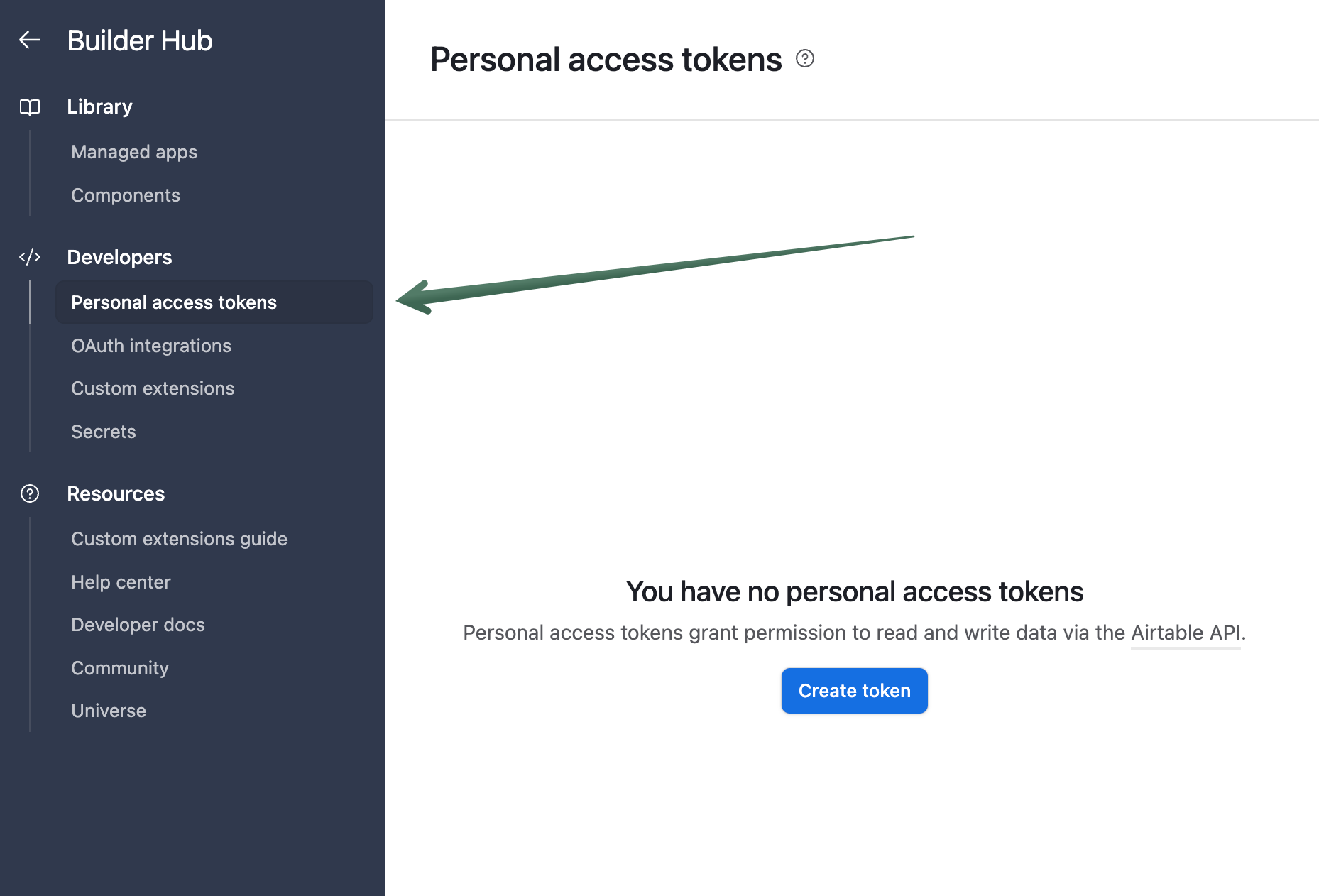
To find the page from Airtable’s menus, click your account icon, then Builder hub, then Personal access tokens.
Step 2: Set up the token
- Enter a Name, such as AirPower
- Under Access, click Add a base and pick what the token can reach
- Under Scopes, click Add a scope and add each scope listed below
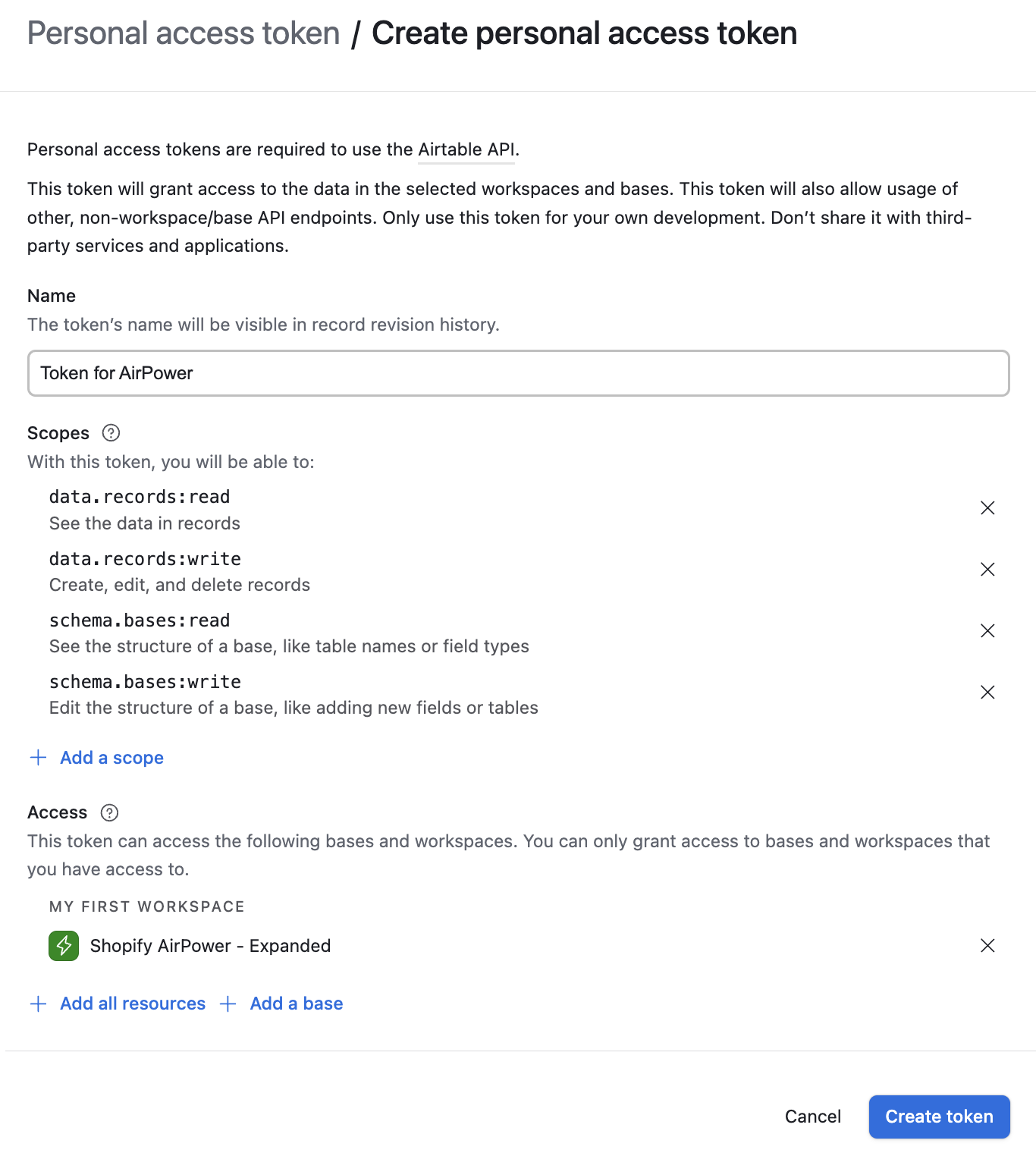
The token doesn’t need everything in your account. Give it only the bases or the workspace your syncs will use.
A single base
In Add a base, pick the base. The token can reach only that base. Add more bases the same way if your syncs use several.
A workspace
In Add a base, pick All current and future bases in this workspace at the top of the workspace’s list. The token can reach the workspace’s bases, including ones you add later. Choose this if AirPower should create a new base for you.
Everything
Add all resources gives the token every base and workspace your Airtable account can reach.
Add these four scopes:
data.records:read: See the data in recordsdata.records:write: Create, edit, and delete recordsschema.bases:read: See the structure of a base, like table names or field typesschema.bases:write: Edit the structure of a base, like adding new fields or tables
Step 3: Create and copy the token
- Click Create token
- Click the copy button next to the token
- Click Done
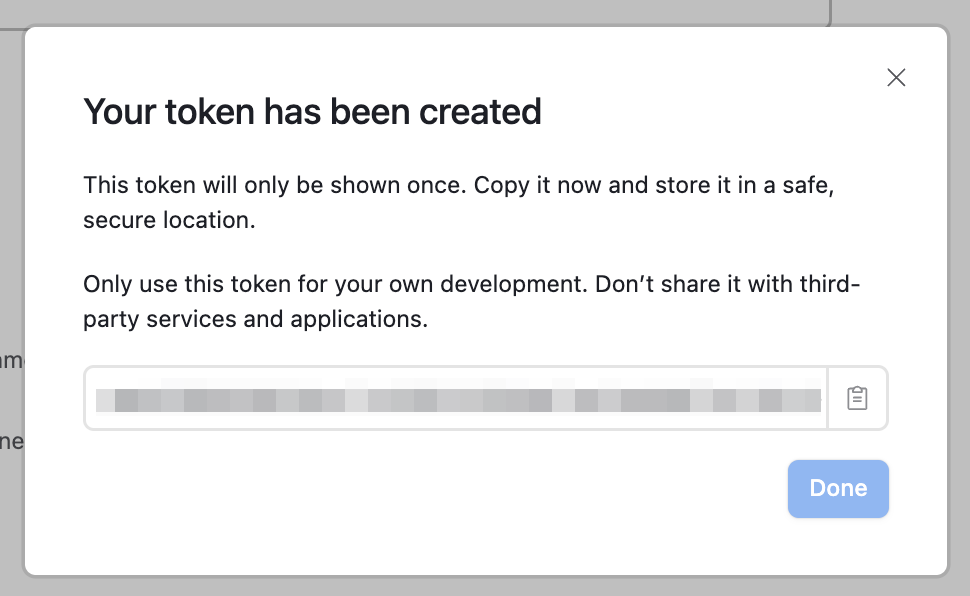
Airtable shows the token only once. Done turns on after you copy it. Keep the token somewhere safe, such as a password manager.
Step 4: Add the token to AirPower
During your first sync, the Airtable base step of the New sync setup asks for the token.
- Paste the token into the field under Use a personal access token
- Click Connect
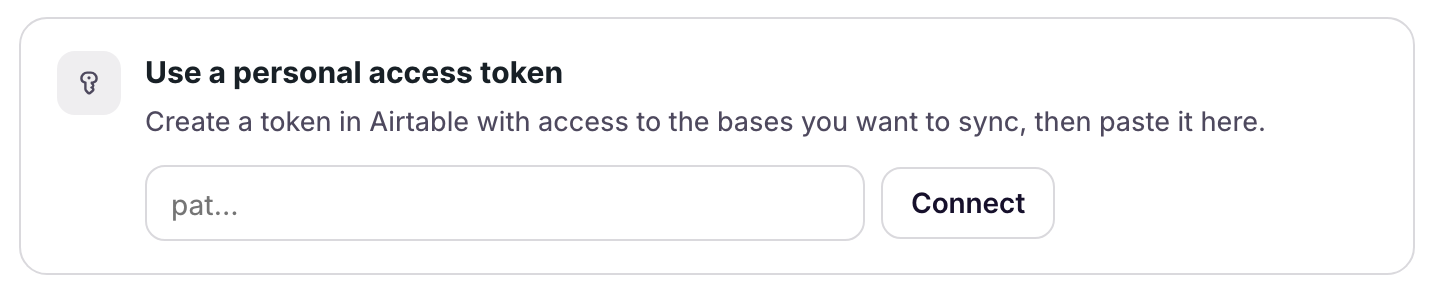
To add a token after setup, open Airtable Settings from the app’s menu in your Shopify admin. Click Add Personal Access Token, paste the token, and click Save.
What you’ll see after connecting
The Airtable base step lists the bases the token can reach, each with its base ID. Pick one to continue setting up your first sync.
Change or replace a token
Add a base to the token
In Builder Hub, click the token’s name. Add the base under Access, then click Save changes. Back in the sync setup, click Reload the list on the Airtable base step.
Replace a lost token
Airtable can’t show a token again. Open the token’s menu and click Regenerate token, or create a new one. Then add the new token in Airtable Settings. The old token stops working.
Delete a token
Syncs that use a deleted token stop until you add a new token.
Related pages
Still stuck?
Email the team and tell us which store and which Airtable base you're working with.