 AirPower
Create Airtable Tables and Columns for Your Shopify Sync
Let your Shopify sync create the Airtable tables and columns it needs: create a table with recommended columns, reuse columns that match, and add new columns on save.
A sync pairs each Shopify data type with a table in your Airtable base, and each Shopify field with a column in that table. It can only write to tables and columns that exist.
Building them by hand means adding each table and column in Airtable, matching names and field types, then refreshing the sync. One missing or mistyped column turns into an error on the next run.
AirPower creates the tables and columns your sync needs, with recommended names and field types. When your base already has a column that fits, the sync can use it instead.
When you set up a sync
The New sync setup creates a table for each data type you pick, at the end of the setup. If your base already has a table with the data type’s name, such as Products, the sync uses it and matches its columns. See Set up your first sync.
Add a table for a new data type
A data type you add to an existing sync starts without a table.
- On the sync’s page, click Add data
- Pick a data type, such as Discounts
- Click Create a Discounts table, or pick one of your tables from Use a table
- Click Save in the save bar
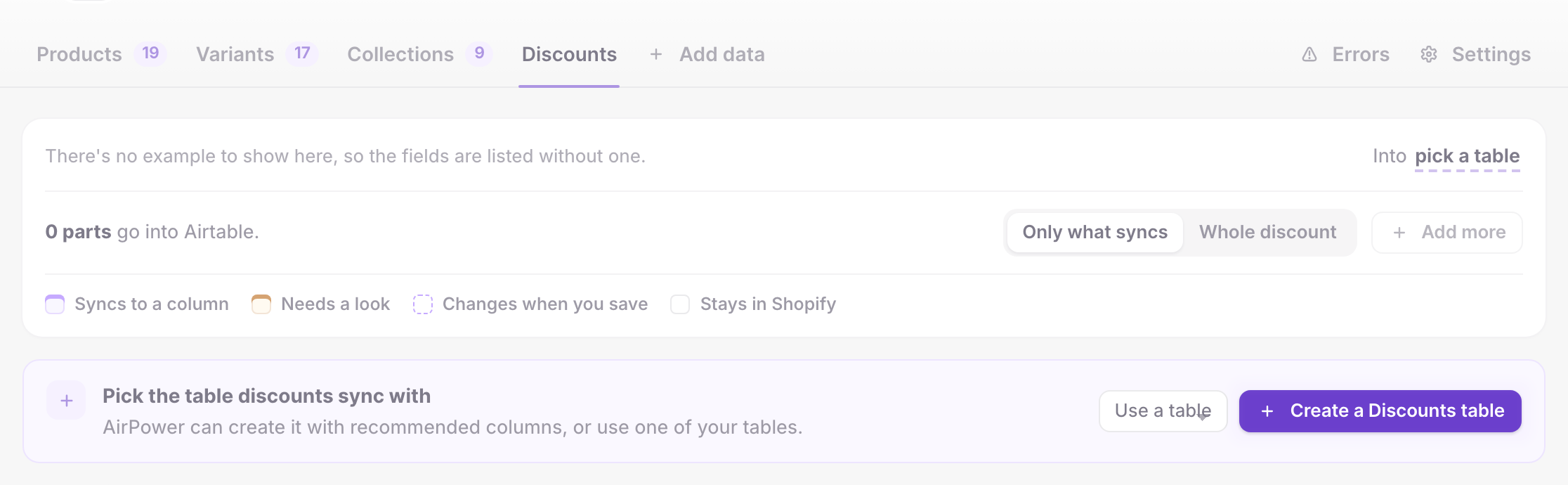
Create a table
AirPower adds the table to your base right away, with recommended columns and the fields that fill them. The button is named for the data type.
Use a table
The sync uses a table you already have. Then pick the fields that sync with it.
Add a column for a field
Fields that don’t sync yet show Sync to Airtable, or Send from Airtable in an Airtable to Shopify sync. Click Whole product, or the matching button on another tab, to see them all.
- Click Sync to Airtable on the field
- Click Save in the save bar
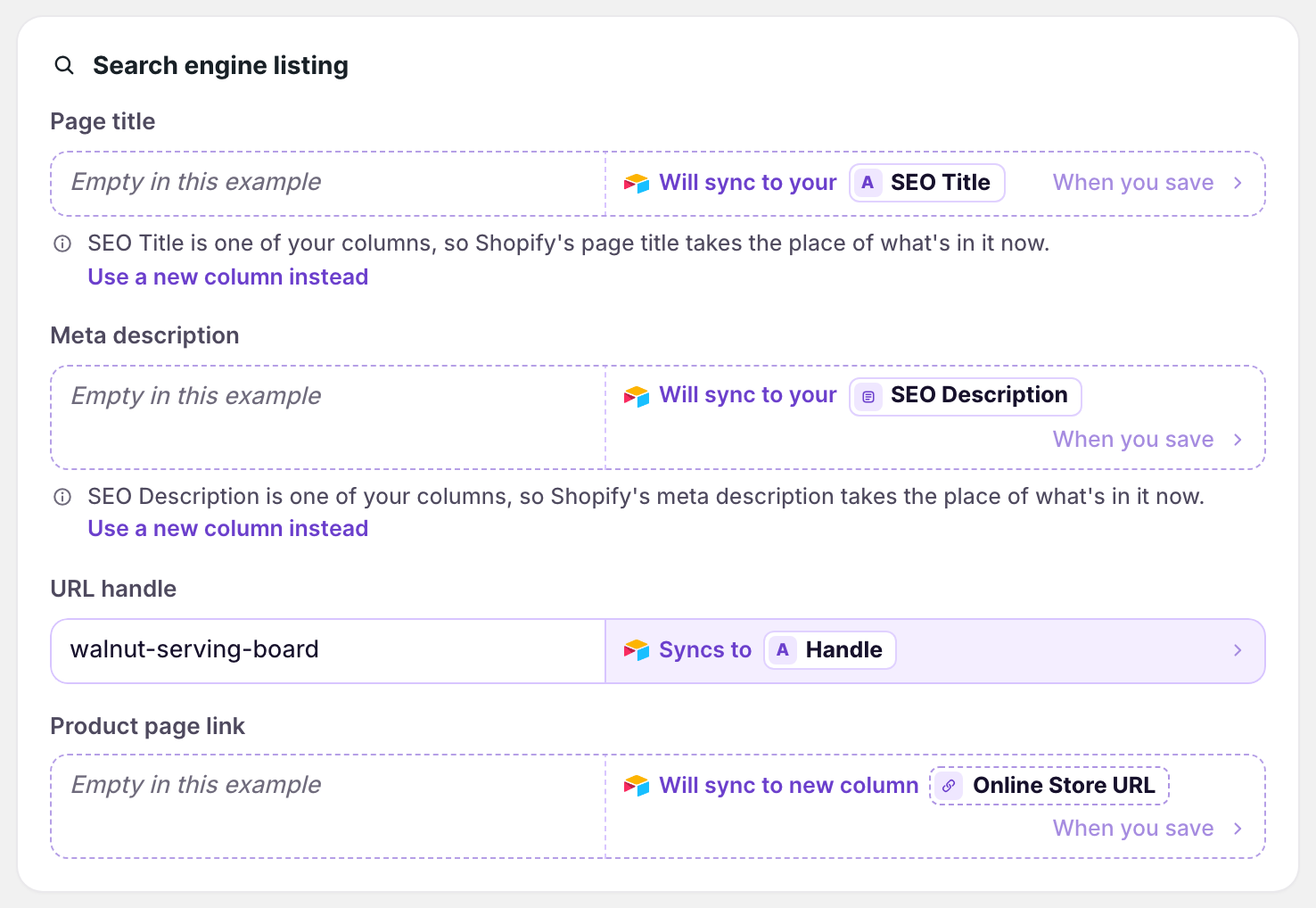
When a column matches
The field uses your column, such as Will sync to your SEO Title. A note says that Shopify’s value takes the place of what’s in the column now. To leave that column alone, click Use a new column instead.
When no column matches
The field gets a new column, such as Will sync to new column Online Store URL. AirPower adds it to the table when you save.
To choose the column yourself, click the field. The list shows your columns, plus a New column option that’s added when you save.
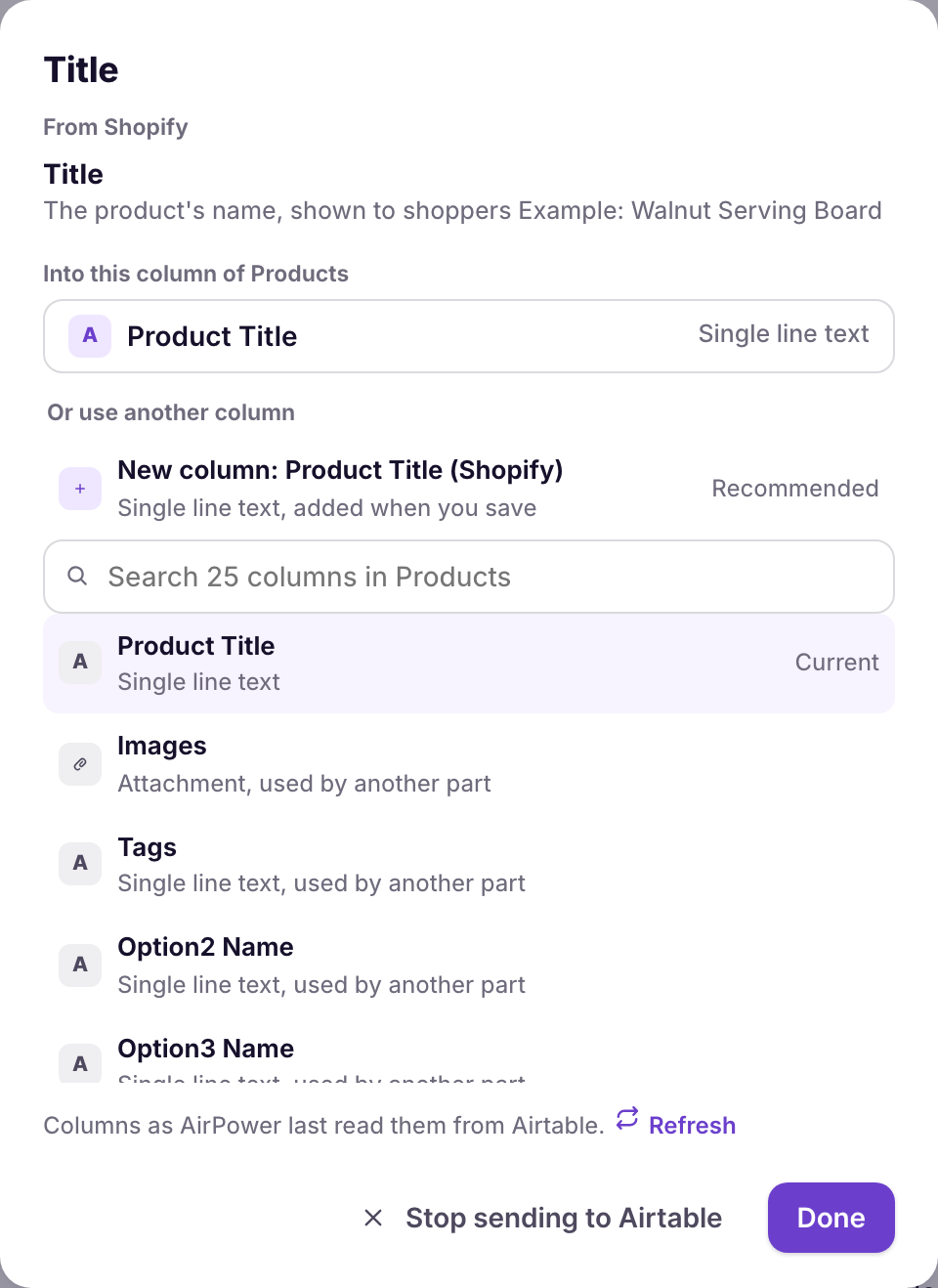
What you’ll see after saving
New columns appear in your Airtable base, and the fields show Syncs to with the column name. A Shopify to Airtable sync offers to download the changed data types again, so rows already in Airtable fill in. See Download Shopify data.
When a table or column goes missing
A table was renamed or removed
Its tab shows that the table isn’t in your base. If you renamed it, click Refresh tables and columns under Settings > Connection, then pick it from Use a table. You can also create the table again.
A column was renamed or removed
The field shows Will sync to new column with the old name, and saving adds that column back. To use the renamed column, click the field and pick it.
A column needs a look
The column’s type doesn’t fit the field, such as a text column for a number, or a formula column that can’t take values. Click the field to see the fix.
AirPower can’t add columns to this base
The Airtable connection can read the base but can’t change it. Add the columns in Airtable, or connect again with permission to change the base. See Connect Airtable.
Related pages
Still stuck?
Email the team and tell us which store and which Airtable base you're working with.