 AirPower
Sync Shopify Custom Order Options to Airtable
Configure AirPower to pull line-item customizations from Shopify into Airtable so your team can see every engraving, personalization, or add-on request.
In Shopify, custom order options are stored on an order’s line items as named properties, not on the order itself. Each line item can carry its own options, such as engraving text, a gift message, or a monogram the customer entered on the product page.
The admin shows these properties inside each order, but not as fields you can filter or report on. Working through many custom orders means opening each one.
AirPower brings line item properties into Airtable. Add each property’s name once on the Order line items tab and pick a column for it. When orders sync, each customization lands in its own column, ready for filtering, reporting, or handing to fulfillment.
Custom order options sync from Shopify into Airtable only, because customers enter them.
Before you start
Your Shopify to Airtable sync needs Orders and Order line items. See Set Up Shopify Orders and Line Items in Airtable.
Add a custom order option
- On the dashboard, click Edit on your Shopify to Airtable sync
- Click Order line items
- Click Whole order line item
- In Custom fields, click + Add row
- In Property name, enter the option’s name exactly as it appears on the order, such as
Engraving - In Airtable column, pick a column, or type a new column’s name
- Click Save in the save bar
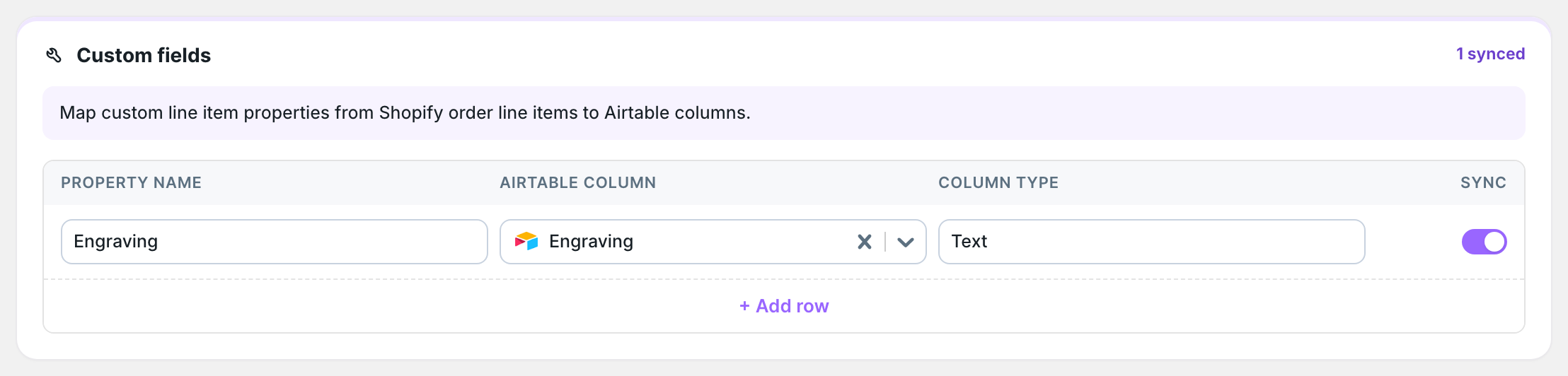
Repeat steps 4 to 6 for each option. A new column is added to your Order Line Items table when you save. Property names must match exactly, including capital letters and spaces.
Column type sets how the value is written. Leave it as Text, or enter Number, Percent, Date, or DateTime to match your column.
Several options can share one column when a customer can only fill in one of them on a line item.
Fill in existing orders
New and changed orders fill the columns as they sync. To fill them for orders already in Airtable, click Settings, find Download data, and click Download next to Orders.
What you’ll see after saving
Each option has its own column in the Order Line Items table. Line items with that option show the customer’s value. Line items without it leave the cell empty.
Related pages
Still stuck?
Email the team and tell us which store and which Airtable base you're working with.