 AirPower
Create Shopify Wholesale Draft Orders from Airtable Forms
Create Shopify draft orders from Airtable rows or form entries. Link a customer and the variants, set quantities, and AirPower creates each draft order in Shopify.
In Shopify, a draft order is an order created outside the storefront checkout. Stores use them for phone orders, invoiced sales, and wholesale orders entered by a sales rep.
The Shopify admin builds one draft order at a time: search for each product, pick the customer, set quantities, and save. For a sales team or a wholesale buyer placing orders every day, that’s slow.
AirPower turns rows in an Airtable table into Shopify draft orders. Each row links to its customer and the variants it contains, and the next sync creates the draft order. Add an Airtable form, and your team or your buyers can enter orders themselves.
Before you start
Variants
Your Airtable to Shopify sync needs Variants. Each line item links to a row in your Variants table, and that row needs a Shopify ID.
Customers
Optional. To link each draft order to a customer’s row, add Customers to the sync with your Customers table, and send at least one customer field, such as Email. A data type that sends no fields isn’t saved.
Set up the Draft Orders table
- On the dashboard, click Edit on your Airtable to Shopify sync
- Click Add data, then Draft orders
- Click Create a Draft Orders table, or pick one of your tables from Use a table
- Click Whole draft order
- Under each field you want to send, such as Note and Tags, click Send from Airtable and pick its column
- Click Save in the save bar
The table’s Customer column links each row to its customer’s row in your Customers table.
Add the line item columns
Each line item takes two columns in the Draft Orders table: one that links to a variant, and one for its quantity.
- On the sync’s Draft orders tab, find Custom fields
- Click + Add row
- Under Variant link column, pick a column, or type a new column’s name, such as Item 1
- Under Quantity column, pick a column, or type a new column’s name, such as Item 1 Quantity
- Click Create column under each new column
- Repeat steps 2 to 5 for each line a draft order can have, such as Item 2 and Item 2 Quantity
- Click Save in the save bar
A new variant column links to your Variants table, and a new quantity column holds whole numbers. If you pick columns of your own, use a Link to another record column that links to Variants, and a Number column.
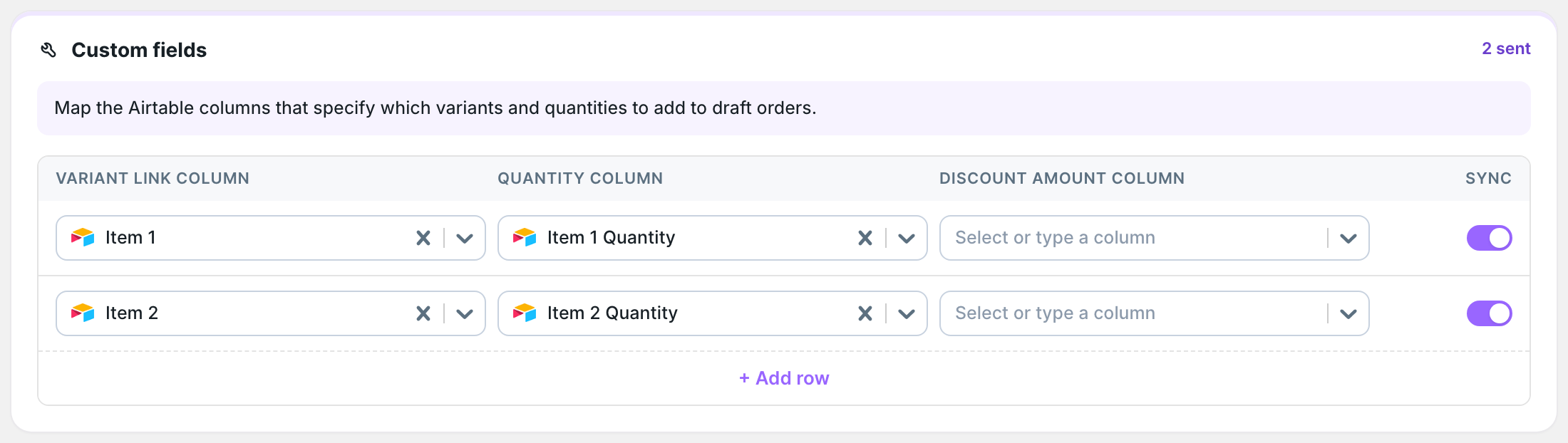
Only the first variant linked in an item column is used. An item with an empty or 0 quantity is left out of the draft order.
Discount amount column
Optional. A number below 1 is a percentage, such as 0.1 for 10% off the line. A number of 1 or more comes off each unit, such as 5 for $5 off each.
Create a draft order
- Add a row to your Draft Orders table
- In Customer, link the customer’s row, if Customers is in the sync
- In Item 1, link a variant, and fill in Item 1 Quantity
- Fill in the other items and fields you send, such as Note
- On the dashboard, click Sync now on your Airtable to Shopify sync
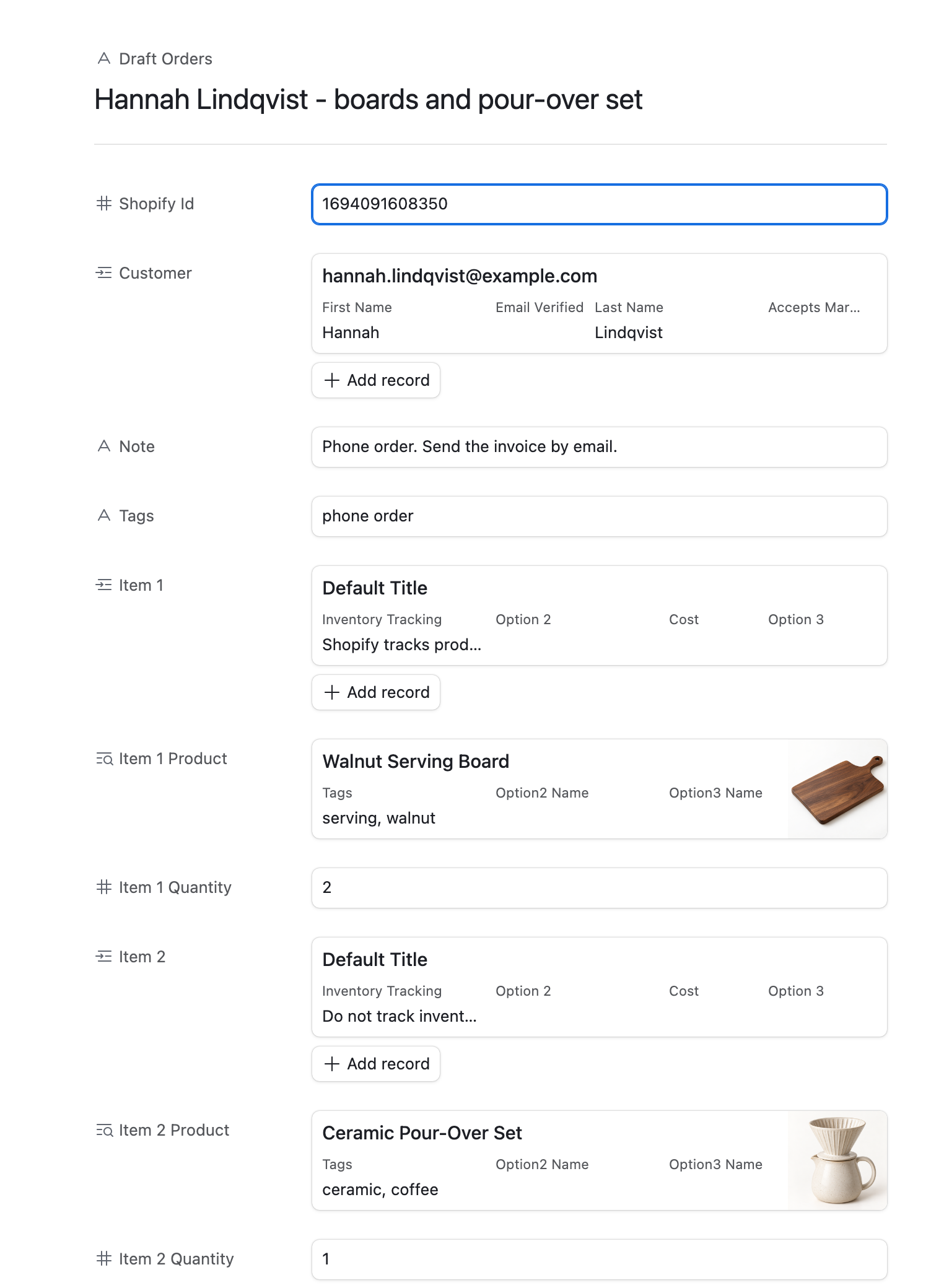
AirPower creates the draft order and writes its Shopify ID back into the row. The Item 1 Product and Item 2 Product columns in this example are lookups of each variant’s product. They’re optional, but they show which product each line is.
Customers without a linked row
If you send Customer email, AirPower uses the Shopify customer with that email. If there’s none, it creates one from the customer fields you send. A row with neither becomes a draft order without a customer.
Later runs
Each run sends the row again. A row with a Shopify ID updates its draft order, and if any item is filled in, the draft order’s line items are replaced with the row’s items. Draft orders that were already turned into orders in Shopify are left alone.
Collect orders with an Airtable form
Create a Form view of your Draft Orders table with the customer, item, and quantity fields, and share its link with your sales team or your wholesale buyers. Each submission adds a row, and the next run turns it into a draft order.
What you’ll see after the run
The draft order appears under Orders > Drafts in the Shopify admin, with its customer, line items, note, and tags. Send the invoice or create the order from there.
Related pages
Still stuck?
Email the team and tell us which store and which Airtable base you're working with.