 AirPower
Schedule Airtable to Shopify Syncs: Sync Now or Every Few Hours
Choose when Airtable edits reach Shopify: only when you click Sync now, every 1 to 24 hours, or once a day. Set priority and start syncs from other tools.
An Airtable to Shopify sync sends the rows you edit in Airtable to your store. Edits in Airtable don’t reach Shopify on their own, so the sync needs to know when to run.
Some teams prefer to review every change before it goes live. Others update prices or stock all day and want Shopify to catch up without anyone clicking a button.
The sync’s schedule covers both. Keep it on manual and send changes with Sync now, or let it send changed rows every few hours or once a day.
Open the schedule
- On the dashboard, click Edit on the Airtable to Shopify sync
- Click Settings
- Find When it syncs
Choose when it runs
Only when I click Sync now
Nothing is sent until you click Sync now on the sync’s page or the dashboard, or start the sync from another tool. This is the default for new Airtable to Shopify syncs.
Every few hours
Changed rows are sent on a schedule, every 1 to 24 hours. Pick the interval after Every.
Once a day
Changed rows are sent once a day, at a time you pick in your time zone.
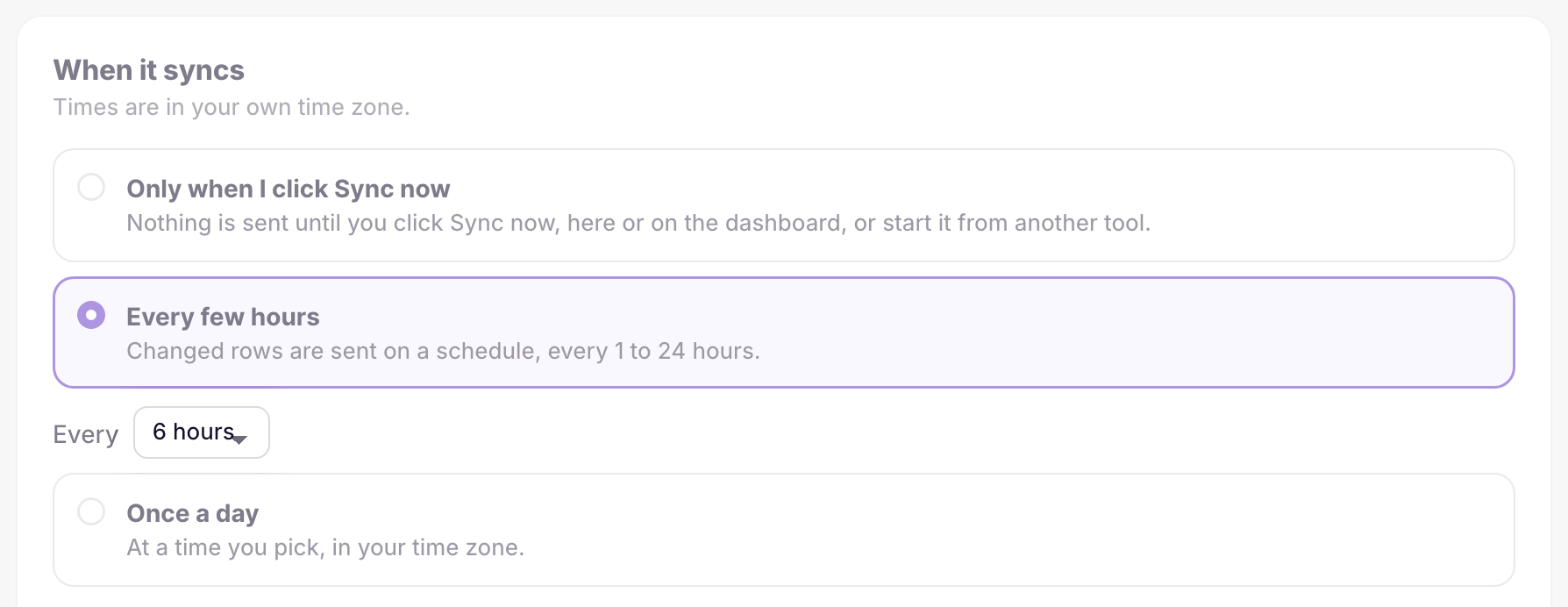
Each run checks every row and sends only the rows that changed since the last run. Sync now still works with any schedule.
After picking a schedule, click Save in Shopify’s save bar.
Set the priority
Priority when syncs overlap decides which sync goes first when several syncs use your store at once. Pick High for a sync that should run ahead of the others, or keep Normal.
Start the sync from another tool
Start it from another tool holds a trigger link for the sync. Opening the link starts the sync, the same as Sync now. Use it with a cron service, Zapier, Make, or your own script.
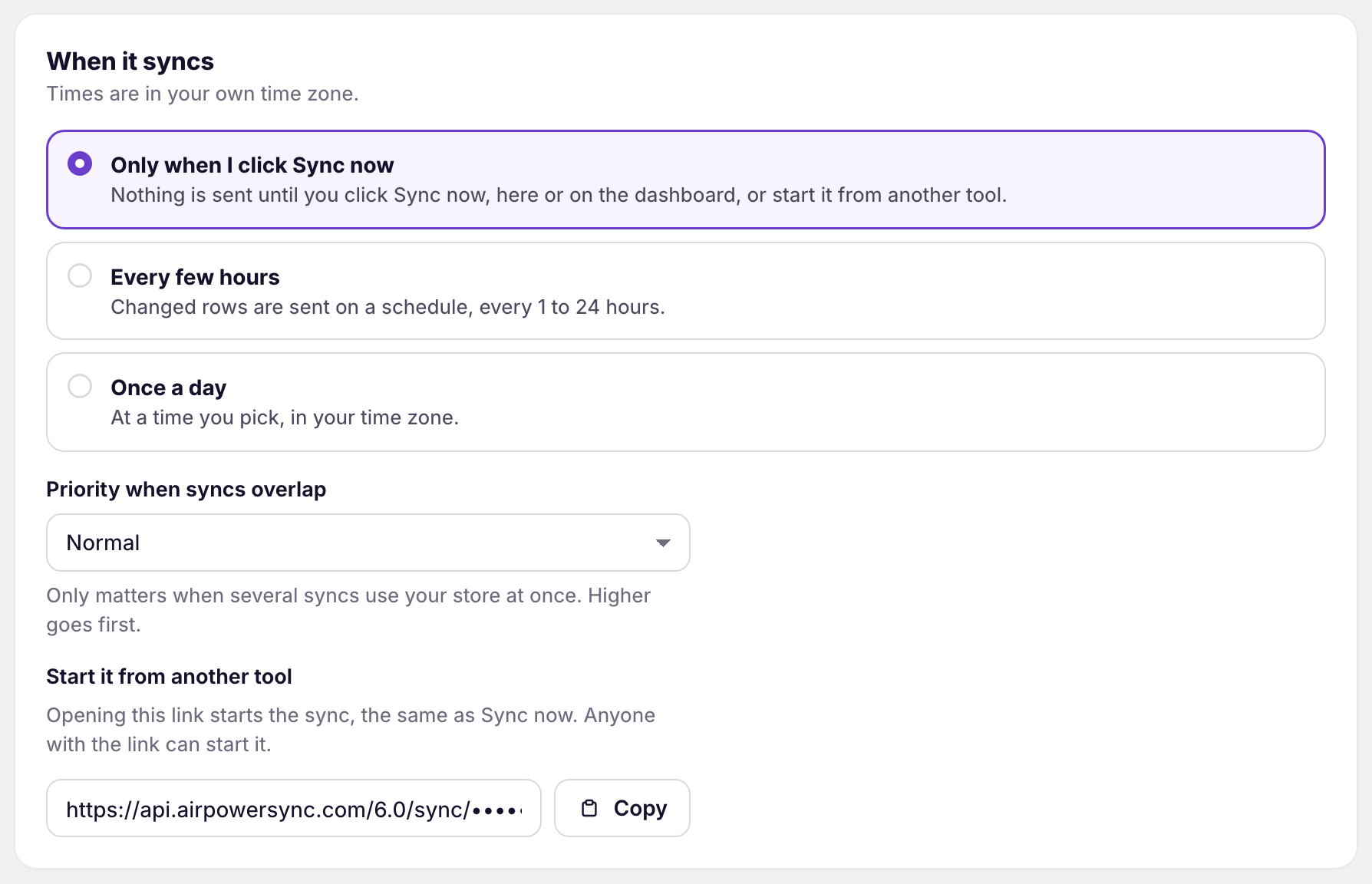
Click Copy to copy the link. You can also copy it from the dashboard sync card’s ⋯ menu with Copy trigger link. Anyone with the link can start the sync, so keep it private.
What you’ll see after saving
The dashboard sync card shows the schedule next to the base name, such as When you click Sync now or Every 6 hours. Its status reads Ready, with the time of the last run.
Related pages
Still stuck?
Email the team and tell us which store and which Airtable base you're working with.