 AirPower
Connect Related Airtable Tables with Linked-Record Columns
How a Shopify Airtable sync links related tables, such as Products and Variants or Orders and Customers, with linked-record columns, and how to pick the right column.
Shopify records belong to each other. A variant belongs to a product, a line item to an order, and an order to a customer. In Airtable, these sit in separate tables, connected by linked-record columns that point from a row to rows in another table.
Airtable doesn’t learn these connections on its own. Without them, a variant row can’t lead you to its product, and an order line item can’t lead you to its order. Keeping those links up to date by hand isn’t practical once a store has more than a handful of records.
AirPower fills these columns as it syncs, so related rows stay connected. It finds the right column on its own, and adds one when your tables don’t have it yet.
What a linked-record column does
A Variants table can have a Product column that links each variant to its row in Products. Click the link in Airtable to open the product.
Shopify to Airtable
AirPower fills the column, so each row links to its related rows.
Airtable to Shopify
AirPower reads the column to find related records, such as a variant’s product, a draft order’s customer, or the collections a product belongs to.
On a data tab, a linked field shows Links to your and the table name, such as Links to your Variants table.
Links AirPower adds on its own
When two related data types are in the same sync, AirPower looks for a linked-record column between their tables. If there isn’t one, it adds the column when you save. The New sync setup links its tables the same way.
When only one of the two data types is in the sync, there’s nothing to link.
Relationships AirPower links
Catalog
- Products and Variants, Collections, Images, and Order Line Items
- Variants and Images
Orders
- Orders and Order Line Items, Customers, Companies, and Company Locations
- Order Line Items and Draft Orders, Products, and Variants
- Order Transactions and Orders
- Draft Orders and Customers
- Fulfillments and Orders
- Fulfillment Line Items and Fulfillments, Orders, and Order Line Items
- Refunds and Refund Line Items, and Orders
- Refund Line Items and Order Line Items
- Returns and Return Line Items, and Orders
- Return Line Items and Order Line Items
Customers and B2B
- Customer Segments and Customers
- Companies and Company Locations
Inventory
- Inventory Transfers and Inventory Transfer Line Items, and Inventory Shipments
- Inventory Shipments and Inventory Shipment Line Items
- Transfer and shipment line items and Products and Variants
Content and payments
- Blogs and Blog Posts
- Payouts and Balance Transactions
- Balance Transactions and Orders, which is off until you turn it on
See the links a sync uses
- On the sync’s page, click Settings
- Find Linked tables
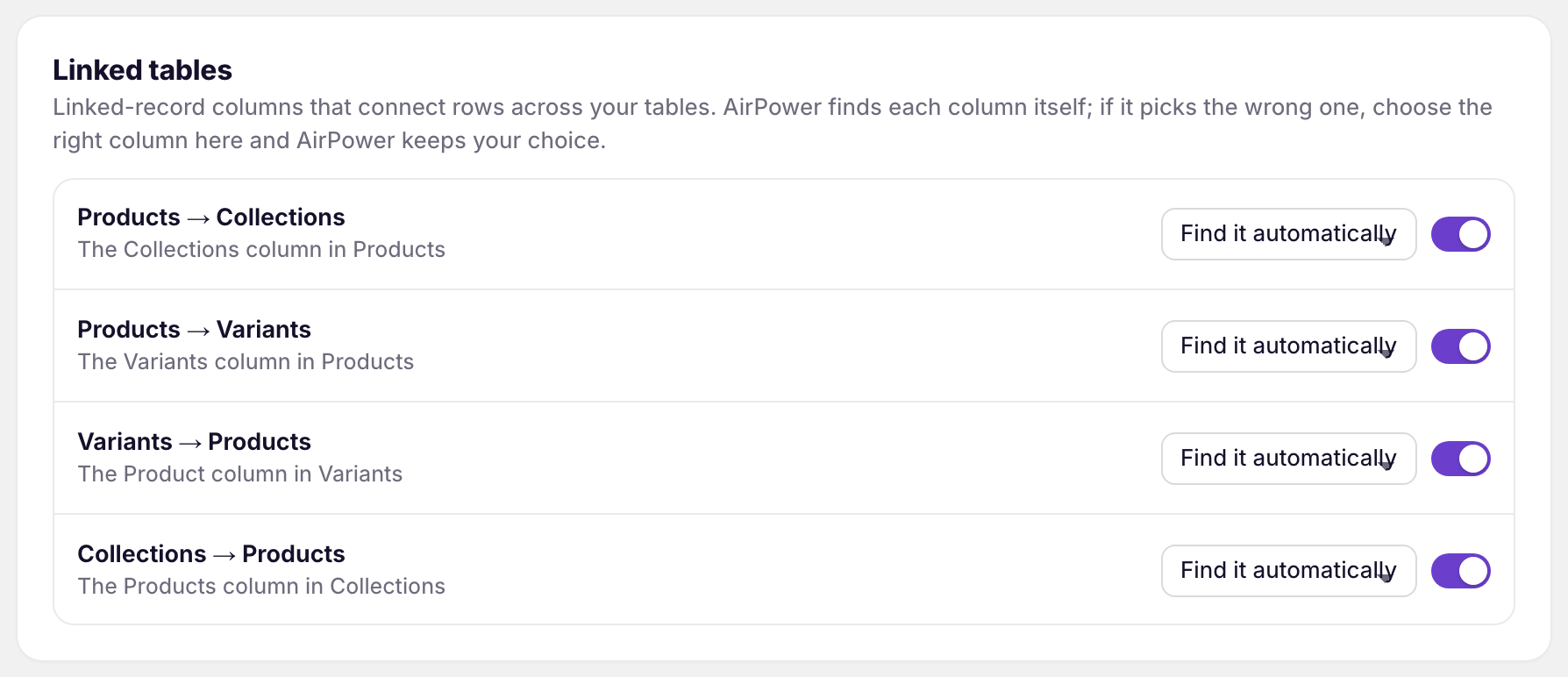
Each row names a link, such as Products → Variants, and the column it uses, such as The Variants column in Products. A link that AirPower will add on save says so.
Pick the column yourself
AirPower can pick the wrong column when a table has more than one linked-record column to the same table, such as a Products table with two links to Variants. Pick the column it should use instead.
- Find the link under Linked tables
- Pick the column from its list
- Click Save in the save bar
The link then shows Picked by you. To let AirPower find the column again, pick Find it automatically.
If you added or renamed a linked-record column in Airtable, click Refresh tables and columns under Connection first, so the list shows it.
Turn a link off
The switch next to each link turns it off. AirPower then leaves that column alone.
An Airtable to Shopify sync adds products to collections and removes them only while both Products → Collections and Collections → Products are on.
What you’ll see after saving
The next run uses the column you picked. Your pick stays, with Picked by you, until you change it back to Find it automatically.
If a link’s list says No linked-record columns yet, the column doesn’t exist. Saving adds it when both data types have a table.
Related pages
Still stuck?
Email the team and tell us which store and which Airtable base you're working with.