 AirPower
Bulk Edit Shopify Order Note Attributes with Airtable
Sync Shopify order note attributes to Airtable columns so custom checkout or app fields can be reviewed across orders in one table.
In Shopify, an order can carry extra named fields called note attributes. Your theme adds them at checkout, apps add them, or your team adds them in the admin. They hold things like a gift message, a requested delivery date, or a referral source. They’re separate from the order’s Note, which is a single free-form text note.
The Shopify admin shows note attributes one order at a time. Fulfilling gift messages or delivery requests in bulk means opening each order to read them.
AirPower puts each note attribute in its own Airtable column. When orders sync, every gift message, delivery date, or custom field is readable across the whole Orders table.
Note attributes sync from Shopify into Airtable only, so the Note attributes card is only on Shopify to Airtable syncs.
Before you start
Your Shopify to Airtable sync needs Orders. See Set Up Shopify Orders and Line Items in Airtable.
Add a note attribute
- On the dashboard, click Edit on your Shopify to Airtable sync
- Click Orders
- Click Whole order
- In Note attributes, click + Add note attribute
- Enter the note attribute’s name exactly as it appears in Shopify
- In Airtable column, pick a column, or type a new column’s name
- Click Save in the save bar
- In Save changes, keep Orders ticked and click Save changes
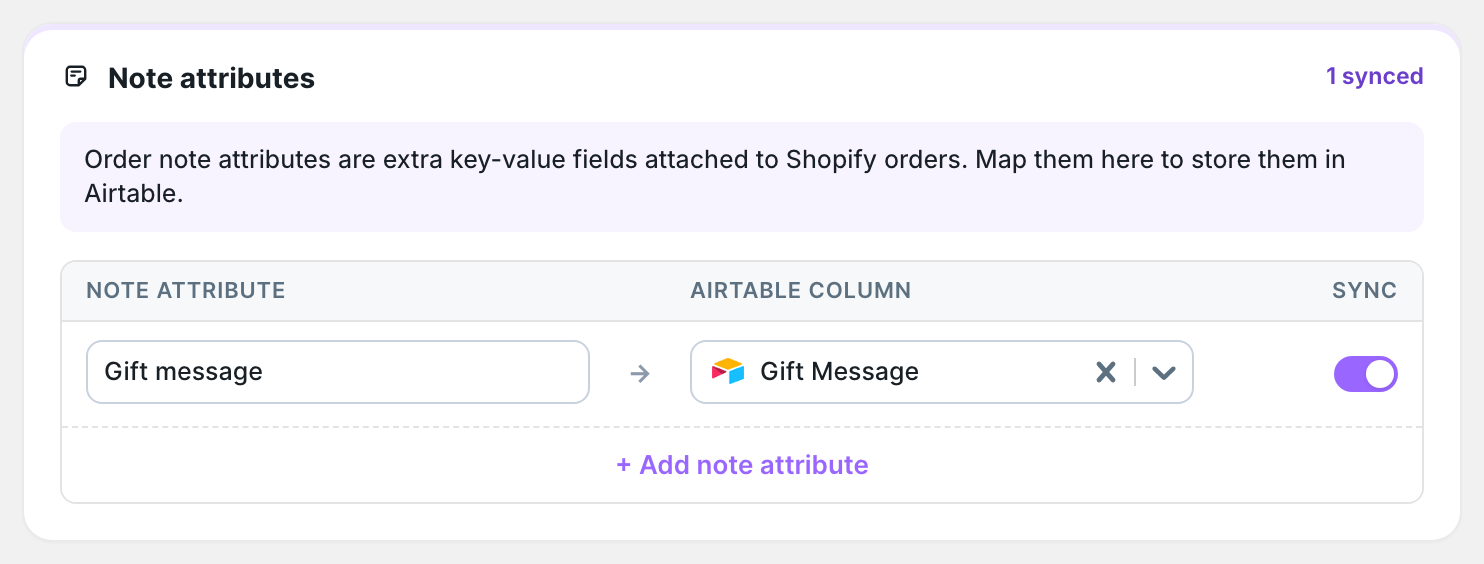
Repeat steps 4 to 6 for each note attribute. A new column is added to your Orders table when you save. Ticking Orders in step 8 fills the column for the last six months of orders.
Note attribute names
The name must match the key Shopify stores, including capital letters and spaces. Gift message and Gift Message are different note attributes. In the Shopify admin, an order’s Additional details section lists its note attributes with their names.
What you’ll see after saving
Each note attribute has its own column in the Orders table. Orders that have the attribute show its value. Orders without it leave the cell empty.
Related pages
Still stuck?
Email the team and tell us which store and which Airtable base you're working with.