 AirPower
Sync Shopify Payouts and Balance Transactions to Airtable
Bring Shopify Payments payouts and balance transactions into Airtable to reconcile bank deposits, check fees and refunds, and build finance reports.
With Shopify Payments, Shopify groups your charges, refunds, fees, and adjustments into payouts to your bank. Each payout is made up of balance transactions that show which orders, refunds, and fees went into it.
Reconciling deposits one payout at a time in the Shopify admin is slow. It’s often the step that holds up a month-end close or a hand-off to your accountant.
AirPower brings payouts and their balance transactions into Airtable, in two linked tables. Match deposits to your bank statement, check fees, and build finance reports next to the rest of your store data.
Before you start
- Your store needs Shopify Payments. Without it, there are no payouts, and the tables stay empty.
- Payouts and balance transactions come into Airtable only. Changes made in Airtable aren’t sent to Shopify.
Bring payouts into Airtable
- On the dashboard, click Edit on your Shopify to Airtable sync
- Click Add data, then Payouts
- Click Create a Payouts table, or pick one of your tables from Use a table
- Repeat steps 2 and 3 for Balance transactions, with its own table
- Click Save in the save bar
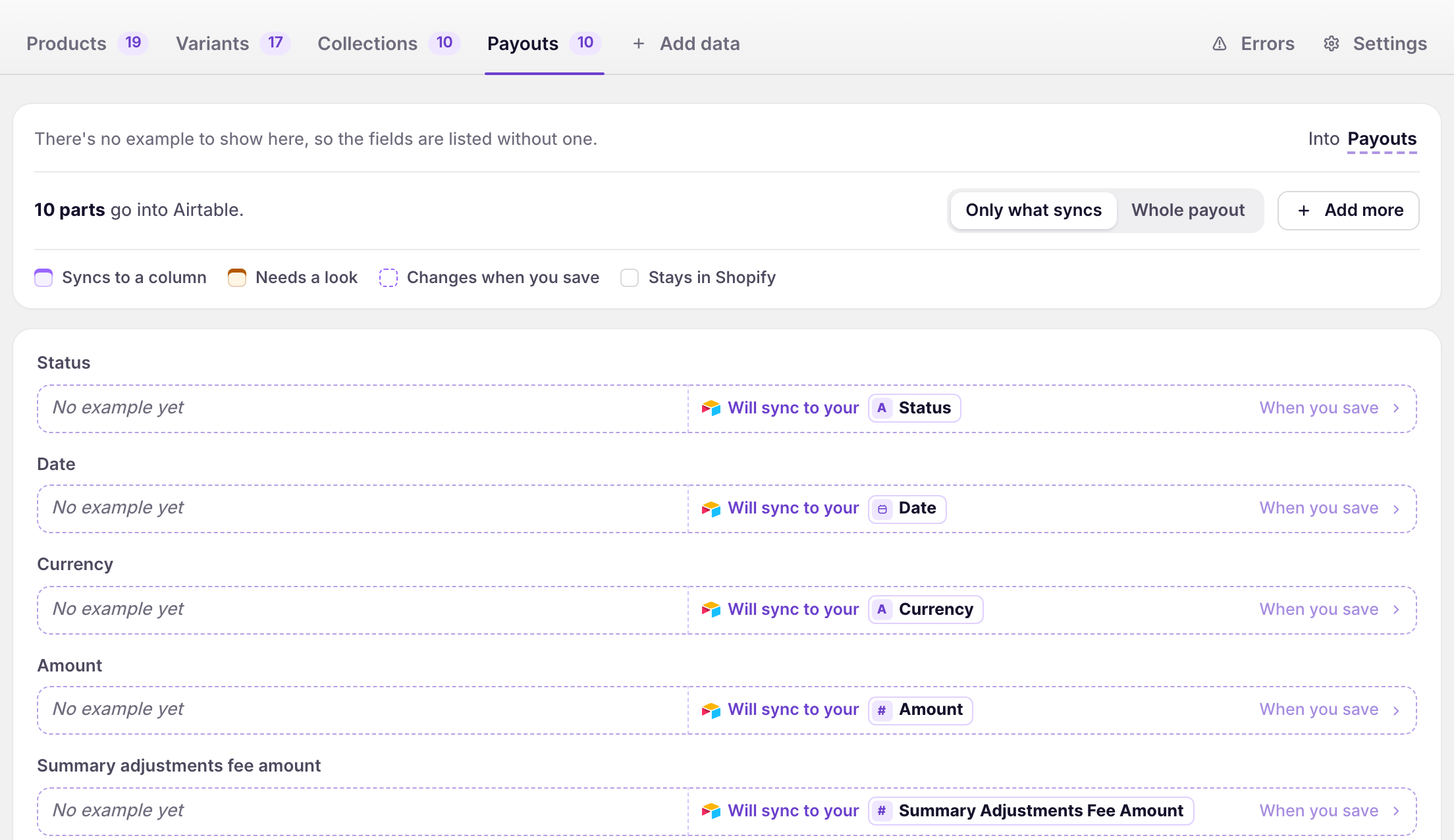
When you save, AirPower downloads your whole payout history, with each payout’s balance transactions. Balance transactions only come in with their payouts, so keep Payouts in the sync.
What comes into Airtable
Payouts
Status, date, currency, and amount, plus the fee and gross amounts of the payout’s charges, refunds, and adjustments. Reserved funds and retried payout amounts are there too: click Whole payout and click Sync to Airtable under each one.
Balance Transactions
Type, whether it’s a test, the payout’s ID and status, currency, amount, fee, net, the source’s type and ID, the order and order transaction it came from, and when it was processed.
Each balance transaction links to its payout’s row. To link it to its order’s row too, add Orders to the same sync, then switch on the link from Balance transactions to Orders in Settings, under Linked tables. A balance transaction links to its order once the order’s row is in Airtable.
Keep payouts current
Shopify doesn’t tell apps about new payouts, so they don’t arrive on their own. To download them again:
- On the sync’s page, click Settings
- Find Download data
- Click Download next to Payouts
You can also click Download now on the dashboard sync card and pick Payouts. Saving the sync downloads them again too. A Shopify to Airtable sync that runs on a schedule downloads payouts on each run.
What you’ll see after the download
The Payouts table has a row for each payout, and the Balance Transactions table a row for each transaction, linked to its payout. Each download brings in your whole payout history and updates the rows already in Airtable.
Related pages
Still stuck?
Email the team and tell us which store and which Airtable base you're working with.