 AirPower
Bulk Edit Shopify Data with Airtable
Bulk edit Shopify products, variants, collections, customers, pages, metaobjects, and more in Airtable, then send every changed row back to Shopify in one sync.
The Shopify admin edits most records one page at a time. Its bulk editor helps with some fields, but changes that follow a rule, such as a price formula, still mean working through records by hand.
Cleaning up a catalog, rewriting SEO titles, or retagging hundreds of products means repeating the same edit on each record. The work grows with every product, variant, and collection in the store.
AirPower brings that data into Airtable, where a whole catalog fits in one grid. Paste values, fill a column, or use a formula, then send every changed row back to Shopify in one sync run.
What you can edit in bulk
An Airtable to Shopify sync can send these data types:
- Products and variants
- Collections
- Product images and files
- Customers
- Draft orders and some order fields
- Pages, blogs, and blog posts
- Metaobjects
- Companies and company locations
Stock by location, market prices, and B2B catalog prices are cards on the Variants tab, not data types of their own.
Pick the fields to send
If you don’t have an Airtable to Shopify sync yet, set one up first. Then choose which fields it sends. If the data type isn’t on the sync, add it with Add data first.
- On the dashboard, click Edit on your Airtable to Shopify sync
- Click the data type’s tab, such as Products
- Click Whole product to see every field
- Click Send from Airtable on each field you want to update
- Click Save in the save bar
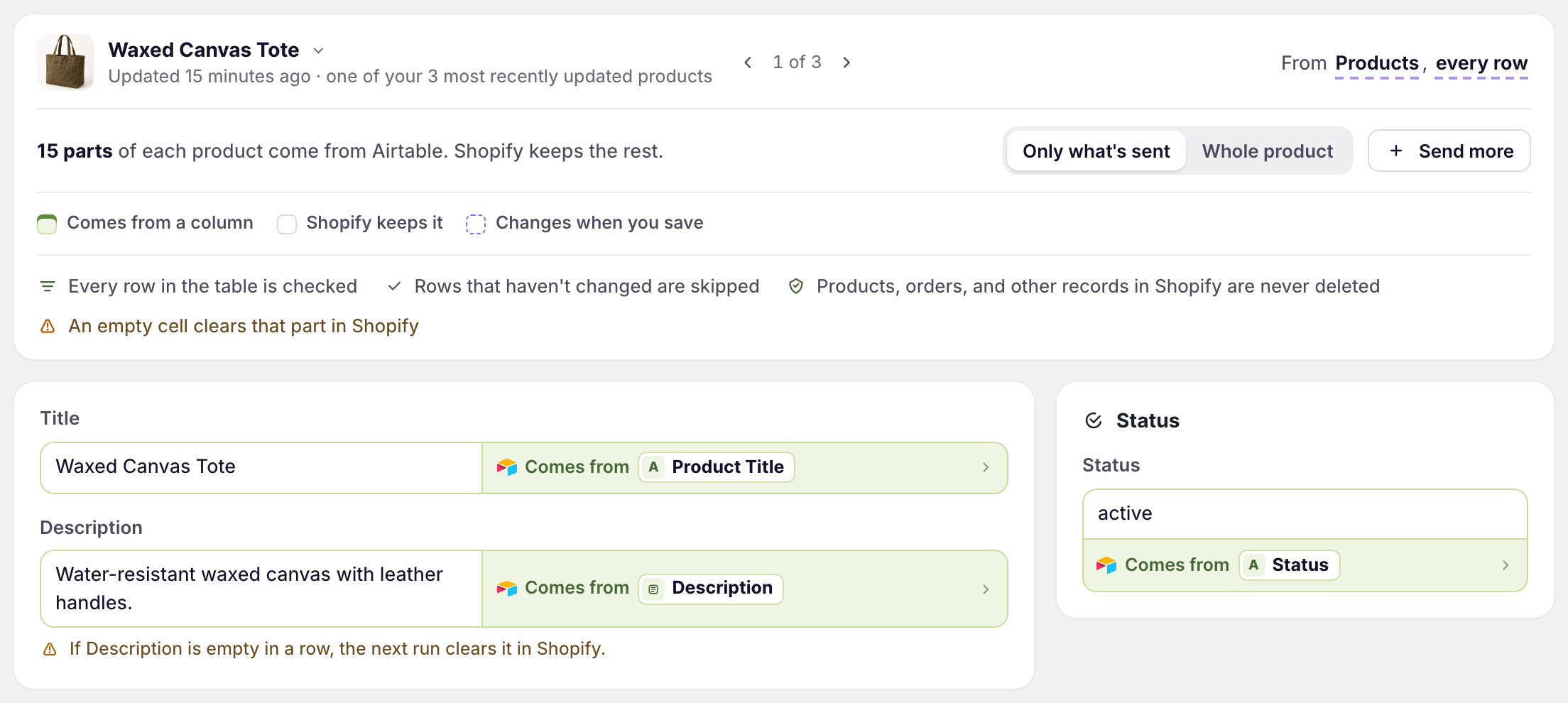
Comes from
The field is sent from that Airtable column on every run.
Send from Airtable
The field isn’t sent yet. When a column’s name matches, the field says so, such as Your SEO Title column looks like a match.
Shopify sets it
Shopify fills the field itself, such as a product’s created date, so it can’t be sent. Price, stock, and shipping show here too, but they’re sent from the Variants tab.
Make edits in Airtable
Edit the rows in your table. Type over cells, paste a column of values, or drag the fill handle down a column.
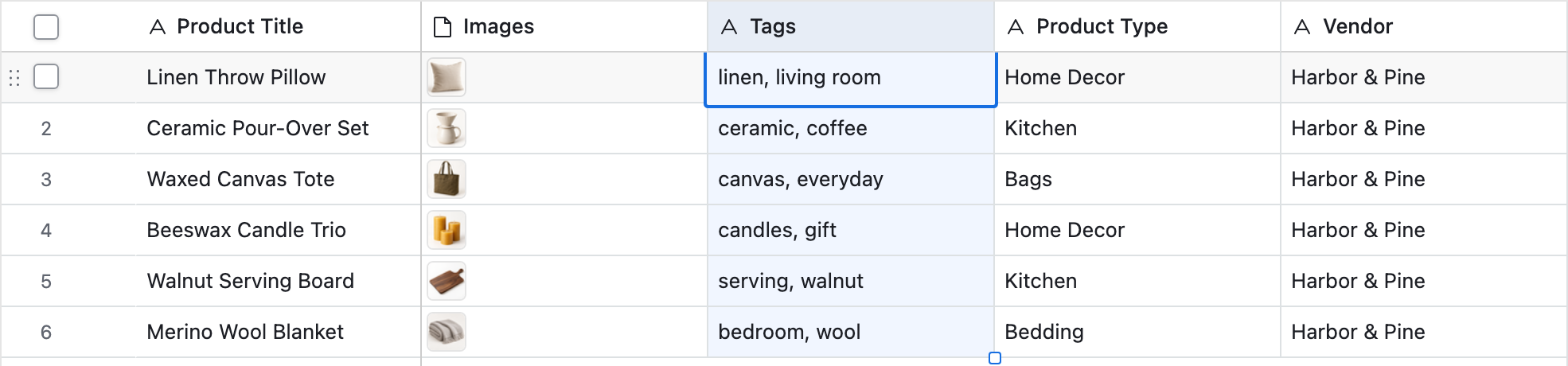
An empty cell in a column the sync sends can clear that field in Shopify. Fill in the column before the run, or stop sending it.
Send the changes to Shopify
Click Sync now on the sync’s page or its dashboard sync card. Each run checks every row, skips rows that haven’t changed, and sends the rest.
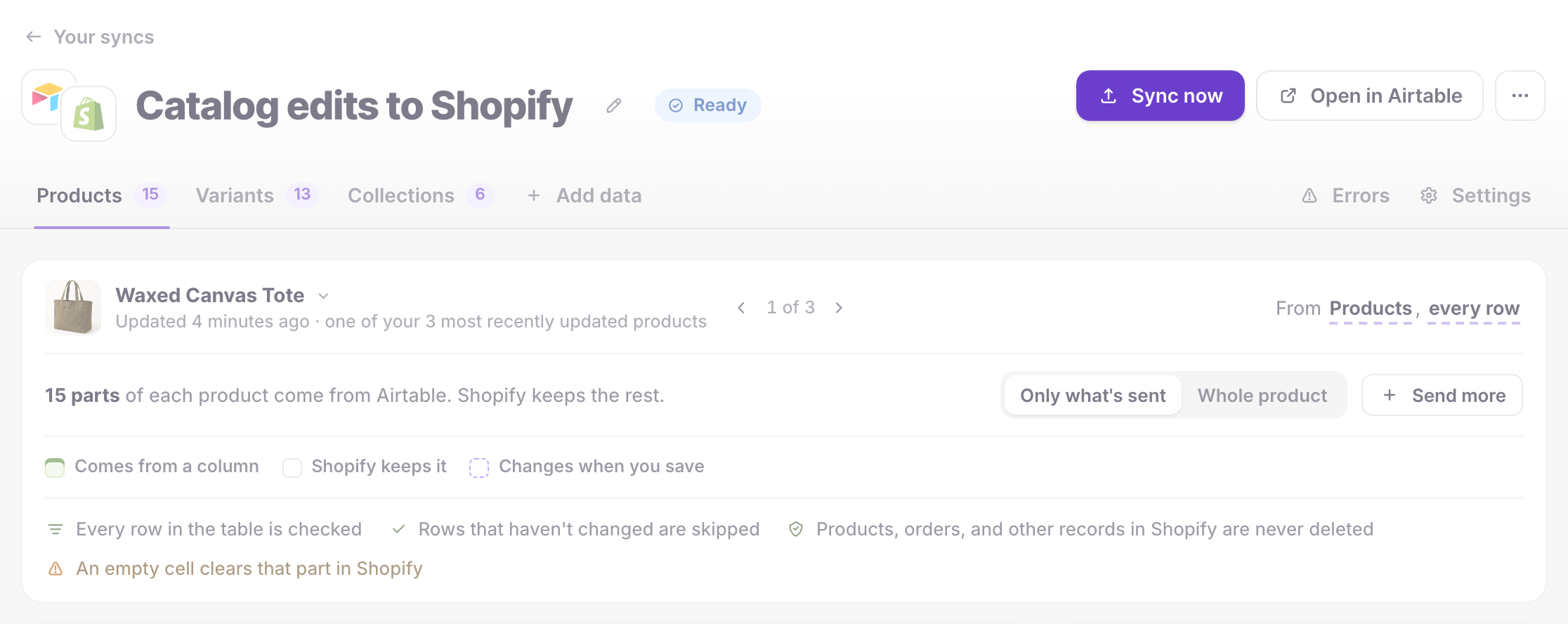
To send changes on a timer instead, see Schedule Airtable to Shopify syncs.
Update only some rows
Create an Airtable view that shows only the rows to send. Then click every row next to the table name on the tab and pick that view.
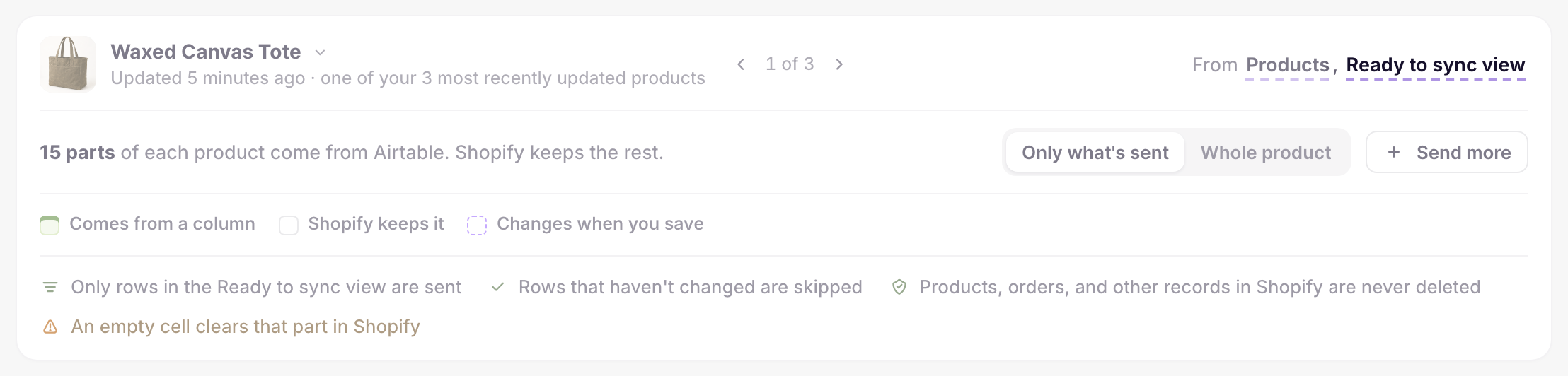
See Use Airtable views to limit sync rows.
What you’ll see after the run
The changes appear in the Shopify admin, and the sync’s status is back to Ready. Rows that Shopify rejects show as errors on the dashboard sync card and the sync’s Errors tab. See Sync errors.
Related pages
Still stuck?
Email the team and tell us which store and which Airtable base you're working with.