 AirPower
Airtable Templates for Shopify: Ready-Made Sync Bases
Start your Shopify Airtable sync from a ready-made template. Copy the Expanded, Compact, or Wholesale base, and AirPower sets up the sync to match it.
A Shopify sync works best when the base has tables for each data type, columns for the fields you use, and links between related tables. Products link to their variants, and orders link to their customers.
Building that structure by hand means creating each table, naming each column, and setting up each link before the first import.
AirPower’s Airtable templates come with that structure already in place. Copy one into Airtable, and the sync setup recognizes it and connects its tables, columns, and links for you.
Available templates
Expanded (Most popular)
Multi-variant products and inventory across locations, with stock levels on the Variants table. Includes Products, Variants, Collections, Customers, Orders, Order Line Items, Order Transactions, Refunds, Refund Line Items, Blogs, Articles, Pages, Payouts, and Balance Transactions.
Compact (One product table)
Single-variant products, with each product’s variant and stock levels on the Products table. Includes Products, Collections, Customers, Orders, Order Line Items, Order Transactions, Refunds, Refund Line Items, Blogs, Articles, Pages, Payouts, and Balance Transactions.
Wholesale order form (B2B)
Enter wholesale orders in Airtable and send them to Shopify as draft orders. Includes Wholesale Orders, Products, Variants, Customers, Orders, and Order Line Items.
The welcome screen links to each template under Start from a ready-made base.
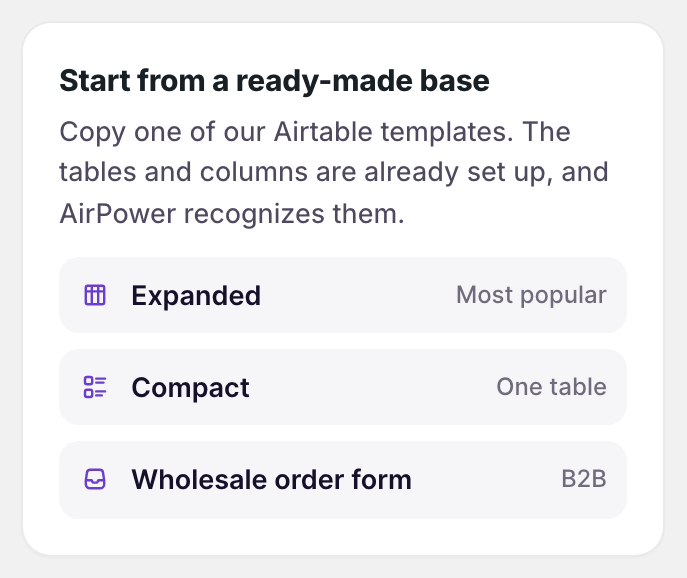
Template links:
Set up a sync from a template
Copy the template first, then pick it during setup.
- Open the template link
- Click Use template
- If Airtable asks for a workspace, pick one AirPower can reach
- Back in the app, click New sync and pick a direction
- On the Airtable base step, pick the copied base
- Click Set it up
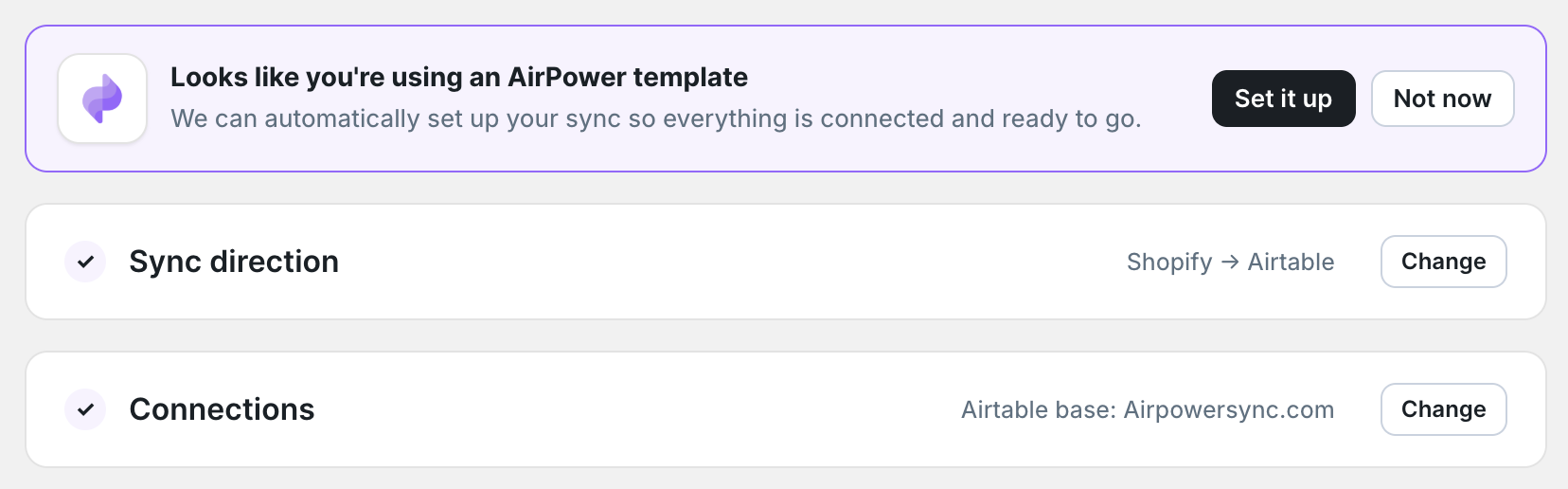
If the copied base isn’t listed, click Reload the list. When it still doesn’t appear, give AirPower access to it in Airtable. See Connect Airtable.
What you’ll see after Set it up
The prompt shows Setting the sync up from your template… with a progress bar. When it finishes, the step shows Set up from your template.
The Data step then lists the data types the template set up, using its tables and columns. You can still add or remove data types there. Continue through the steps and start the sync. See Set up your first sync.
Template detection
The setup checks every base you pick, not only copied templates. When a base’s tables and columns match a template, the prompt This base looks like an AirPower template appears. A base that AirPower creates for you with Create a new base instead matches too.
Set it up
Adds the template’s data types, tables, columns, and links to the sync.
Not now
Closes the prompt. You pick the data types yourself on the Data step.
A sync’s own page also shows the prompt above its tabs when its base matches a template.
Related pages
Still stuck?
Email the team and tell us which store and which Airtable base you're working with.