 AirPower
Filter Which Shopify Records Sync to Airtable
Sync only the Shopify records you need. Filter products, images, pages, orders, or customers by vendor, status, tag, date, or any field before they reach Airtable.
A Shopify to Airtable sync copies every record of the data types it includes. For many stores, that is more than they need: archived products, years of old orders, or customers outside one market.
Extra rows make the base slower to work in and harder to report on. They also count against Airtable’s record limits.
Filters narrow what comes through. Each condition checks a Shopify field, such as vendor, status, tag, or created date. Only the records you pick reach Airtable.
Filtering is part of AirPower Plus. It works on Products, Images, Pages, Orders, and Customers in Shopify to Airtable syncs.
Open the filters
Each filterable data type has a card under its tab’s summary, such as Which products sync.
- On the dashboard, click Edit on the Shopify to Airtable sync
- Open the tab of the data type, such as Products
- Find the card named for the data type, such as Which products sync
Next to the card’s title, the current setting shows, such as All products sync or 2 conditions. Click all products next to the table name at the top of the tab to jump to it.

Without AirPower Plus, the card shows Upgrade to AirPower Plus instead of the filters.

Add a condition
- Click Add a condition
- Pick Only sync to keep matching records, or Don’t sync to skip them
- Pick any or all before of these match
- Pick a field, a comparison, and a value
- Click Add a condition to add more conditions to the group
- Click Save in Shopify’s save bar
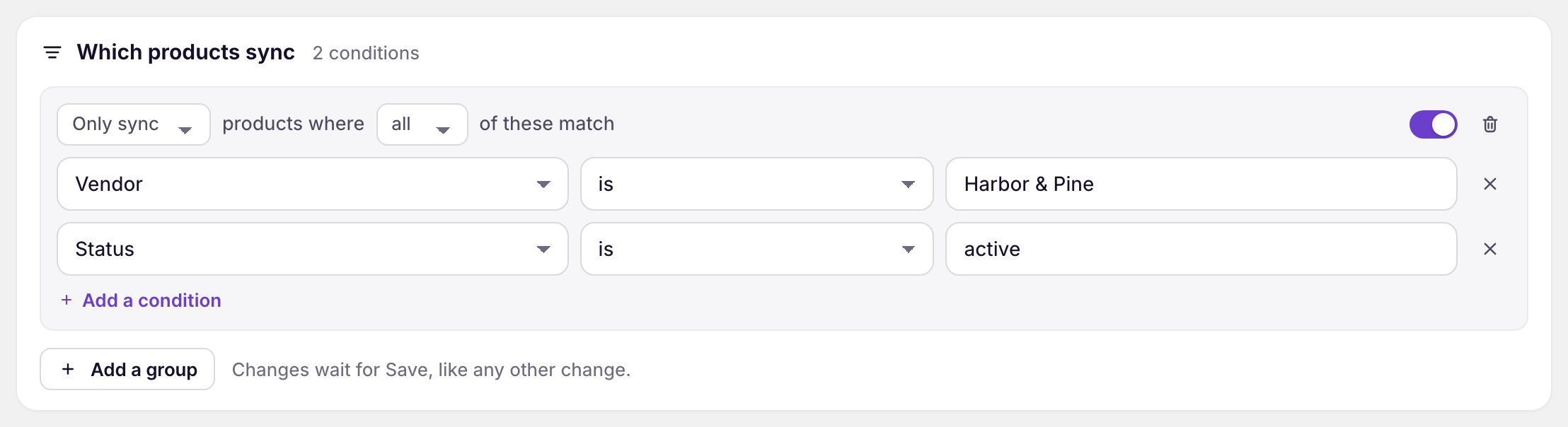
This example syncs only active products from one vendor.
Only sync
Records that match the group reach Airtable. Records that don’t match are skipped.
Don’t sync
Records that match the group are skipped. Everything else reaches Airtable.
any and all
With any, a record matches when one condition is true. With all, every condition must be true.
Comparisons
- is: the field equals the value exactly
- contains: the field includes the text
- doesn’t contain: the field doesn’t include the text
- is more than: a number or date is greater than the value
- is less than: a number or date is less than the value
Tag fields compare each tag on its own, so Tags contains sale matches a product tagged summer, sale.
Use more than one group
Most data types need one group. Click Add a group to add another.
Each group makes its own decision about a record. An Only sync group keeps a record that matches and drops one that doesn’t. A Don’t sync group drops a record that matches and keeps one that doesn’t.
Groups are checked in order, and each group’s decision replaces the one before it. The last group with conditions decides whether the record syncs. Keep a single group unless you need to chain them.
To set a group aside without deleting it, turn off its Use this group switch.
What you’ll see after saving
The card’s title counts the conditions in use. From then on, records that pass the filters reach Airtable as usual, and the others are skipped. To apply the filters to records that haven’t changed, download the data again from Settings > Download data.
Related pages
Still stuck?
Email the team and tell us which store and which Airtable base you're working with.