 AirPower
Bulk Edit Shopify Pages with Airtable
Bulk edit Shopify static pages with Airtable. Manage body content, handles, publishing fields, and SEO fields, then push updates back to Shopify.
Shopify pages hold the static content on your storefront that isn’t a blog post: About, Contact, Shipping, the refund policy, an FAQ, and so on. Each page has a title, a handle, body HTML, an author, a publish date, and an optional template.
Editing pages in the Shopify admin means opening one rich-text editor at a time. For coordinated policy updates, SEO refreshes, or copy reviews across many pages, that slows the work down.
AirPower brings pages into Airtable as rows. Edit titles, handles, and body HTML in a grid or through Airtable views, then send the changes back to Shopify.
Bring pages into Airtable
- On the dashboard, click Edit on your Shopify to Airtable sync
- Click Add data, then Pages
- Click Create a Pages table, or pick one of your tables from Use a table
- Click Save in the save bar
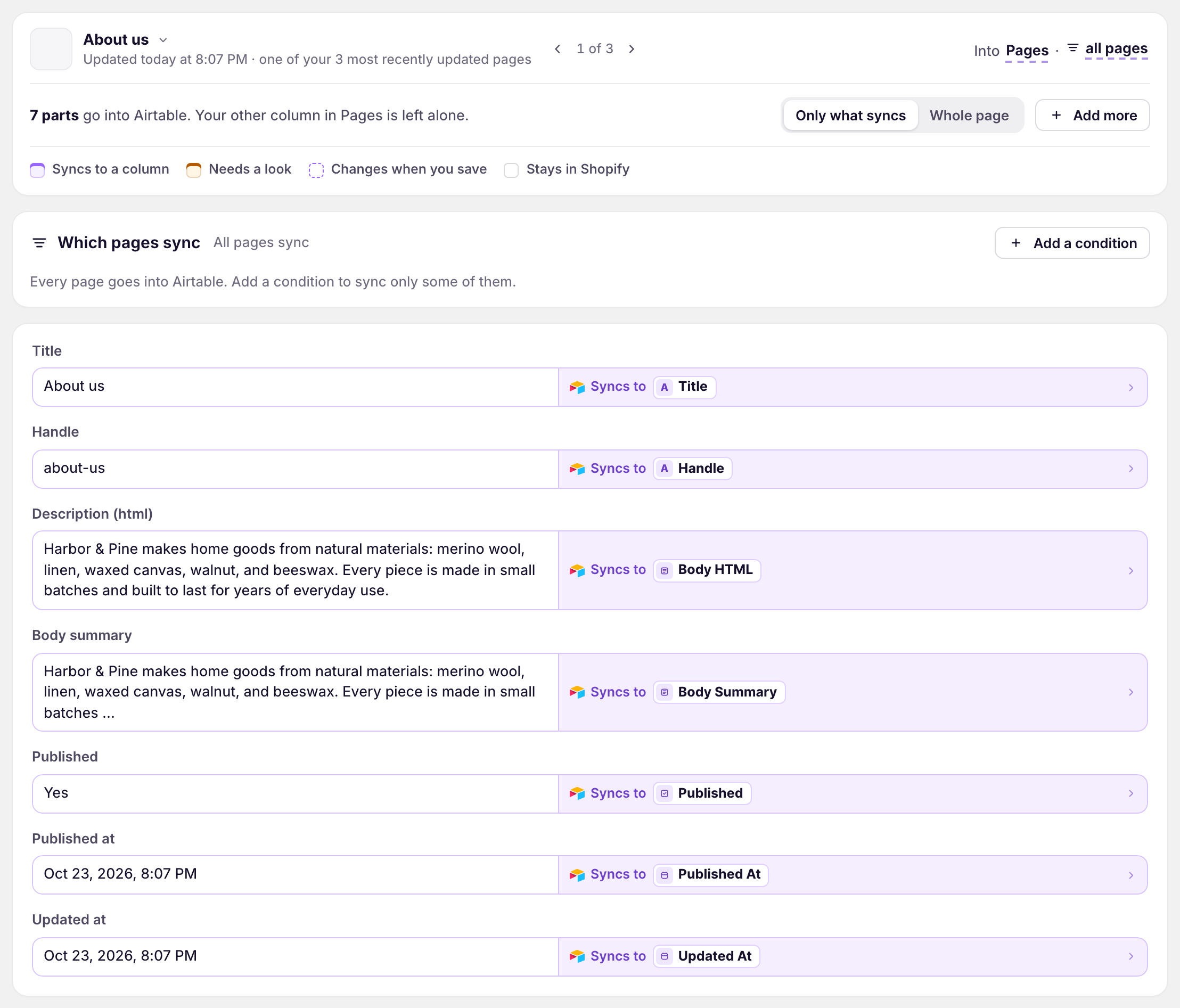
New tables come with the recommended fields. To add more, click Whole page, then click Sync to Airtable under each field you want.
Keep pages up to date
Shopify doesn’t tell apps when pages change, so pages update only when you download them. Saving the sync downloads them. To download them again later:
- On the sync’s page, click Settings
- Find Download data
- Click Download next to Pages
The dashboard sync card has the same download in its Download now menu.
What pages contain
Title, handle, author, body HTML, body summary, published, published at, template suffix, the created and updated dates, and store URL. The SEO Title Tag and SEO Description Tag metafields hold the page’s search listing.
Update or create pages from Airtable
- On the dashboard, click Edit on your Airtable to Shopify sync
- Click Add data, then Pages
- Pick your Pages table from Use a table
- Click Send from Airtable on the fields you want to send
- Click Save in the save bar
- Edit the rows in Airtable
- Click Sync now
A row with a Shopify ID updates that page. A row without one becomes a new page, as long as it has a title, and the sync writes the new Shopify ID back to the row.
Use a long text column for body HTML. An empty cell clears that part of the page in Shopify.
Translations
The Pages tab has a Translations card for each page’s translated content. See Set Up Shopify Translations in Airtable.
What you’ll see after saving
After the download, the Pages table has a row for each page, with its Shopify ID. After an Airtable to Shopify run, your edits and new pages show in the Shopify admin under Online Store, then Pages.
Related pages
Still stuck?
Email the team and tell us which store and which Airtable base you're working with.