 AirPower
Set Up Shopify Fulfillments in Airtable: Fields and Steps
How to set up Shopify fulfillments in Airtable to review shipment status, carriers, tracking numbers, and line-level shipped quantities across all orders.
In Shopify, a fulfillment records that some or all of an order has shipped. Each fulfillment has a status, a tracking company and number, the location it shipped from, and the quantity of each item that left.
The Shopify admin shows fulfillments inside each order. Reviewing shipments across orders, or checking them against a carrier’s records, means opening orders one at a time.
AirPower brings fulfillments into Airtable as two linked tables. Fulfillments hold the status and tracking details of each shipment. Fulfillment Line Items hold the shipped quantity of each item, linked to its fulfillment, order, and order line item.
Fulfillments sync from Shopify into Airtable only. They can’t be created or changed from Airtable.
For a summary of every fulfillment field, see Sync Shopify fulfillments with Airtable.
Before you start
To link fulfillments to their orders, set up Orders and Order line items in the same sync. See Set Up Shopify Orders and Line Items in Airtable.
Set up Fulfillments and Fulfillment Line Items
- On the dashboard, click Edit on a Shopify to Airtable sync, or create one
- Click Add data
- Click Fulfillments
- Click Create a Fulfillments table, or pick one of your tables from Use a table
- Repeat steps 2 to 4 for Fulfillment line items, with its own table
- Click Save in the save bar
- In Save changes, keep Fulfillments ticked and click Save changes
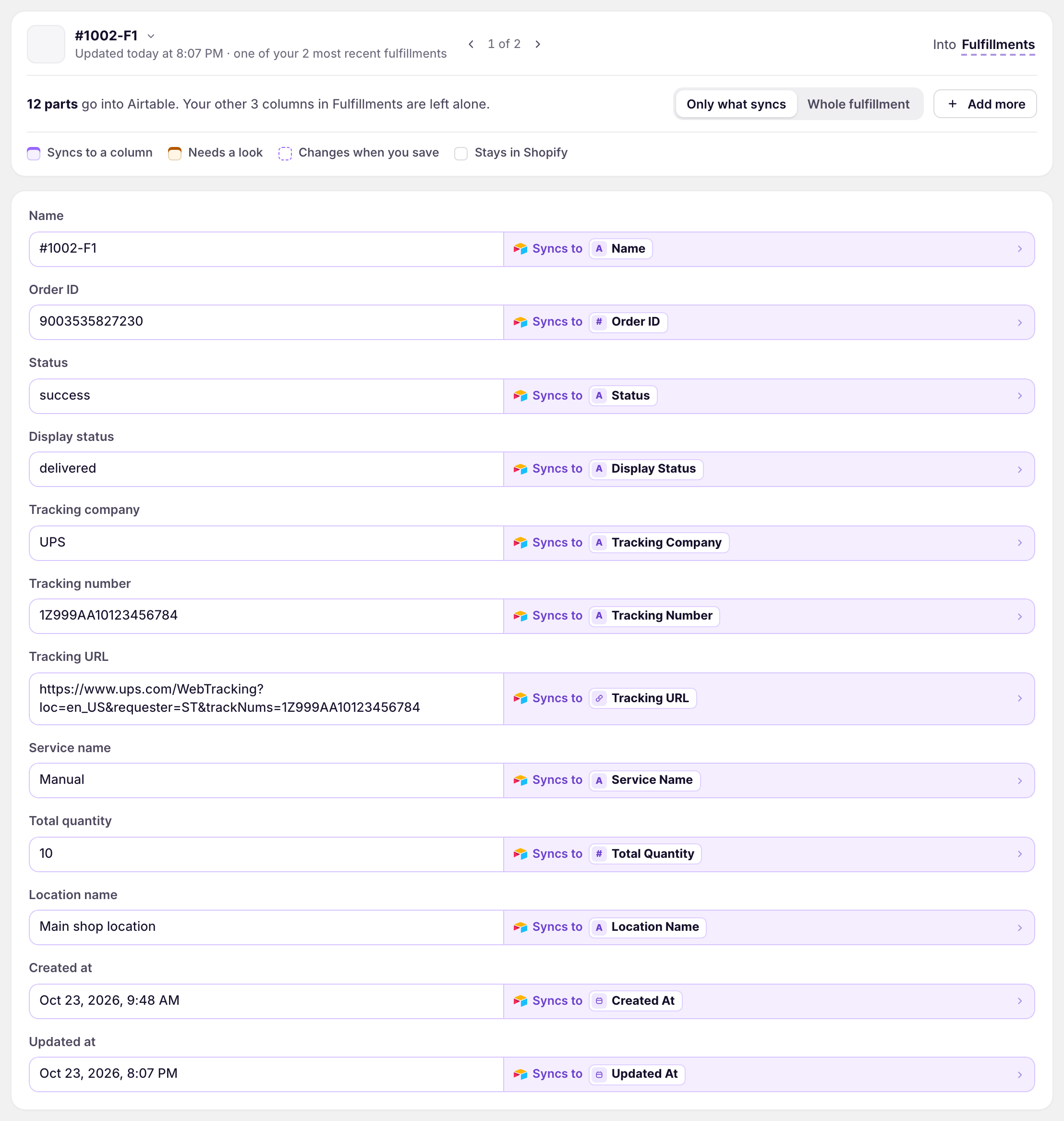
New tables come with the recommended fields. To add more, click Whole fulfillment, then click Sync to Airtable under each field you want. Ticking Fulfillments in step 7 loads the last six months of fulfillments.
What fulfillments contain
Fulfillments
Name, order ID, status, display status, shipment status, tracking company, tracking numbers and URLs, service name, total quantity, location, and the created, updated, in transit, estimated delivery, and delivered dates.
Fulfillment Line Items
Fulfillment ID, order ID, line item ID, name, title, SKU, quantity, price, variant and product IDs, delivery status, fulfillment location, shipping company, and tracking number and link.
Load older fulfillments
- On the sync’s page, click Settings
- Find Download data
- Next to Fulfillments, set the date next to Since
- Click Download
Fulfillment line items load with their fulfillments. There’s no separate download row for them.
Ongoing sync
After the first download, Shopify tells AirPower when a fulfillment is created or its status changes, and the rows update along with your other Shopify to Airtable changes.
What you’ll see after saving
The Fulfillments table has a row for each fulfillment, linked to its order. The Fulfillment Line Items table has a row for each shipped item, linked to its fulfillment, order, and order line item.
Related pages
Still stuck?
Email the team and tell us which store and which Airtable base you're working with.