 AirPower
Set Up the Shopify ID Column in Airtable
How the Shopify ID column matches Airtable rows to Shopify products, orders, and customers, what field type it needs, and how to rename it safely.
Shopify gives every product, variant, order, customer, and other record its own ID. A sync stores that ID in a column on each Airtable row, so it knows which Shopify record the row belongs to.
Without the right ID, a sync can’t find a record’s row. A Shopify to Airtable sync adds a second row for the same record, and an Airtable to Shopify sync creates a new record in Shopify instead of updating the existing one.
AirPower adds this column for you, named Shopify Id, in every table the sync uses. Most stores never need to touch it.
Where the column comes from
AirPower adds the column in three cases:
- When the New sync setup creates a table
- When you click Create a … table, such as Create a Products table, for a data type you add later
- When you save the sync page and one of its tables doesn’t have the column yet
The sync page shows the column on each data tab, in the Behind the scenes card. It’s marked Required, because every sync needs it.
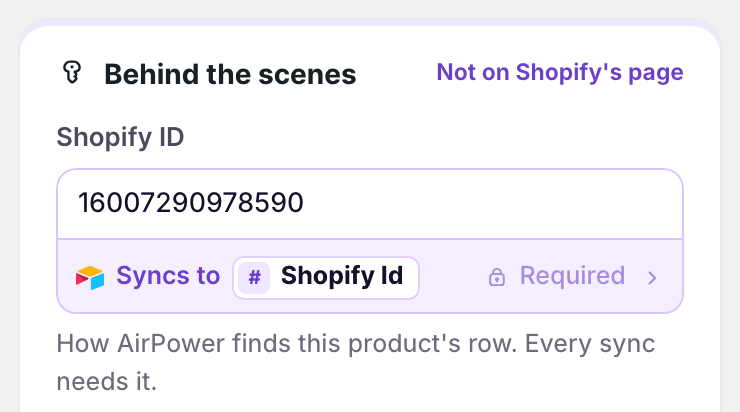
AirPower can only add the column when its connection can change your base. See Connect Airtable.
Column requirements
Every table in a sync uses the same column name.
Column name
The name in Settings > Connection > How rows are matched. New syncs use Shopify Id. When your tables already have an ID column with different capital letters, such as Shopify ID, the New sync setup uses that spelling.
Field type
Number, with 0 decimal places. Files and Discounts are the exception. Their IDs look like gid://shopify/MediaImage/123, so their column is Single line text.
Values
One Shopify ID per row. Don’t use a formula, lookup, or linked-record column for it.
Add the column yourself
You only need this when the sync can’t change your base.
- In Airtable, add a column named
Shopify Idto every table the sync uses - Set its type to Number with 0 decimal places, or Single line text for Files and Discounts
- On the sync’s page, click Settings
- Under Connection, click Refresh tables and columns
Change the column name
How rows are matched sets the column name for the whole sync.
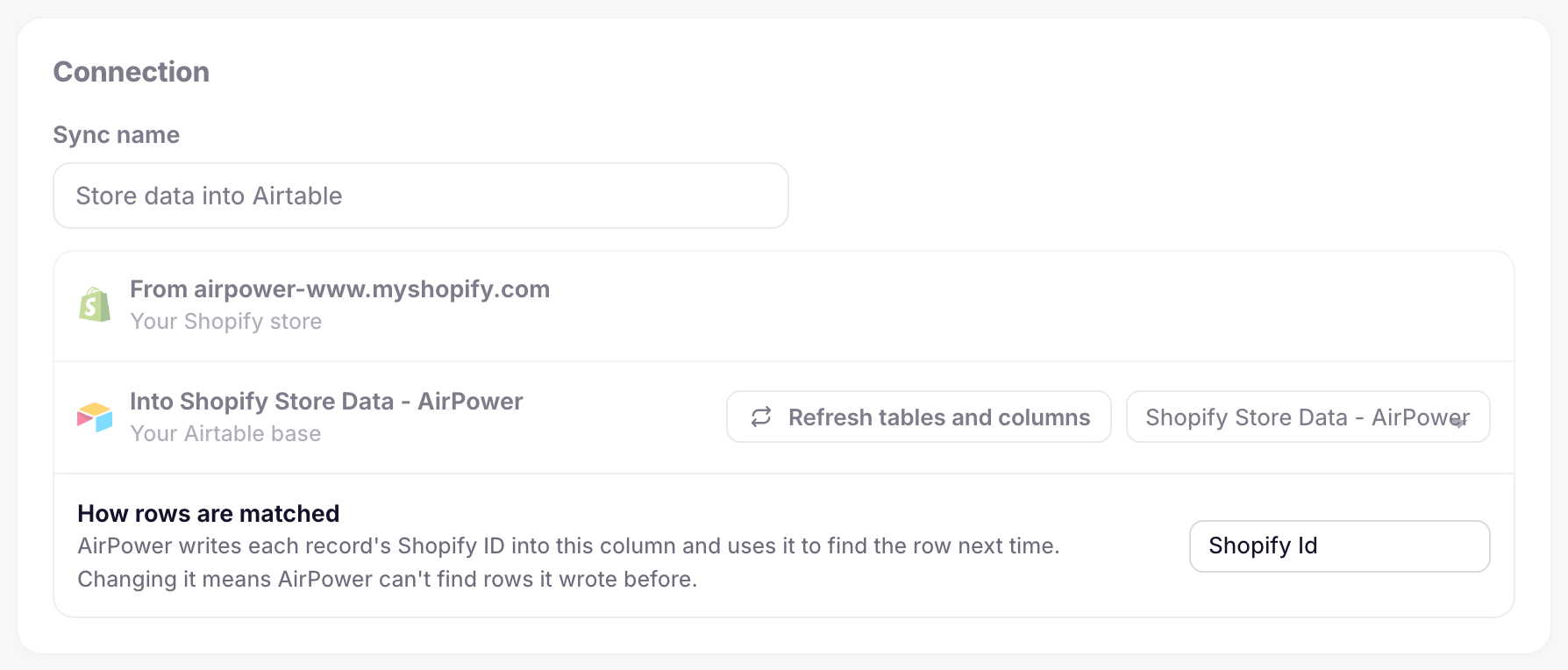
Changing it means AirPower can’t find the rows it wrote before. If no column has the new name, saving adds an empty one, and the next run adds new rows. Rename the column in Airtable first, so the IDs move with it.
- Pause every sync that uses the tables
- In Airtable, rename the column in every table
- On each sync’s page, click Settings
- Under How rows are matched, enter the new name
- Click Save in the save bar
- Resume the syncs
When several syncs share the same tables, update all of them before you resume.
The ∞ Shopify Id name
Older templates and syncs use ∞ Shopify Id. It works the same way, as long as the column and How rows are matched use the same name. To switch to Shopify Id, follow the steps above.
How the ID affects each row
Rows with a Shopify ID
The sync updates that record. In Shopify to Airtable, the row gets Shopify’s latest data.
Rows without a Shopify ID
An Airtable to Shopify sync creates a new record in Shopify, for data types that it can create, then writes the new ID into the row.
Don’t clear or edit the ID on an existing row. Without an ID, the next Airtable to Shopify run creates a duplicate record. With a wrong ID, the row fails with an error.
What you’ll see after saving
Every table in the sync has the ID column. Rows from Shopify get their IDs as they arrive, and rows created from Airtable get theirs after the run that creates them.
Related pages
Still stuck?
Email the team and tell us which store and which Airtable base you're working with.