AirPower makes it effortless to sync your Shopify product international market prices to and from Airtable. Whether you operate in one market or dozens, AirPower lets you manage all your prices in a structured Airtable base — then sync changes back to Shopify with full control.
This guide walks through how to configure AirPower to sync Variants, enable the Market Prices section, and manage price updates between Shopify and Airtable.
A sync profile defines which Shopify data is synced, where it’s stored in Airtable, and in which direction the sync is performed.
Shopify stores all pricing — including international market prices — at the variant level.
Even products with no visible variants always have one default variant.
Because of this, AirPower requires you to configure Variants before you can sync any market pricing.
Once variant syncing is enabled, the Market Prices section becomes available for configuration.
After variants are mapped, open the Market Prices section. AirPower will automatically show all international markets your Shopify store has enabled.
For each market, you can map fields such as:
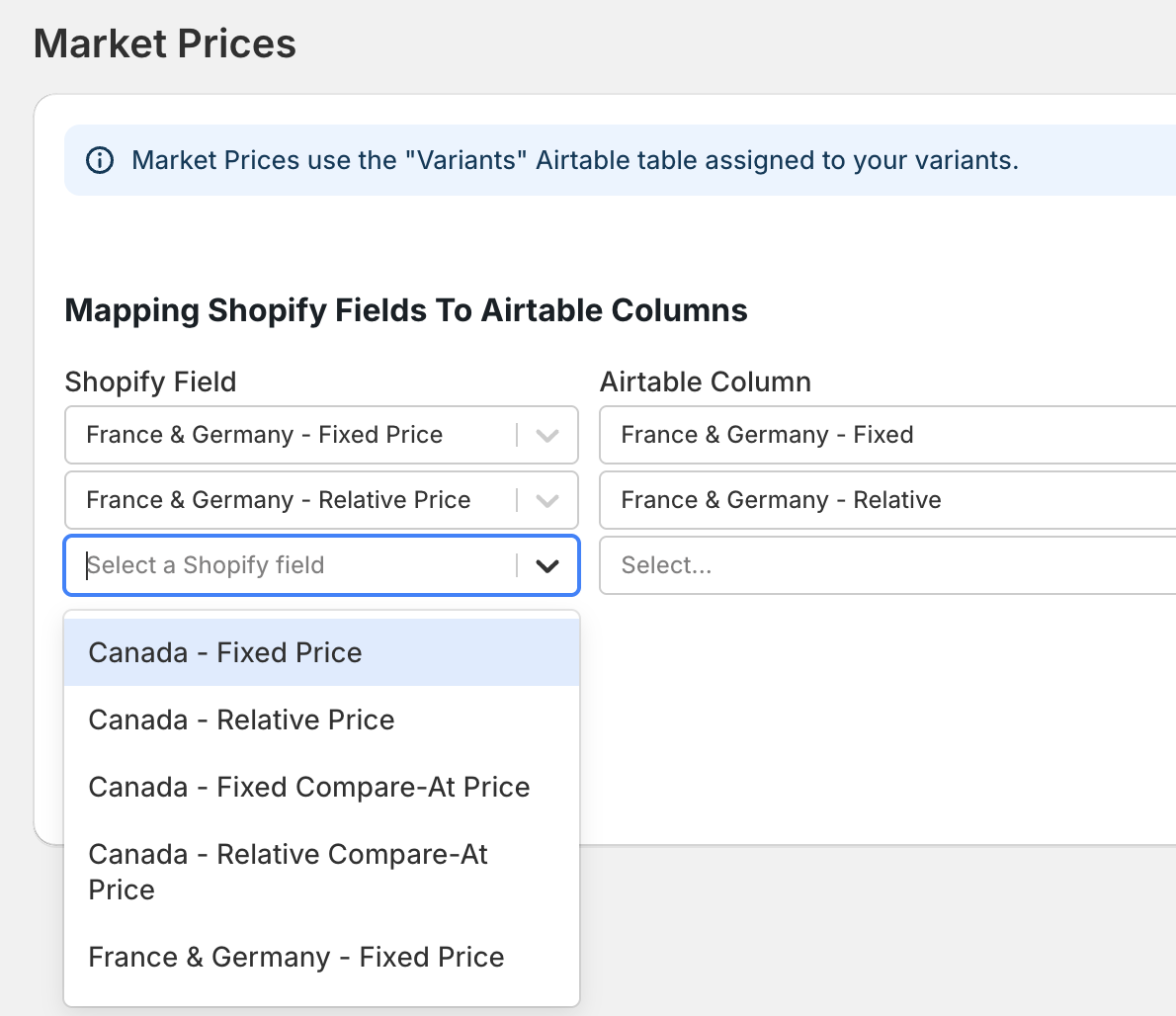
Map the price fields you want to columns in your table. If the column you’ve entered into the Airtable column picker doesn’t exist, AirPower will offer to create it for you.
Shopify does not notify AirPower when international market prices for your variants change. Because of this, updates to market prices are not automatically synced from Shopify to Airtable—unlike other data types such as products, variants, or inventory levels.
To refresh market prices in Airtable, go to your dashboard sync card. Click Trigger manual sync task, then select Sync Market and B2B Prices.
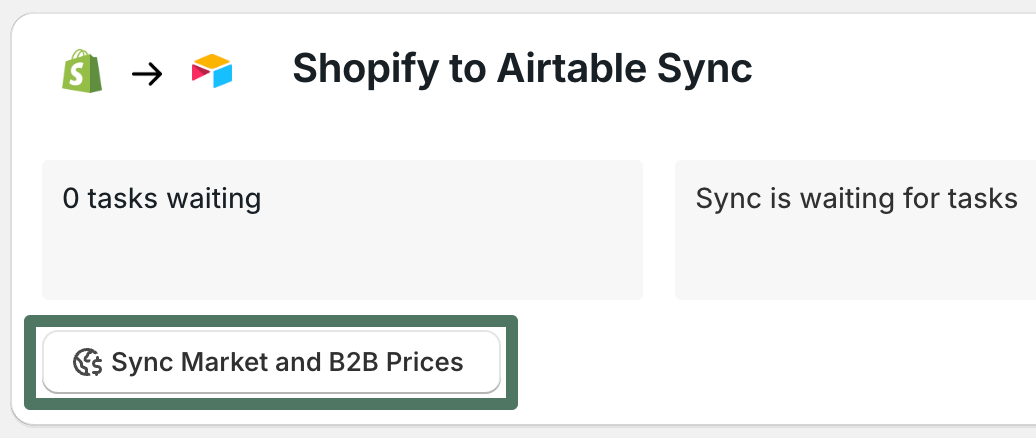
When you trigger this manual sync, AirPower will update any mapped columns for fixed prices and relative prices, and the latest Shopify market pricing information will appear in your Airtable base.
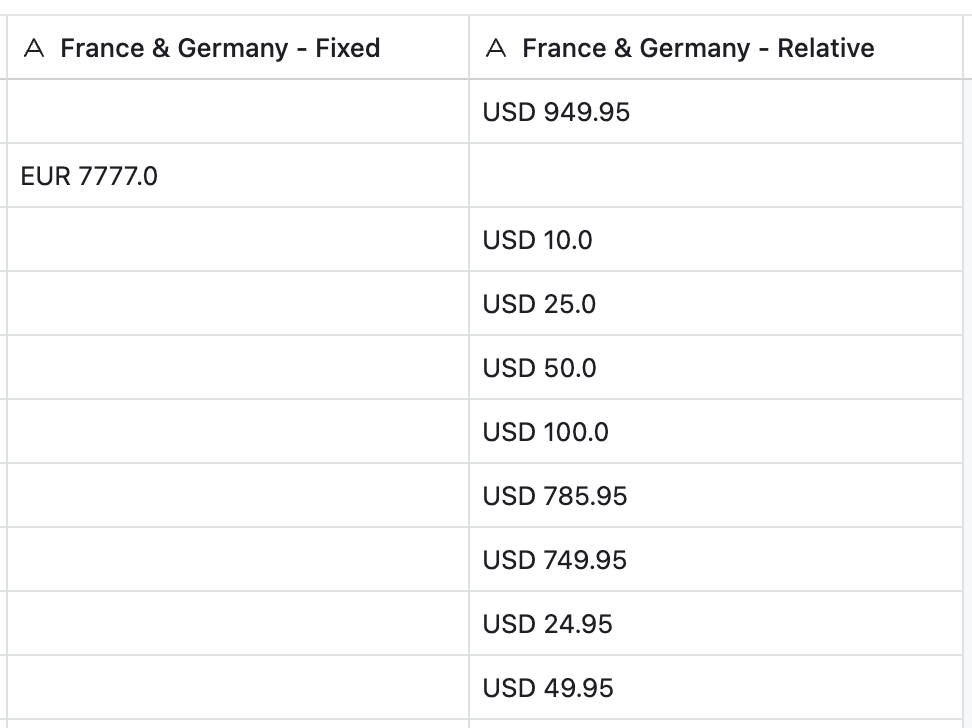
Once pricing is in Airtable, you can use all of Airtable’s tools to make fast, clean updates:
No updates are sent to Shopify automatically — you control when pricing changes go live.
The market price fields you can edit in Airtable and sync back to Shopify allow you to set or remove a fixed price and set or remove a fixed compare-at price for a variant.
To apply a fixed price or fixed compare-at price, enter the desired value into the corresponding column. When you run an Airtable → Shopify sync, AirPower will update Shopify with the fixed value.
If a variant already has a fixed price or fixed compare-at price and you want it to return to a relative price, simply clear the cell in Airtable and run an Airtable → Shopify sync. AirPower will remove the fixed value, and the variant will revert to a relative price.
Note that relative prices cannot be synced from Airtable to Shopify. These values are automatically generated by Shopify based on the variant’s main price and the exchange rate for the relevant market.