How to Create an Airtable Personal Access Token

AirPower supports two ways to connect to your Airtable account: through Airtable Connect or via a Personal Access Token (PAT). A PAT is the recommended method.

Airtable Connect is faster to set up, but it has a reliability drawback. During Airtable outages, Connect grants can be reset, which forces re-authentication before syncs can resume. Personal Access Tokens are not affected by this. They stay active independently and keep your Shopify-Airtable syncs running without interruption.
Step 1 — Open the Builder Hub

  1. Log in to airtable.com.
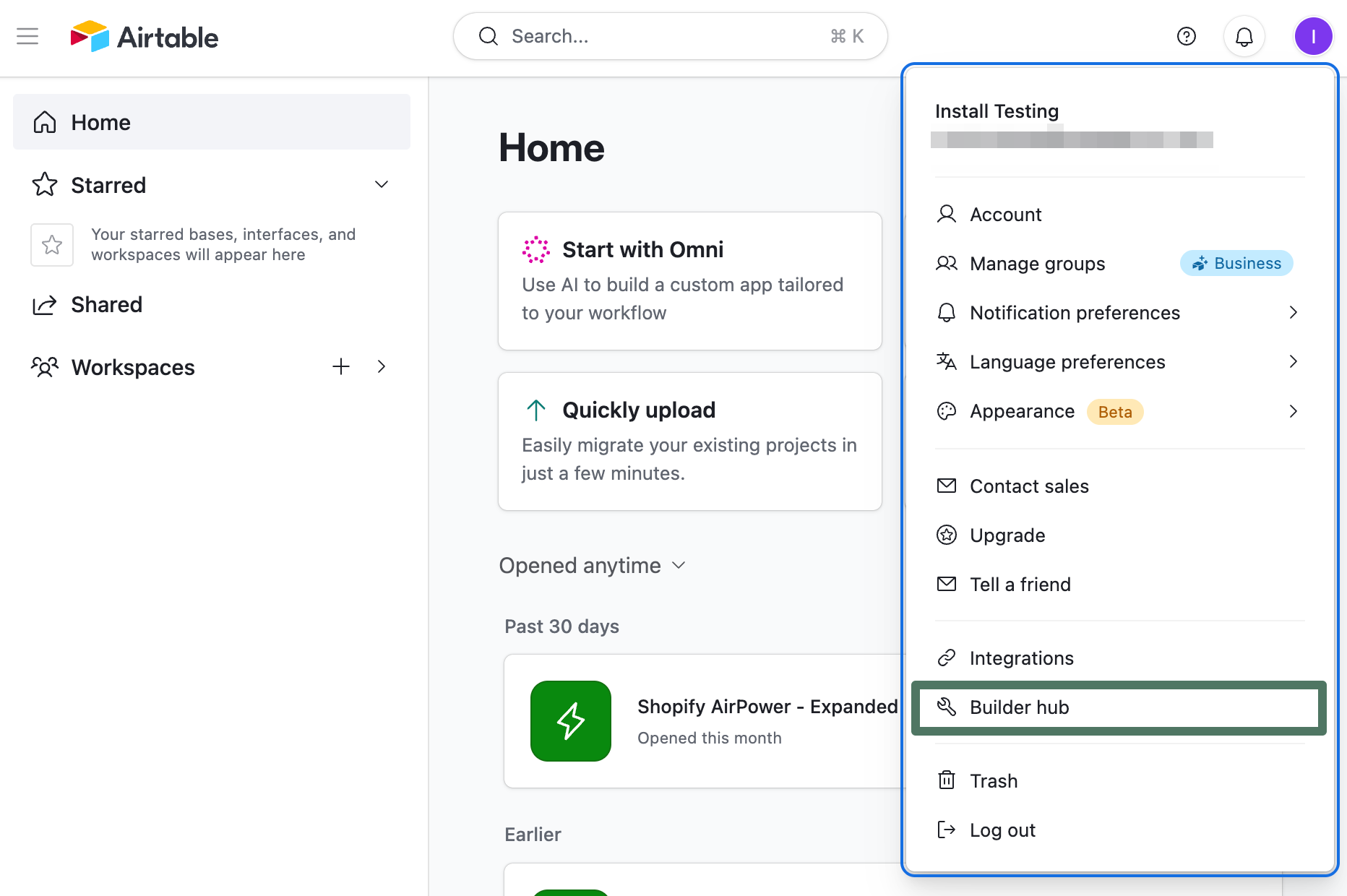
  2. Click your account avatar in the top-right corner.
  3. Select Builder hub from the dropdown.

Airtable account dropdown menu with Builder hub option highlighted

Step 2 — Go to Personal access tokens

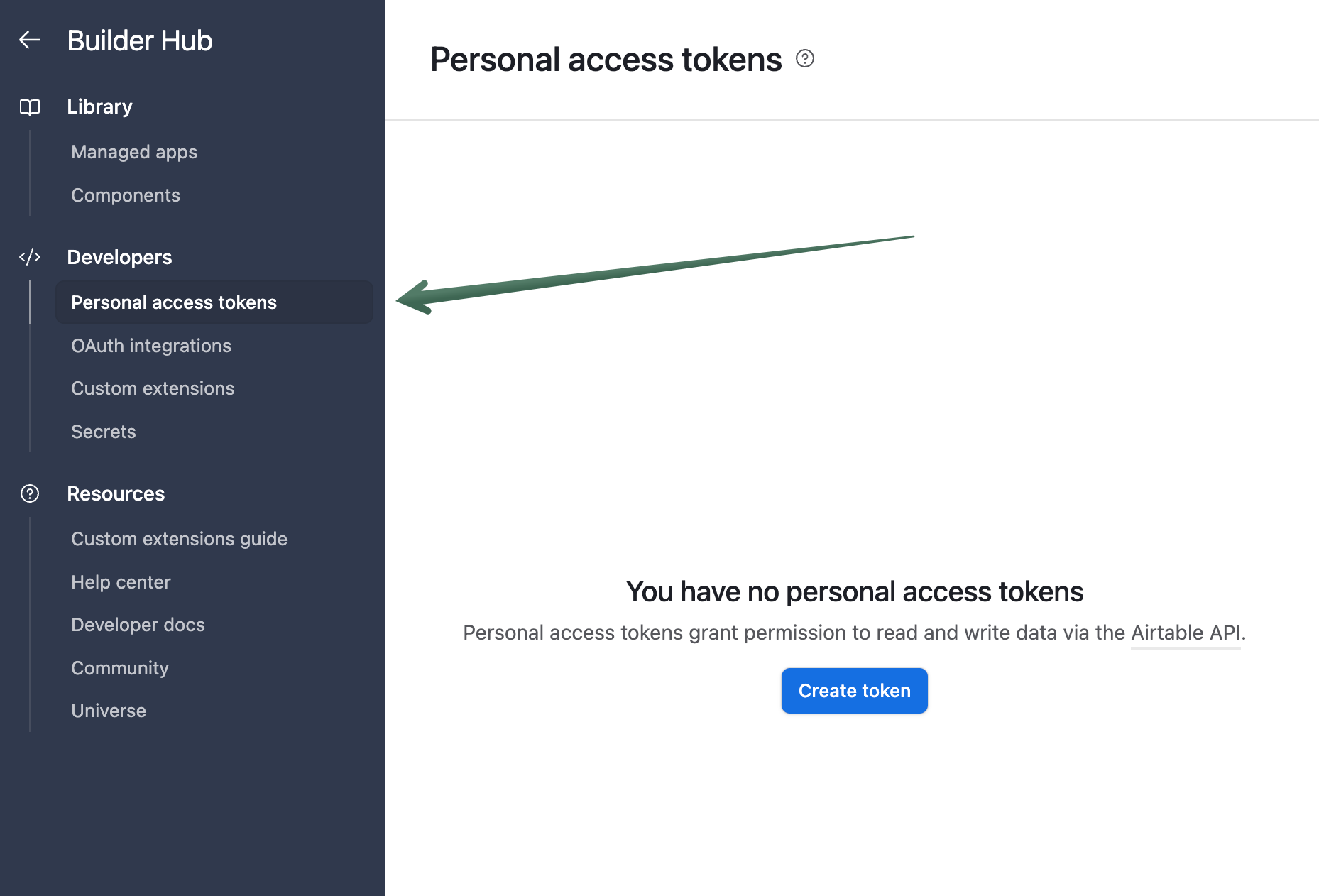
  1. In the left sidebar, under Developers, click Personal access tokens.
  2. Click Create token.

Builder Hub sidebar with Personal access tokens section selected

Step 3 — Configure the token

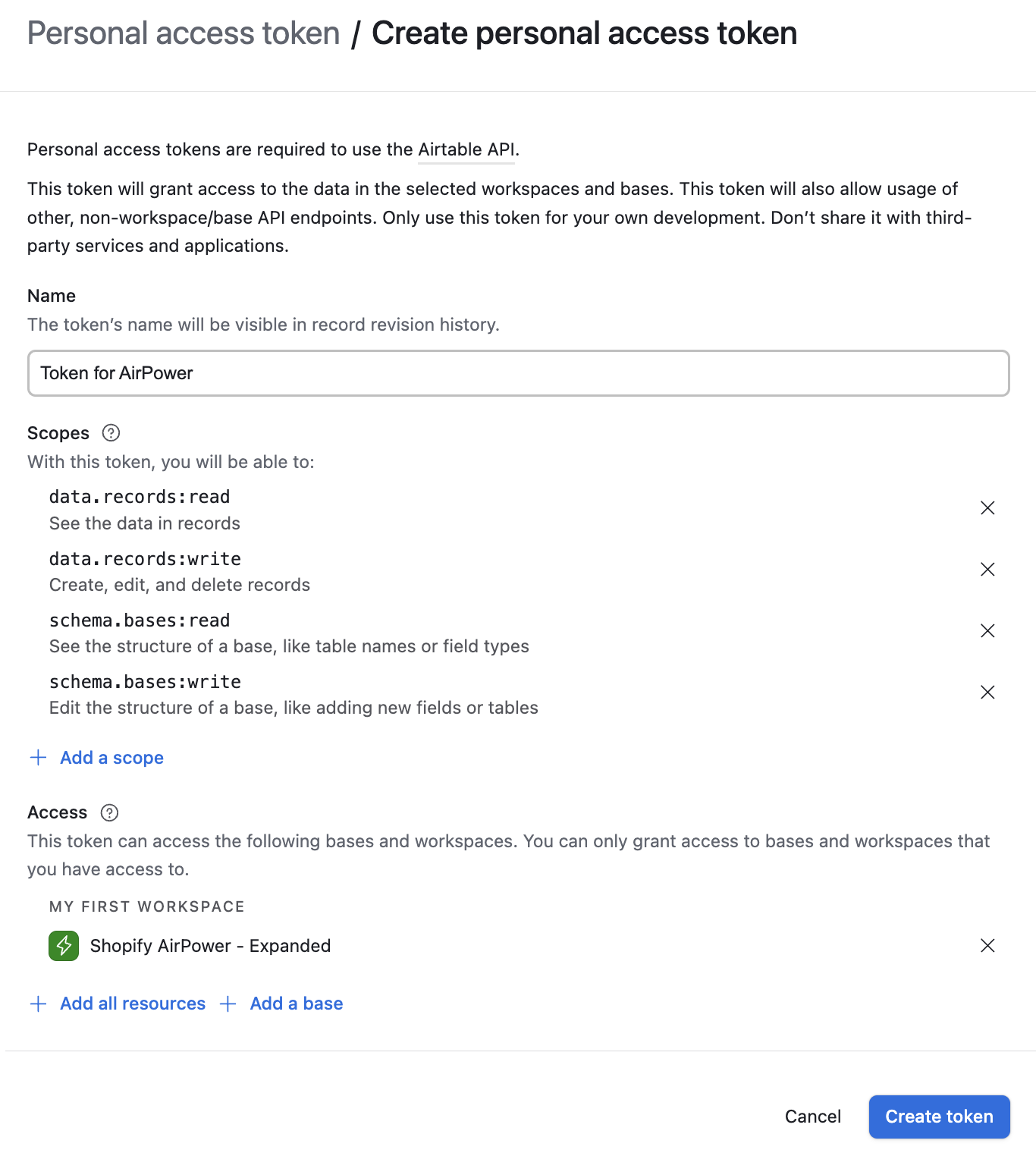
  1. Enter a name for the token, such as Token for AirPower.
  2. Click + Add a scope and add each of the following:
    • data.records:read
    • data.records:write
    • schema.bases:read
    • schema.bases:write
  3. Under Access, click + Add a base and select the base to connect.

Token configuration screen showing name, scopes, and base access settings

Step 4 — Save and copy the token

  1. Click Create token.
  2. Copy the token from the dialog that appears.
  3. Click Done.

The token is shown only once. Store it somewhere safe before closing the dialog.
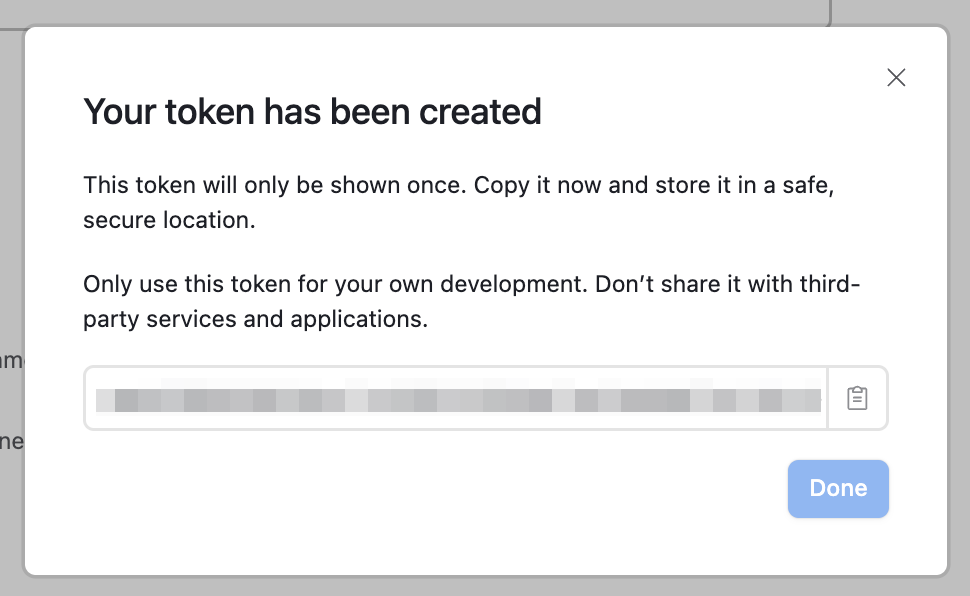
Token created dialog showing the token value and Done button

Step 5 — Add the token to AirPower

  1. Open AirPower and go to Settings.
  2. Paste the token into the Personal Access Token field.
  3. Click Save.

What you’ll see after saving

The settings page confirms the connection. AirPower will use this token for all sync operations on the selected bases.

If the token is lost or needs to be reset, generate a new one in the Airtable Builder Hub and update it in Settings.