Airtable’s spreadsheet interface makes it the easiest way to view and manage Shopify metafields in bulk. AirPower is the fastest way to sync those metafields to and from Airtable. Below is the full flow, using product metafields as an example (the same steps apply to variants, orders, customers, etc.).
- Create a Shopify → Airtable sync profile. Name it, choose your base, and pick Shopify → Airtable.
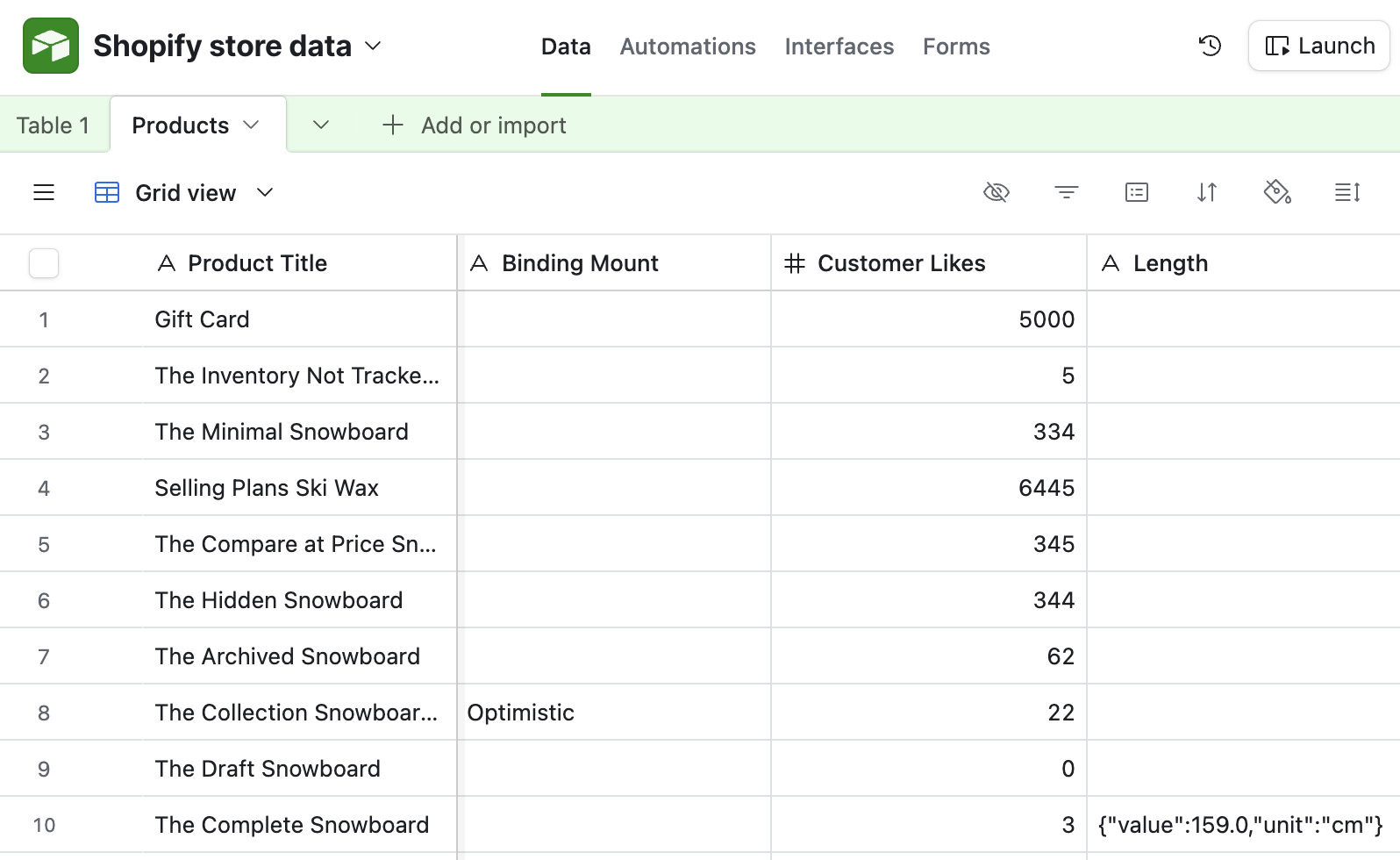
- Set up Products: point to an existing products table or let AirPower create the default template table (it auto-adds common Shopify fields).
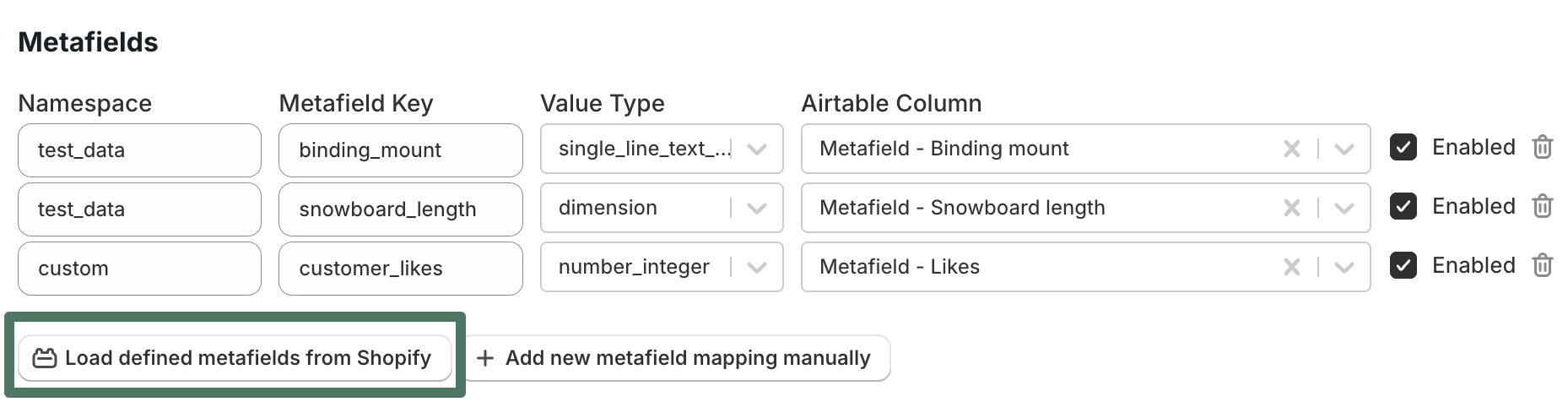
- Scroll to Metafields. AirPower preloads any metafield definitions from Shopify; you can also add rows manually by namespace/key.
- For each metafield you want to sync, click Enable and choose the Airtable column. Type a new column name to create it; AirPower can add the column for you if it does not exist. Repeat for all metafields you need.
- Save the sync, then click Advanced. In Load Existing Shopify Data, click Load existing Product data to backfill your existing product data and metafield values into Airtable.
- Create an Airtable → Shopify sync profile. Name it, select your base, and choose Airtable → Shopify.
- In Products, select the same products table. You can skip mapping standard product fields if you only want to push metafields.
- In Metafields, enable only the metafield(s) you want to write back (e.g., a “customer_likes” count). Point each to the Airtable column holding your edits.
- Save and run the Airtable → Shopify sync from the dashboard. AirPower updates the mapped metafield values in Shopify for every row included in the sync.
Pro Tip — If you’ve created metafield definitions in your Shopify admin, click Load defined metafields from Shopify to auto-generate rows for all of them before enabling the ones you need.
In the standard set up the columns that are mapped to your metafields are basic text or number columns. This is perfect for almost all set ups, but in the event that you want to link your metafield data to another table then AirPower has you covered. When setting up your metafield row, if you select an Airtable column that is a linked column, you will be presented with a “Column links to another sheet” option. Toggle the option to “enabled” and tell AirPower what sheet the metafield values need to come from.